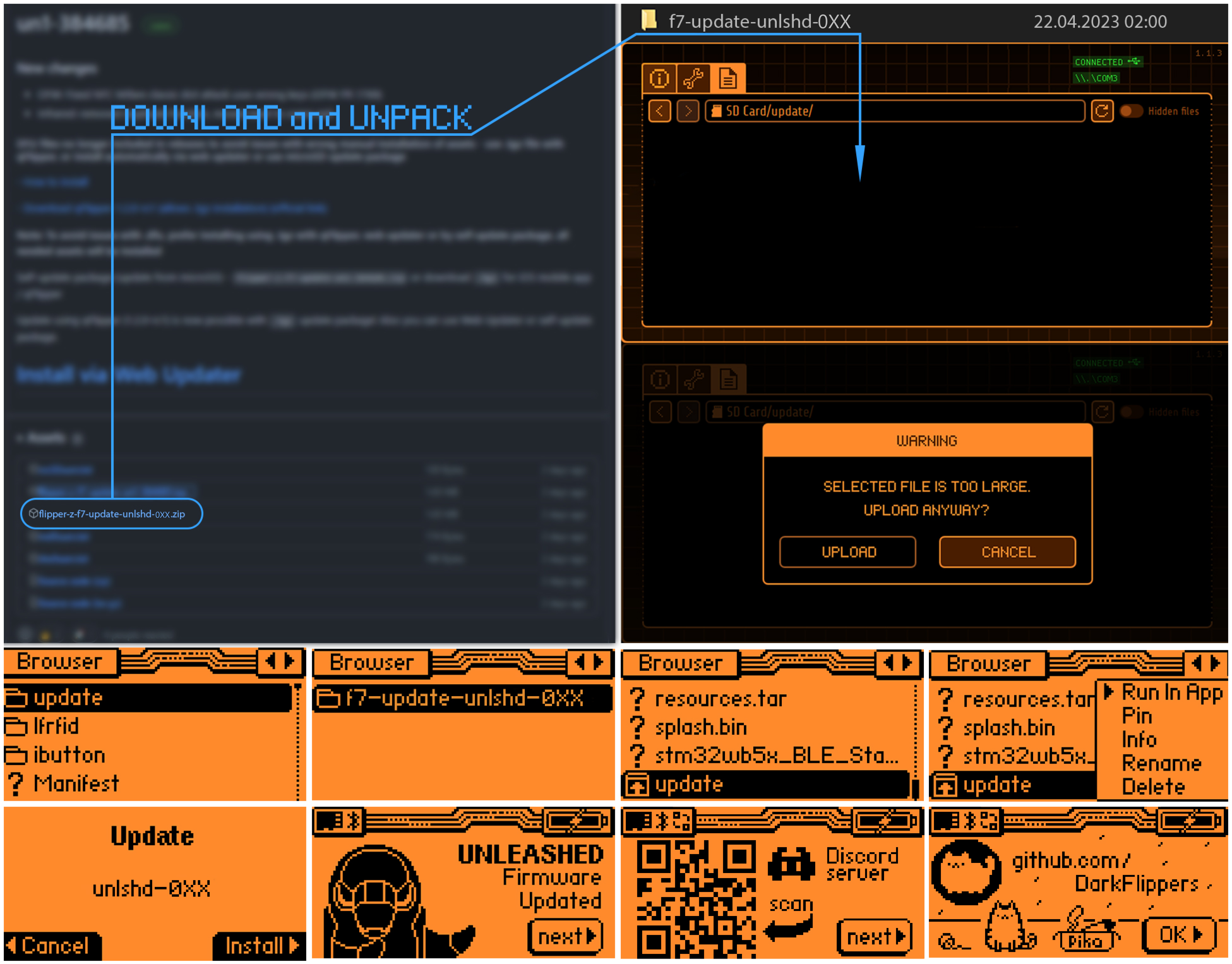
If you are already using unleashed - no need to install any other FW or version before installing update, just install latest version on top of your current one, all will be fine
-
Be sure you updated to latest official release before(only if installing for the first time), and verify that microSD card is installed
-
Connect your device and press
Connectbutton - Select your device in popup window (be sure to use Chromium based browser) -
Select Release or Dev branch
-
Press
Installbutton -
And wait, if all flashed successfully - you will have all needed assets pre installed
-
Done
-
Be sure you updated to latest official release before(only if installing for the first time), and verify that microSD card is installed
-
Open latest release page - Releases
-
Connect your device and follow link -
Install via Web Updaterafter that on web updater page - pressConnectbutton -
Press
Installbutton -
And wait, if all flashed successfully - you will have all needed assets pre installed
-
Done
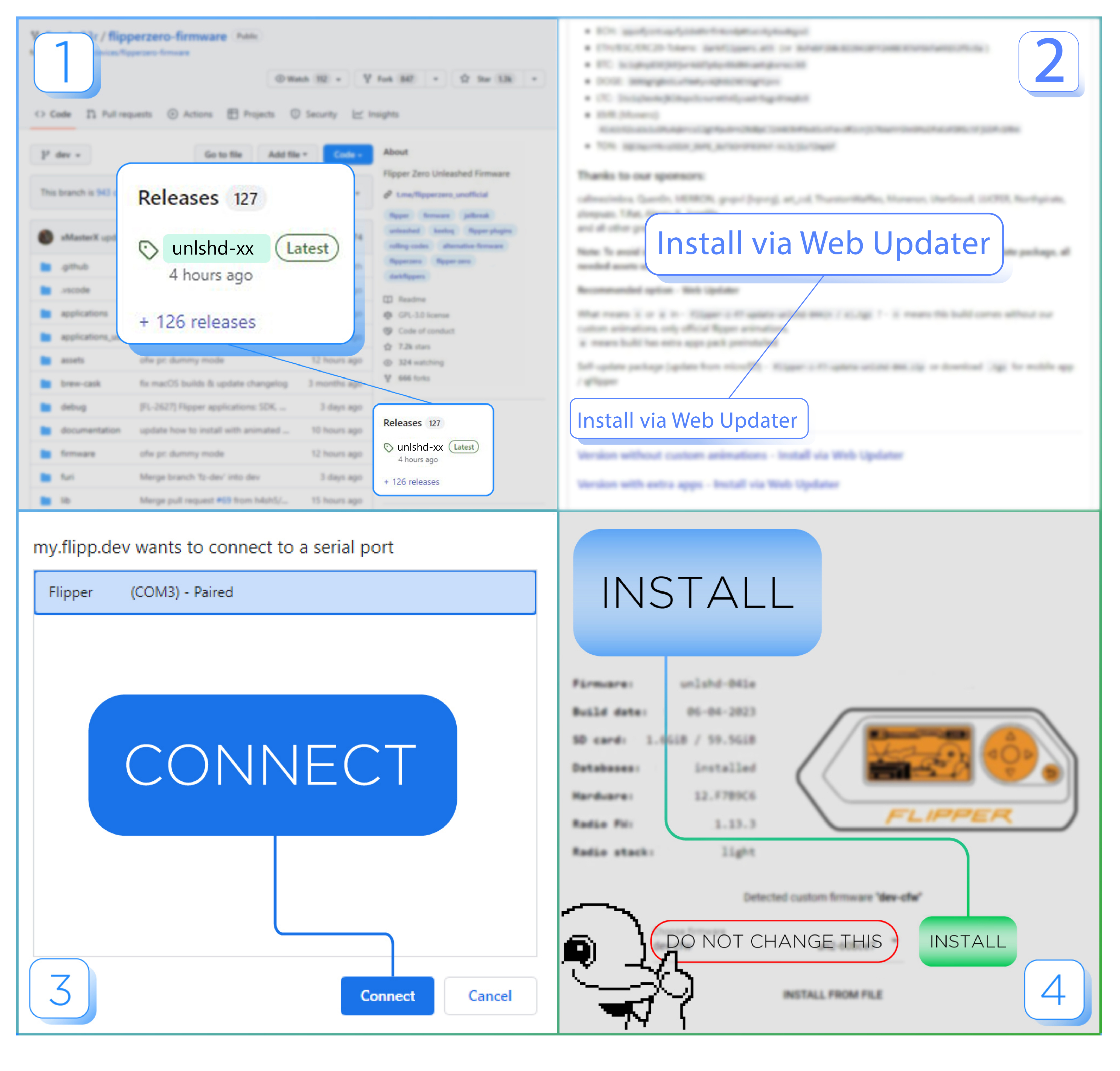
- Be sure you updated to latest official release before(only if installing for the first time), and verify that microSD card is installed
- Open latest release page - Releases
- Download
flipper-z-f7-update-(version).tgz - Open downloads in ios Files app, select downloaded
.tgzfile, click Share, select Flipper App - In flipper app click green
Updatebutton, be sure it showsCustom flipper-z-f7-update...in Update Channel - Wait until update is finished
- Error in ios app will show up, but flipper will be updated successfully
- And if all flashed successfully - you will have all needed assets pre installed
- Done
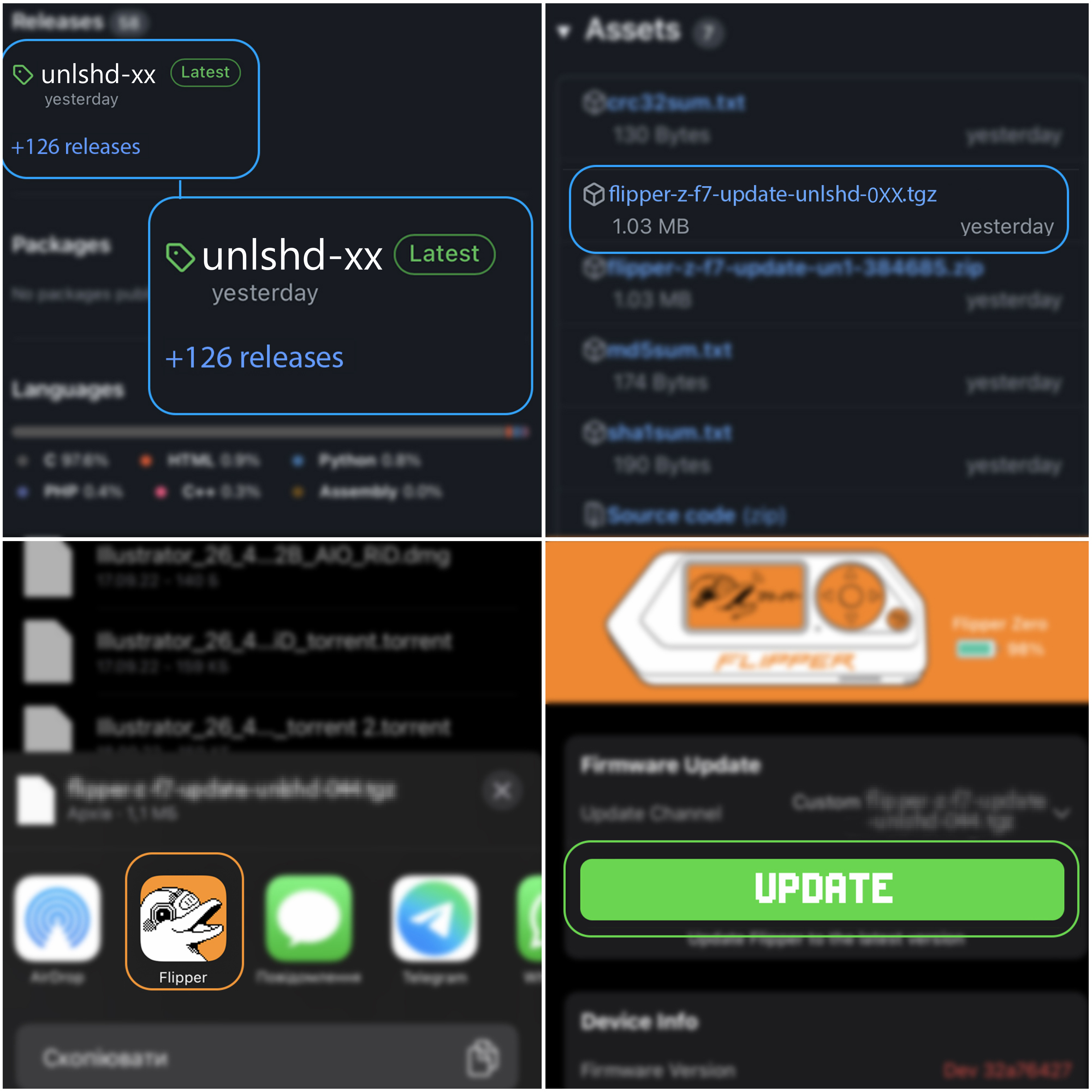
- Be sure you updated to latest official release before(only if installing for the first time), and verify that microSD card is installed
- Open latest release page - Releases
- Download
flipper-z-f7-update-(version).tgz - In flipper app click
Update channelbutton, selectCustom - Select downloaded
.tgzfile - Click Update
- Wait until update is finished
- And if all flashed successfully - you will have all needed assets pre installed
- Done
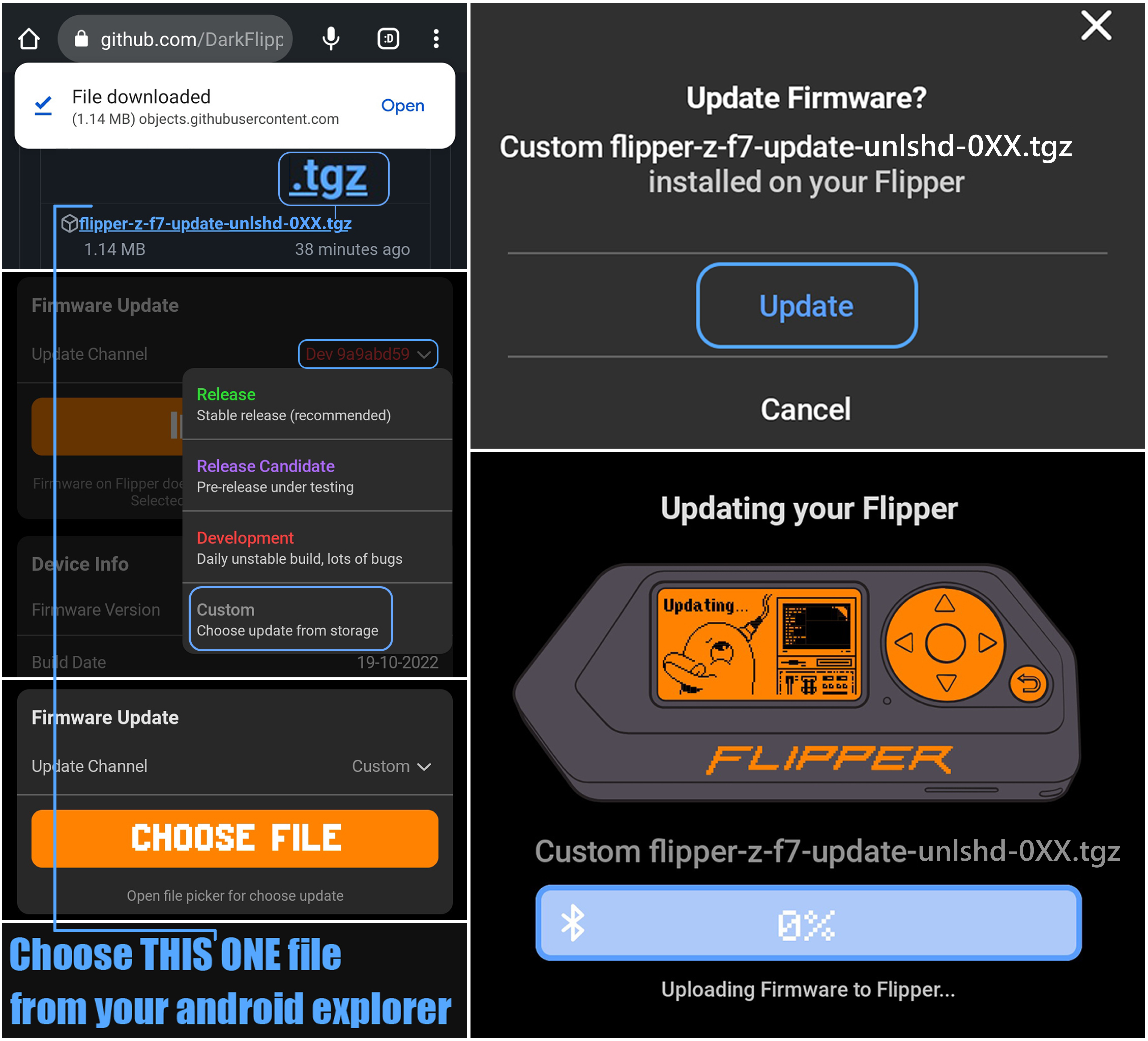
- Be sure you updated to latest official release before(only if installing for the first time), and verify that microSD card is installed
- Open latest release page - Releases
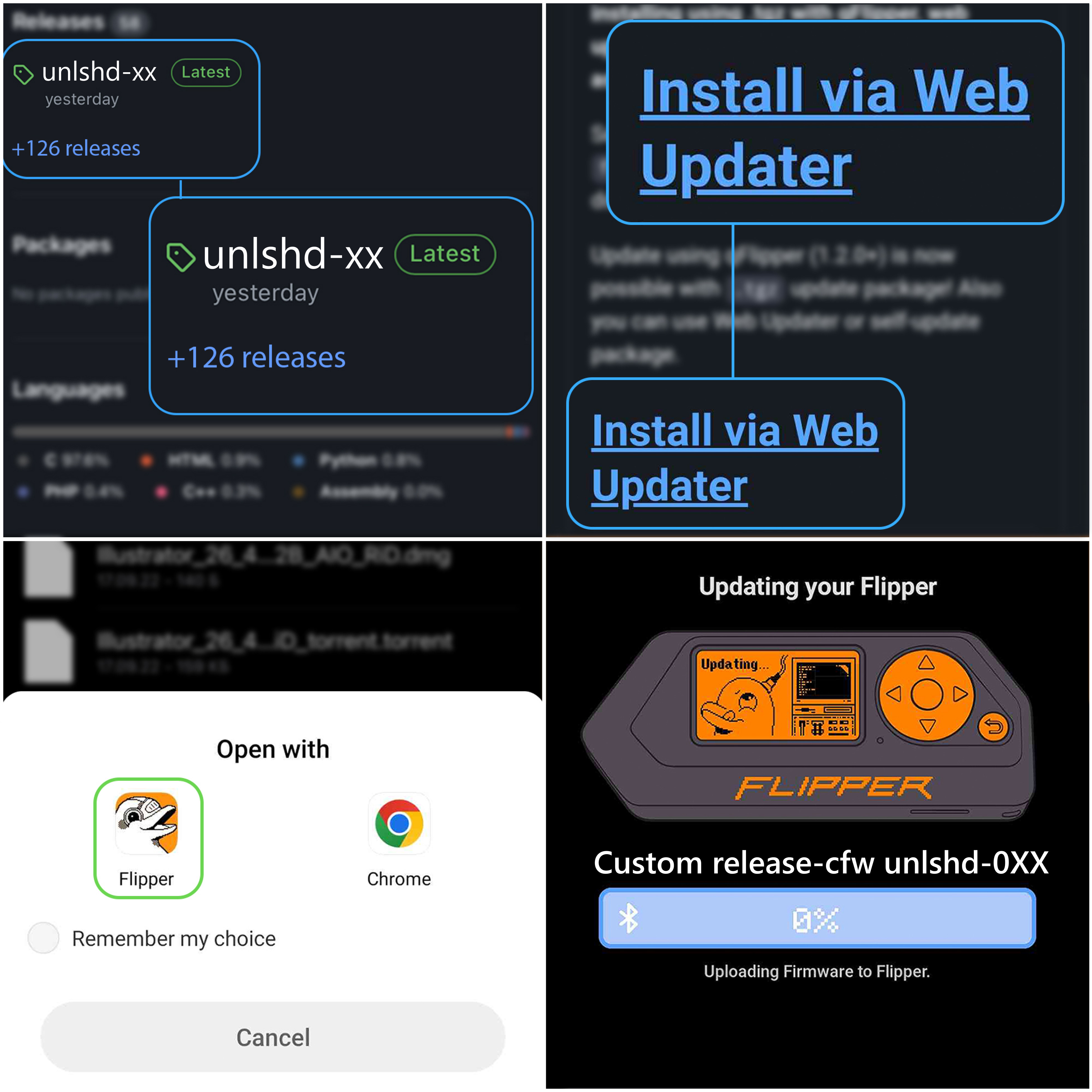
- Click
Install via Web Updater - It will ask to open with browser or Flipper app, select Flipper App
- Continue to install
- Wait until update is finished
- And if all flashed successfully - you will have all needed assets pre installed
- Done
- Download qFlipper that allows
.tgzinstallation Download qFlipper (official link) - Be sure you updated to latest official release before(only if installing for the first time), and verify that microSD card is installed
- Open latest release page - Releases
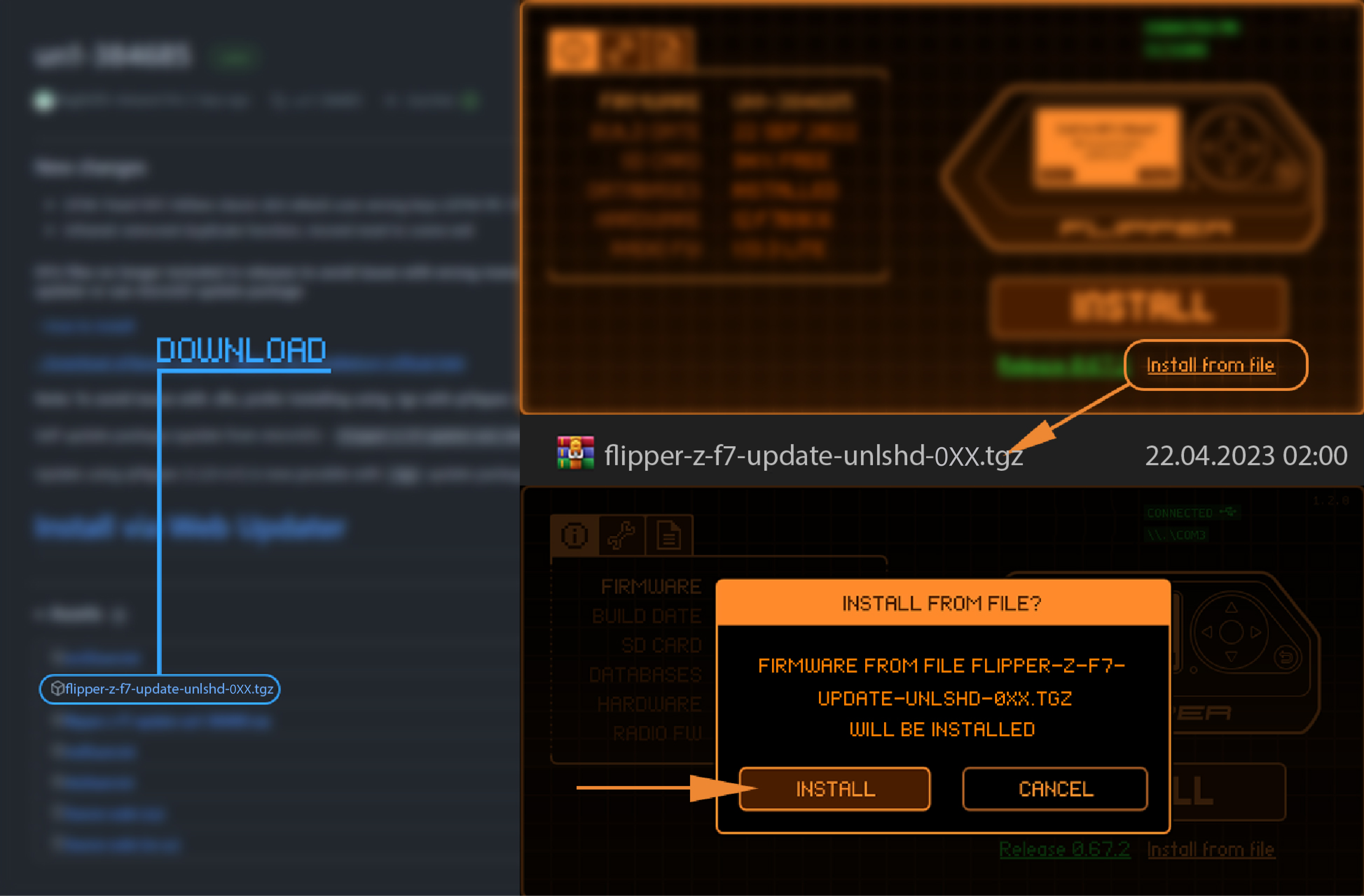
- Download
flipper-z-f7-update-(version).tgz - Launch qFlipper
- Connect your device and select
Install from file - Select
flipper-z-f7-update-(version).tgzthat you downloaded - Update will start
- And wait, if all flashed successfully - you will have all needed assets pre installed
- Done
- Unpack
flipper-z-f7-update-(CURRENT VERSION).tgz(or.zip) into any free folder on your PC or smartphone - You should find folder named
f7-update-(CURRENT VERSION)that contains files likeupdate.fuf,resources.tarand etc.. - Remove microSD card from flipper and insert it into PC or smartphone (you can skip this step and upload all files using qFlipper)
- Create new folder
updateon the root of the microSD card and move folder that you previously extracted from archive -f7-update-(CURRENT VERSION)intoupdateon microSD card - So result should look like
update/f7-update-(CURRENT VERSION)/with all files in this folder on microSD card, remember iOS default Files app doesn't show all files properly (3 instead of 6), so you need to use another app for unpacking or use PC or Android - Verify that all files are present on your microSD card
- After all you need to insert microSD card back into flipper, navigate into filebrowser, open this file
update/f7-update-(CURRENT VERSION)/update.fuf - Update will start, wait for all stages
- Done