| Title | Quick Introduction to Git/GitHub |
|---|---|
| Author | Enes Kemal Ergin |
| Date | 12/20/2016 |
A version control system (sometimes just referred to as a VCS) is a system that tracks changes to files (or groups of files) over time.
It allows you to revert files back to a previous state, revert the entire project back to a previous state, compare changes over time, see who last modified something that might be causing a problem, who introduced an issue and when, and more.
Using a VCS also generally means that if you screw things up or lose files, you can easily recover.[1]
There are 3 main types of VCSs developed over time; local, centralized, and distributed version control systems
Copying an extra copy manually before making any changes is very common because of its simplicity. It's ancient way of version control by user itself, however it's incredibly error prone.
- Easy to forget where did you put the file
- Accidentally write in the wrong file
- Copy over files you don't mean to.
To overcome this problem developers came up with a solution called local version control systems, a long time ago. This system has a simple database which keeps all the changes to files under revision control.[1]
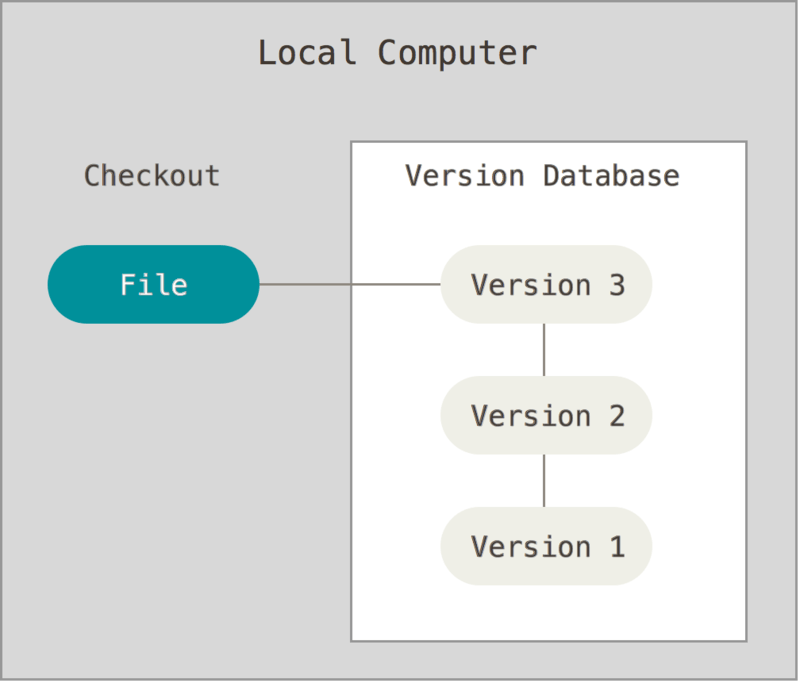
Local VCS solved a major issue but there is another issue people encounter is that they need to collaborate with developers on other systems. Central VCS is developed to solve this problem.
- Single server which contains all the versioned files
- It also containes number of clients that check out files from that central place.
- Administrator have fine-grained control over who can do what.
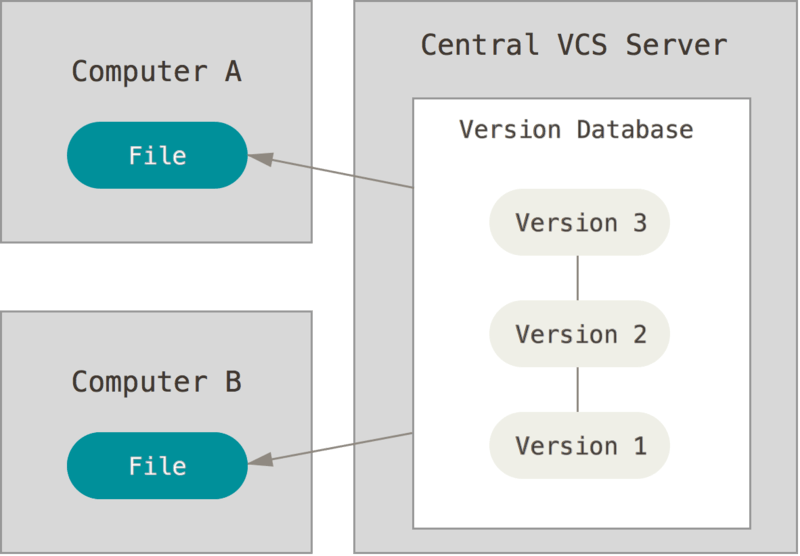
However this setup also has some serious downsides.
- single point of failure that the centralized server represents
- If server goes down, nobody can save their work on server
- It may cause some serious difference errors on files
- If hard disk of central database becomes corrupted, you will lose absolutely everything.[1]
To solve problems with Centralized VCS Distributed VCSs developed such as Git. In these systems clients don't just check out the latest snapshot of the files: they fully mirror the repository.(Having the same copy) If any server dies, any of the client who has the copy can copy it back up the server to restore it.[1]
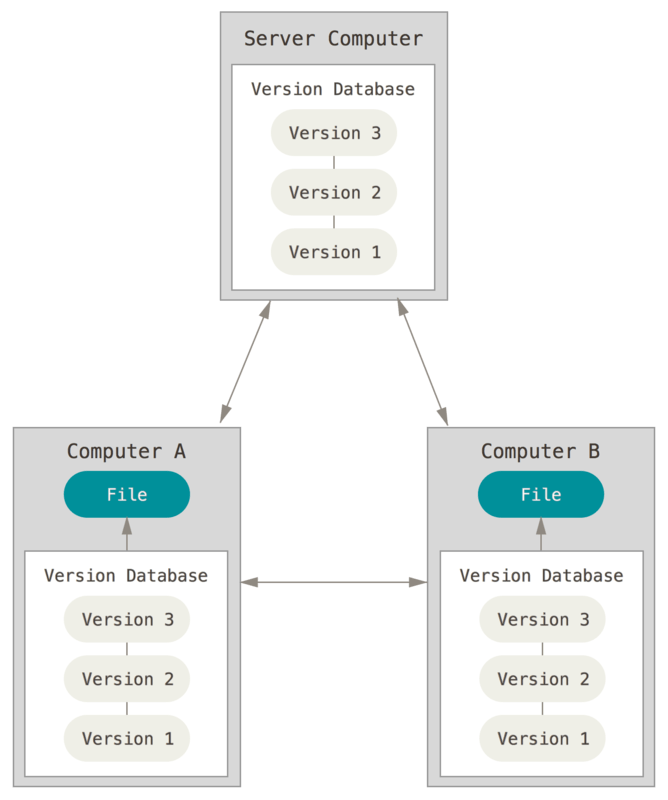
Git is a distributed version control system that we will use to integrate our local computer with GitHub.

sudo apt-get install git-allIn Mac OSX the easiest way to install is installing Xcode Command Line Tools. If it is installed you can simply run git command in Terminal.
If you want to install it from the binary installer, install here
For windows go to git-for-windows.github.io website and download the installer. After the installation is done, you will have a Git BASH which gives you an ability to follow up the practices at the end of the article.

GitHub is a web platform, which hosts code repositories along with distributed version control system.
- You can have a repository public or private
- Unlimited private repository free for students
- Easy way to use version control system
- Having a backup of your code online
- Sharing and contributing others code
- Group work without limitations
- Nice way of publishing packages and libraries
You should create a GitHub account before completing this article with demonstration. It's easy and straightforward. You just need to go to the main page and sign-up there.
Now we know about version control system, Git and GitHub, we can learn the essential commands for involving into this amazing world.
Steps
- To be able to interact with GitHub we should configure our Git accordingly.
Careful: username and email should match with your github credentials.
$ git config --global user.name "John Doe"
$ git config --global user.email johndoe@example.com- Open your newly created Github Account and click New Repository.

- In the Create a new repository page, we will name our repository, write a description, decide if it will be public or private, and adding pre-defined files like
.gitignoreandlicense.
You can name it something like: "Learning Python", "Python Programming Tutorial" or similar. You will use this repository to store our class materials assignments and small projects.

Now we have the online version of our repository, we will copy this repository to our local.
- Go to clone or download button and copy the link given

- Open your terminal or Git BASH and go to desktop.
$ cd Desktop
$ git clone <link_from_github_repo>
Now we have the clone of our online repository in our local. We can add, delete, modify files and we have to add changes to our local track.
- Create a python file called
first_test.pyadd the following code into file and put the file in cloned folder in your local.
print("My name is ...")
print(2+8)
print("These are my first steps to Python")
Now you have added a file in your local but it is not tracked yet
- You can check the repository's status by
git statuswhile you are inside the repository.

- To track untracked files we use
git add first_test.pycommand.
Now we are added untracked file to tracked file but before establishing a version we have to commit the changes. Commit is basically writing comments on the version and writing the version into database
- To commit
git commit -am "Your comment"command is used

Now we added our second version which is commented with "Your comment" the changes are tracked, but only in local. If you want to send the changes you did in local to online version, and you should want :), we will use the following
-
Push command is used for sending changes from local to online
git push origin master -
If you have changed something in the online or your collaborator changed stuff in the repository. You get the changes with
git pull origin mastercommand for your local copy.