-
Note: Visit the Chroma Animation Guide to find the latest supported plugin for Chroma RGB.
-
Note: Go to UE4_XDK_SampleApp for the updated UE4 Chroma SDK plugin.
Table of Contents
- See Also
- Frameworks supported
- Prerequisites
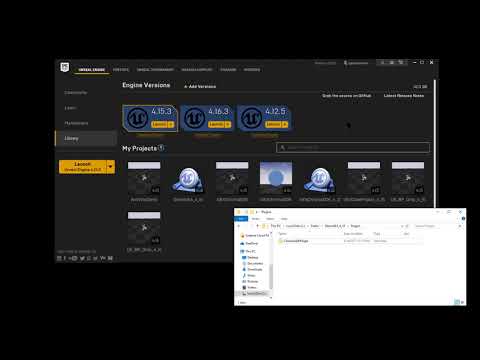
- Engine Versions
- Quick Start
- API
- Key Bindings
- Tutorials
- Usage
- Assets
- Blueprint objects
- Blueprint functions
- Examples
- Getting Started
Docs:
- Chroma Animation Guide - Visual examples of the Chroma Animation API methods
Plugins:
- CChromaEditor - C++ native MFC library for playing and editing Chroma animations
- Windows ChromaSDK (32-bit)
- Windows ChromaSDK (64-bit)
-
Install Visual Studio
-
Install Windows Software Development Kit (SDK) for Windows 8.1 - Needed to build plugin from source
-
Install Windows 10 SDK
-
Install
Templates->Other Languages->Visual C++->Visual C++ 2015 Tools for Windows Desktopwhich can be installed through theVisual Studio New Project Dialog

Releases have binary versions of the Plugin which can be added upon request.
Set of Animations
A set of animations refers to the following given an AnimationName.
AnimationName_ChromaLink.chroma
AnimationName_Headset.chroma
AnimationName_Keyboard.chroma
AnimationName_Keypad.chroma
AnimationName_Mouse.chroma
AnimationName_Mousepad.chroma
ChromaSDKPluginBPLibrary - Blueprint Library
- ClearAll
- ClearAnimationType
- CopyKeyColorName
- CopyKeysColorName
- CopyKeysColorAllFramesName
- CopyNonZeroAllKeysAllFramesName
- CopyNonZeroKeyColorName
- CopyNonZeroKeysColorName
- CopyNonZeroKeysColorAllFramesName
- GetAnimationCount
- GetAnimationIdByIndex
- GetAnimationName
- GetFrameCountName
- GetKeyColorName
- GetPlayingAnimationCount
- GetPlayingAnimationId
- IsAnimationPlaying
- IsAnimationTypePlaying
- PlayAnimation
- PlayAnimations
- PlayAnimationComposite
- SetKeyColorAllFramesName
- SetKeyColorName
- SetKeysColorAllFramesName
- SetKeysColorName
- StopAll
- StopAnimation
- StopAnimations
- StopAnimationType
- StopAnimationComposite
ClearAll will issue a CLEAR effect for all devices.
void UChromaSDKPluginBPLibrary::ClearAll();ClearAnimationType will issue a CLEAR effect for the given device.
void UChromaSDKPluginBPLibrary::ClearAnimationType(const EChromaSDKDeviceEnum& device);GetAnimationCount will return the number of open animations.
int UChromaSDKPluginBPLibrary::GetAnimationCount();GetAnimationIdByIndex will return the animationId given the index of the open animation. The index is zero-based and less than the number returned by GetAnimationCount. Use GetAnimationName to get the name of the animation.
int UChromaSDKPluginBPLibrary::GetAnimationIdByIndex(int index);GetPlayingAnimationCount will return the number of playing animations.
int UChromaSDKPluginBPLibrary::GetPlayingAnimationCount();GetPlayingAnimationId will return the animationId given the index of the playing animation. The index is zero-based and less than the number returned by GetPlayingAnimationCount. Use GetAnimationName to get the name of the animation.
int UChromaSDKPluginBPLibrary::GetPlayingAnimationId(int index);Play a set of *_Device.chroma Animations. With loop set to false, the animations will play once. With loop set to true, the animations will loop.
void UChromaSDKPluginBPLibrary::PlayAnimationComposite(const FString& animationName, bool loop);Stop a set of *_Device.chroma Animations
void UChromaSDKPluginBPLibrary::StopAnimationComposite(const FString& animationName);Play the *.chroma Animation. With loop set to false, the animation will play once. With loop set to true, the animation will loop.
void UChromaSDKPluginBPLibrary::PlayAnimation(const FString& animationName, bool loop);Is the *.chroma Animation playing?
bool UChromaSDKPluginBPLibrary::IsAnimationPlaying(const FString& animationName);Is the Animation type playing?"
bool UChromaSDKPluginBPLibrary::IsAnimationTypePlaying(const EChromaSDKDeviceEnum& device);Play an array of *.chroma Animations
void UChromaSDKPluginBPLibrary::PlayAnimations(const TArray<FString>& animationNames, bool loop);Stop the *.chroma Animation
void UChromaSDKPluginBPLibrary::StopAnimation(const FString& animationName);Stop an array *.chroma Animations
void UChromaSDKPluginBPLibrary::StopAnimations(const TArray<FString>& animationNames);Stop playing the Animation type
void UChromaSDKPluginBPLibrary::StopAnimationType(const EChromaSDKDeviceEnum& device);StopAll will automatically stop all animations that are playing.
void UChromaSDKPluginBPLibrary::StopAll();Get the color from the animation frame's key
FLinearColor  UChromaSDKPluginBPLibrary::GetKeyColorName(const FString& animationName,
const int frameIndex, const EChromaSDKKeyboardKey& key);Set the animation frame's key to the supplied color
void UChromaSDKPluginBPLibrary::SetKeyColorName(const FString& animationName,
const int frameIndex, const EChromaSDKKeyboardKey& key, const FLinearColor& color);Set the animation frame to the supplied color for a set of keys
void UChromaSDKPluginBPLibrary::SetKeysColorName(const FString& animationName,
const int frameIndex, const TArray<EChromaSDKKeyboardKey>& keys, const FLinearColor& color);Set the key to the supplied color for all animation frames
void UChromaSDKPluginBPLibrary::SetKeyColorAllFramesName(const FString& animationName,
const EChromaSDKKeyboardKey& key, const FLinearColor& color);Set the keys to the supplied color for all animation frames
void UChromaSDKPluginBPLibrary::SetKeysColorAllFramesName(const FString& animationName,
const TArray<EChromaSDKKeyboardKey>& keys, const FLinearColor& color);Copy color from a source animation to a target animation for a key
void UChromaSDKPluginBPLibrary::CopyKeyColorName(const FString& sourceAnimationName,
const FString& targetAnimationName, const int frameIndex, const EChromaSDKKeyboardKey& key);Copy color from a source animation to a target animation for a set of keys
void UChromaSDKPluginBPLibrary::CopyKeysColorName(const FString& sourceAnimationName,
const FString& targetAnimationName, const int frameIndex, const TArray<EChromaSDKKeyboardKey>& keys);Copy color from a source animation to a target animation for a set of keys for all frames
void UChromaSDKPluginBPLibrary::CopyKeysColorAllFramesName(const FString& sourceAnimationName,
    const FString& targetAnimationName, const TArray<EChromaSDKKeyboardKey>& keys);
CopyNonZeroAllKeysAllFramesName
Copy nonzero colors from a source animation to a target animation for all keys and all frames
void UChromaSDKPluginBPLibrary::CopyNonZeroAllKeysAllFramesName(const FString& sourceAnimationName,
const FString& targetAnimationName);Copy nonzero color from a source animation to a target animation for a key
void UChromaSDKPluginBPLibrary::CopyNonZeroKeyColorName(const FString& sourceAnimationName,
const FString& targetAnimationName, const int frameIndex, const EChromaSDKKeyboardKey& key);Copy nonzero color from a source animation to a target animation for a set of keys
void UChromaSDKPluginBPLibrary::CopyNonZeroKeysColorName(const FString& sourceAnimationName,
    const FString& targetAnimationName, const int frameIndex, const TArray<EChromaSDKKeyboardKey>& keys);
CopyNonZeroKeysColorAllFramesName
Copy nonzero color from a source animation to a target animation for a set of keys for all frames
void UChromaSDKPluginBPLibrary::CopyNonZeroKeysColorAllFramesName(const FString& sourceAnimationName,
const FString& targetAnimationName, const TArray<EChromaSDKKeyboardKey>& keys);Get the .chroma animation frame count
int UChromaSDKPluginBPLibrary::GetFrameCountName(const FString& animationName);Games often need to highlight hotkeys that are tied to game play. This can be for general WASD movement, interacting with the game, or display cooldowns.
Just displaying hotkeys by themselves is less visually interesting. Hotkeys can be shown on top of existing .chroma animations.
This allows environmental effects or other animations to be shown as the base layer with hotkeys on top of that.
In the below image, a loaded animation has the hotkeys added to each frame and then the animation plays.
1 When a .chroma animation is referenced by name, it's loaded from the game's Content folder into memory.
2 Make Literal String stores the .chroma animation name which is reused in multiple steps. In this case Random_Keyboard is stored.
2 UnloadAnimationName takes the animation name and unloads the Chroma color frames that were previously loaded so they can be modified.
3 GetFrameCountName takes the animaton name and returns the number of frames in the animation.
4 For Loop is used to iterate over all the frames in the animation.
5 SetKeyColorName takes the animation name, the color frame index, the key binding to update, and the color to show on the key. A constant color could be used, but to be more visually interesting, the example lerps between two colors using the frame index as the increment.
6 PlayAnimation takes the animation name to play the animation after the For Loop completes.

In the image below, an animation is reloaded from disk to hide the hotkeys.
1 CloseAnimationName takes the animation name and destroys the instance in memory.
2 PlayAnimation loads the animation name from disk in the original state without the hotkeys applied.
This process could be used to hide the hotkeys, or to reload the animation after the keybindings change to highlight new keys.

In the image below, a source animation color can be copied into a target animation. In this case a fire animation can play on selected hotkeys.
CopyKeyColorName takes the source animation name, target animation name, the frame index, and the key binding to update. The target animation will set the color from the source animation.

In the image below, an array of keys are set to the colors from a source animation. Another array of keys is set to a specific linear color. All the animation frames are copied or assigned for a set of keys by calling the AllFrames method.

Import Runtime and Editor Modules
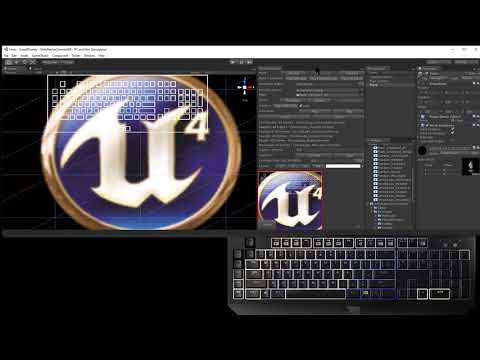
Import Animation From Unity
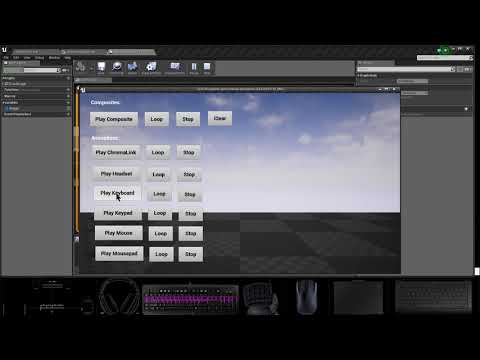
Play Composite Animations From Content Folder
1 Copy ChromaSDKPlugin to the ProjectFolder\Plugins\ChromaSDKPlugin folder
2 Open the Plugins Browser tab using the Edit->Plugins menu item

3 Make sure the ChromeSDKPlugin is enabled

In the Content Browser under the Add New->Miscellaneous menu item is where animation assets can be created for ChromaSDKPluginAnimation1DObject and ChromaSDKPluginAnimation2DObject.

Hovering ChromaSDK Animations will show a Play or Stop thumbnail. Clicking the Play thumbnail will play the animation effect when in play-mode or edit-mode.

Right-click a ChromaSDK Animation and select Edit to open the custom details view.

The details view sets the device type and allows the color animation frames to be edited.
1D animations support ChromaLink, Headset, and Mousepad devices.
2D animations support Keyboard, Keypad, and Mouse devices.
The device preview shows a grid and clicking the elements will set the color from the color wheel.
The Curve adjusts the timings for each animation frame.

ChromaSDK Animation objects can be referenced from blueprints.
Create a variable of object type ChromaSDKPluginAnimation1DObject or ChromaSDKPluginAnimation2DObject.
Use the variable SET so the animation asset can be selected from the dropdown.

Use Load on the animation before it can be used.
Use IsLoaded to check if the animation has been loaded.

After the ChromaSDK Animation has been loaded and set in a variable, it can be played.

A playing ChromaSDK Animation can be stopped.

Use Unload to unload the animation.
ChromaSDKPluginBPLibrary::UnInit will automatically unload animations.

FChromaSDKEffectResult holds a ChromaSDK result and an effect identifier.

struct FChromaSDKEffectResult
{
	UPROPERTY(BlueprintReadOnly)
	int Result;

	UPROPERTY(BlueprintReadOnly)
	FChromaSDKGuid EffectId;
}
EChromaSDKDeviceEnum is a list of all ChromaSDK devices.

enum class EChromaSDKDeviceEnum : uint8
{
	DE_ChromaLink           UMETA(DisplayName = "ChromaLink"),
	DE_Headset		UMETA(DisplayName = "Headset"),
	DE_Keyboard		UMETA(DisplayName = "Keyboard"),
	DE_Keypad		UMETA(DisplayName = "Keypad"),
	DE_Mouse		UMETA(DisplayName = "Mouse"),
	DE_Mousepad		UMETA(DisplayName = "Mousepad")
};
EChromaSDKDevice1DEnum is a device that uses a one-dimensional array for custom effects.

enum class EChromaSDKDevice1DEnum : uint8
{
	DE_ChromaLink	        UMETA(DisplayName = "ChromaLink"),
	DE_Headset		UMETA(DisplayName = "Headset"),
	DE_Mousepad		UMETA(DisplayName = "Mousepad")
};
EChromaSDKDevice2DEnum is a device that uses a two-dimensional array for custom effects.

enum class EChromaSDKDevice2DEnum : uint8
{
	DE_Keyboard		UMETA(DisplayName = "Keyboard"),
	DE_Keypad		UMETA(DisplayName = "Keypad"),
	DE_Mouse		UMETA(DisplayName = "Mouse"),
};
FChromaSDKColors holds an array of colors.

struct FChromaSDKColors
{
	UPROPERTY(BlueprintReadOnly)
	TArray<FLinearColor> Colors;
};
EChromaSDKKeyboardKey represents a key on the keyboard.

enum class EChromaSDKKeyboardKey : uint8
{
	KK_ESC                           UMETA(DisplayName = "Esc (VK_ESCAPE)"),
	KK_F1                            UMETA(DisplayName = "F1 (VK_F1)"),
	...
	KK_KOR_7                         UMETA(DisplayName = "(0xFF)"),
	KK_INVALID                       UMETA(DisplayName = "Invalid keys.")
};
EChromaSDKMouseLed represents an led on the mouse

enum class EChromaSDKMouseLed : uint8
{
	ML_SCROLLWHEEL		UMETA(DisplayName = "Scroll Wheel LED"),
	ML_LOGO			UMETA(DisplayName = "Logo LED"),
	...
	ML_RIGHT_SIDE6		UMETA(DisplayName = "Right LED 6"),
	ML_RIGHT_SIDE7		UMETA(DisplayName = "Right LED 7")
};-
bool UChromaSDKPluginBPLibrary::IsPlatformWindows()
- Returns true if the platform is windows. Although this call works on all platforms, all the remaining BP methods only work on the Windows platform
-
int UChromaSDKPluginBPLibrary::ChromaSDKInit()
- Returns the result of calling ChromaSDK::Init(). Initializes the ChromaSDK.
-
int UChromaSDKPluginBPLibrary::ChromaSDKUnInit()
- Returns the result of calling ChromaSDK::UnInit. Uninitializes the ChromaSDK.
-
FChromaSDKEffectResult UChromaSDKPluginBPLibrary::ChromaSDKCreateEffectNone(const EChromaSDKDeviceEnum& device)
- Returns the FChromaSDKEffectResult after creating a
CHROMA_NONEeffect given the device. This effect clears the lighting effect for a device.
- Returns the FChromaSDKEffectResult after creating a
-
FChromaSDKEffectResult UChromaSDKPluginBPLibrary::ChromaSDKCreateEffectStatic(const EChromaSDKDeviceEnum& device, const FLinearColor& color)
- Returns the FChromaSDKEffectResult after creating a
CHROMA_STATICeffect given the device and color. This effect sets the lighting effect to a static color for a device.
- Returns the FChromaSDKEffectResult after creating a
-
FChromaSDKEffectResult UChromaSDKPluginBPLibrary::ChromaSDKCreateEffectCustom1D(const EChromaSDKDevice1DEnum& device, const TArray<FLinearColor>& colors)
- Returns the FChromaSDKEffectResult after creating a
CHROMA_CUSTOMeffect given the device and one-dimensional color array. This effect sets the lighting effect with an array of colors for a device.
- Returns the FChromaSDKEffectResult after creating a
-
FChromaSDKEffectResult UChromaSDKPluginBPLibrary::ChromaSDKCreateEffectCustom2D(const EChromaSDKDevice2DEnum& device, const TArray<FChromaSDKColors>& colors)
- Returns the FChromaSDKEffectResult after creating a (
CHROMA_CUSTOMorCHROMA_CUSTOM2) effect given the device and two-dimensional color array. This effect sets the lighting effect with an array of colors for a device.
- Returns the FChromaSDKEffectResult after creating a (
-
int UChromaSDKPluginBPLibrary::ChromaSDKSetEffect(const FChromaSDKGuid& effectId)
- Returns the result of calling ChromaSDK::SetEffect given the effect identifier. Activates the given effect.
-
int UChromaSDKPluginBPLibrary::ChromaSDKDeleteEffect(const FChromaSDKGuid& effectId)
- Returns the result of calling ChromaSDK::DeleteEffect given the effect identifier. Deletes the given effect.
-
TArray<FLinearColor> CreateColors1D(const EChromaSDKDevice1DEnum& device)
- Returns a blank one-dimensional color array given the device.
-
TArray<FChromaSDKColors> CreateColors2D(const EChromaSDKDevice2DEnum& device)
- Returns a blank two-dimensional color array given the device.
-
TArray<FLinearColor> CreateRandomColors1D(const EChromaSDKDevice1DEnum& device)
- Returns a one-dimensional random color array given the device.
-
TArray<FChromaSDKColors> CreateRandomColors2D(const EChromaSDKDevice2DEnum& device)
- Returns a two-dimensional random color array given the device.
-
const TArray<FChromaSDKColors>& SetKeyboardKeyColor(const EChromaSDKKeyboardKey& key, const FLinearColor& color, TArray<FChromaSDKColors>& colors)
- Returns a modified two-dimensional color array with the key color changed.
-
const TArray<FChromaSDKColors>& SetMouseLedColor(const EChromaSDKMouseLed& led, const FLinearColor& color, TArray<FChromaSDKColors>& colors)
- Returns a modified two-dimensional color array with the led color changed.
The Example Level displays a UI Blueprint Widget with buttons that have onclick events that use the ChromaSDKPlugin.
1 Open the level in Content/Levels/ExampleLevel

2 Open the UI Blueprint Widget in Content/Blueprints/ExampleWidget_BP

3 Open the Level Blueprint with the Blueprints->Open Level Blueprint menu item

4 The main features of the example level will be labelled with comment blocks

The example begins at Event BeginPlay which is executed on launch.
The Setup UI custom event loads the Blueprint Widget.
If the Windows platform is detected, the ChromaSDKInit custom event is called.

The SetupUI custom event loads the UI Blueprint Widget and saves a widget variable to be referenced by later UI controls.
The Blueprint Widget is added to the viewport and then the SetupUIButtons custom event is called.

The SetupUIButtons custom event uses the widget variable to access the named buttons to bind onclicked events.
When a button is clicked the Event delegate is invoked.
Since the Event delegate doesn't take parameters, an unnamed custom event is used to prepare the button parameters and invoke the SetAllDeviceStaticColor custom event.
FLinearColor is used to mimize the number of steps when passing colors to events and the SDK.
This same setup is used for all the static color buttons.

The SetupUIButtons custom event calls other custom events to setup the clear button, the random button, and the animation buttons.

The example ends at Event EndPlay which executes when the game exits or ESC is pressed in the editor.
If the Windows platform is detected, the ChromaSDKUninit custom event is called.

Note: ChromaSDKPlugin calls should be made on the Windows platform.
DebugPrintResult is an example custom event to check for result codes and print a message. The custom event takes parameters to include in the print message. A result code of zero is commonly used in the API to mean success. A success message is printed if detected. If an error message is printed if the result code is not zero.

int UChromaSDKPluginBPLibrary::ChromaSDKInit()
Init returns the result of calling ChromaSDK::Init(). Initializes the ChromaSDK. A result of zero indicates success. Upon success, effects can be created, set, and deleted.

int UChromaSDKPluginBPLibrary::ChromaSDKUnInit()
UnInit returns the result of calling ChromaSDK::UnInit. Uninitializes the ChromaSDK. A result of zero indicates success.

FChromaSDKEffectResult UChromaSDKPluginBPLibrary::ChromaSDKCreateEffectNone(const EChromaSDKDeviceEnum& device)
CreateEffectNone returns the FChromaSDKEffectResult after creating a CHROMA_NONE effect given the device. This effect clears the lighting effect for a device. A result of zero indicates success.

After effects are created, this example shows expanding the result to check the result for success. The effect identifier can be used to activate the effect with SetEffect or delete the effect with DeleteEffect.

After an effect has been set, check the result for success. Either success or failure, the effect identifier can be deleted with DeleteEffect.

After an effect has been deleted, check the result for success. After effects have been created they can be used and then deleted or kept around to be reused. Be sure to delete effect identifiers before exiting for proper cleanup.

FChromaSDKEffectResult UChromaSDKPluginBPLibrary::ChromaSDKCreateEffectStatic(const EChromaSDKDeviceEnum& device, const FLinearColor& color)
CreateEffectStatic returns the FChromaSDKEffectResult after creating a CHROMA_STATIC effect given the device and color. This effect sets the lighting effect to a static color for a device.

FChromaSDKEffectResult UChromaSDKPluginBPLibrary::ChromaSDKCreateEffectCustom1D(const EChromaSDKDevice1DEnum& device, const TArray<FLinearColor>& colors)
CreateEffectCustom1D returns the FChromaSDKEffectResult after creating a CHROMA_CUSTOM effect given the device and one-dimensional color array. This effect sets the lighting effect with an array of colors for a device.

FChromaSDKEffectResult UChromaSDKPluginBPLibrary::ChromaSDKCreateEffectCustom2D(const EChromaSDKDevice2DEnum& device, const TArray<FChromaSDKColors>& colors)
CreateEffectCustom2D returns the FChromaSDKEffectResult after creating a (CHROMA_CUSTOM or CHROMA_CUSTOM2) effect given the device and two-dimensional color array. This effect sets the lighting effect with an array of colors for a device.

int UChromaSDKPluginBPLibrary::ChromaSDKSetEffect(const FChromaSDKGuid& effectId)
SetEffect returns the result of calling ChromaSDK::SetEffect given the effect identifier. Activates the given effect.
int UChromaSDKPluginBPLibrary::ChromaSDKDeleteEffect(const FChromaSDKGuid& effectId)
DeleteEffect returns the result of calling ChromaSDK::DeleteEffect given the effect identifier. Deletes the given effect.
TArray<FLinearColor> CreateColors1D(const EChromaSDKDevice1DEnum& device)
CreateColors1D returns a blank one-dimensional color array given the device.

TArray<FChromaSDKColors> CreateColors2D(const EChromaSDKDevice2DEnum& device)
CreateColors2D returns a blank two-dimensional color array given the device.

TArray<FLinearColor> CreateRandomColors1D(const EChromaSDKDevice1DEnum& device)
CreateRandomColors1D returns a one-dimensional random color array given the device.
TArray<FChromaSDKColors> CreateRandomColors2D(const EChromaSDKDevice2DEnum& device)
CreateRandomColors2D returns a two-dimensional random color array given the device.
const TArray<FChromaSDKColors>& SetKeyboardKeyColor(const EChromaSDKKeyboardKey& key, const FLinearColor& color, TArray<FChromaSDKColors>& colors)
SetKeyboardKeyColor returns a modified two-dimensional color array with the key color changed.

const TArray<FChromaSDKColors>& SetMouseLedColor(const EChromaSDKMouseLed& led, const FLinearColor& color, TArray<FChromaSDKColors>& colors)
MouseLedColor returns a modified two-dimensional color array with the led color changed.
