


Vue 3 component for ApexCharts to build interactive visualizations in vue.
- Reactive chart updates — change props and the chart re-renders automatically
- Tree-shaking — import only the chart types and features you use via
vue3-apexcharts/core - Server-Side Rendering (SSR) — render charts to HTML on the server with
<apexchart-server>and hydrate on the client with<apexchart-hydrate> - Full TypeScript support
npm install apexcharts vue3-apexchartsIf you're looking for Vue 2.x.x compatible component, check-out vue-apexcharts
import VueApexCharts from "vue3-apexcharts";

const app = createApp(App);
app.use(VueApexCharts);
// The app.use(VueApexCharts) will make <apexchart> component available everywhere.
OR
// you can import in a particular component and register the component like below
import VueApexCharts from "vue3-apexcharts";
export default {
  components: {
    apexchart: VueApexCharts,
  },
};
To provide a $apexcharts reference inside Vue instance
import ApexCharts from "apexcharts";

app.config.globalProperties.$apexcharts = ApexCharts;

// Add this when into a TypeScript codebase
declare module "@vue/runtime-core" {
  interface ComponentCustomProperties {
    $apexcharts: typeof ApexCharts;
  }
}
To create a basic bar chart with minimal configuration, write as follows:
<template>
  <div>
    <apexchart
      width="500"
      type="bar"
      :options="chartOptions"
      :series="series"
    ></apexchart>
  </div>
</template>
export default {
data: function () {
return {
chartOptions: {
chart: {
id: "vuechart-example",
},
xaxis: {
categories: [1991, 1992, 1993, 1994, 1995, 1996, 1997, 1998],
},
},
series: [
{
name: "series-1",
data: [30, 40, 35, 50, 49, 60, 70, 91],
},
],
};
},
};This will render the following chart
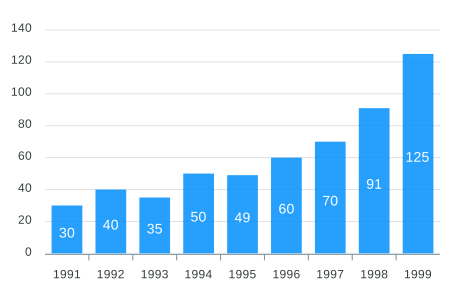
Simple! Just change the series or any option and it will automatically re-render the chart.
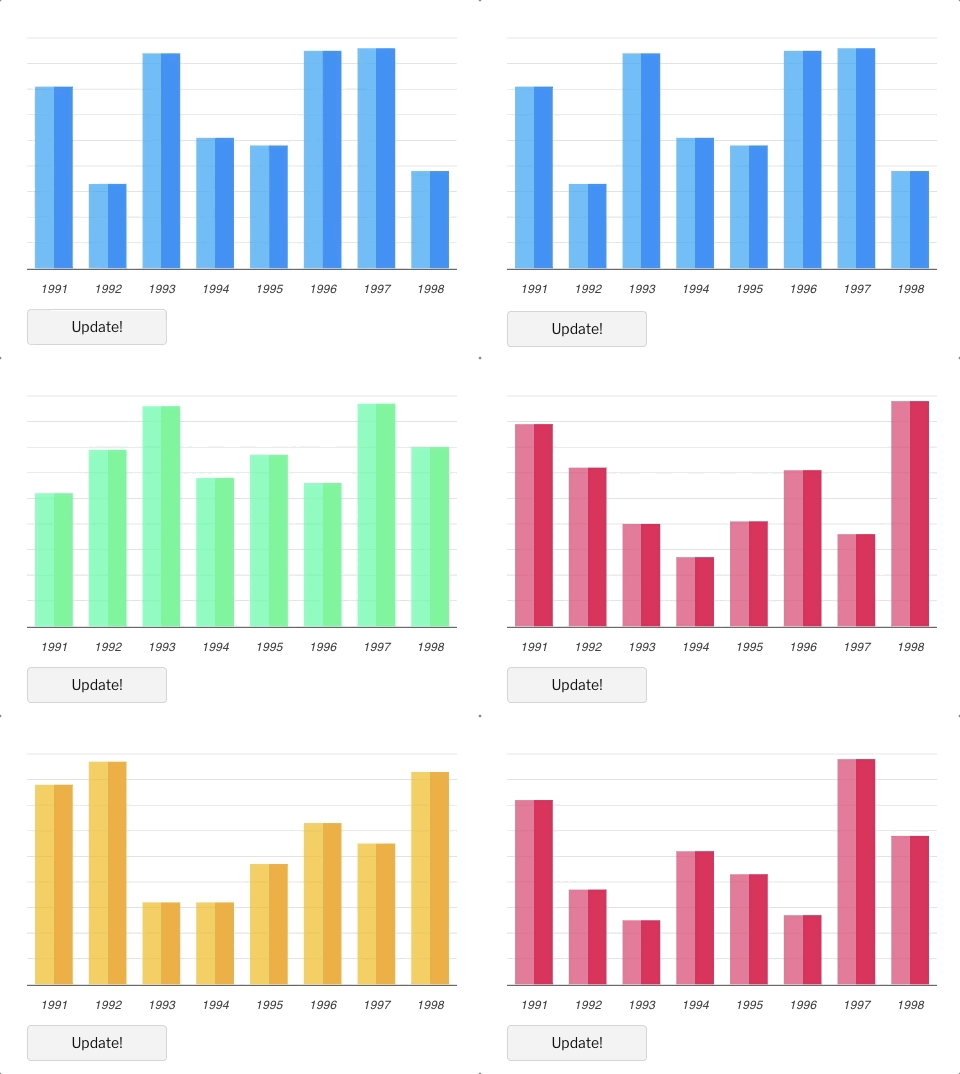
Click on the below example to see this in action
<template>
  <div class="app">
    <apexchart
      width="550"
      type="bar"
      :options="chartOptions"
      :series="series"
    ></apexchart>
    <div>
      <button @click="updateChart">Update!</button>
    </div>
  </div>
</template>
export default {
data: function () {
return {
chartOptions: {
chart: {
id: "vuechart-example",
},
xaxis: {
categories: [1991, 1992, 1993, 1994, 1995, 1996, 1997, 1998],
},
},
series: [
{
name: "series-1",
data: [30, 40, 45, 50, 49, 60, 70, 81],
},
],
};
},
methods: {
updateChart() {
const max = 90;
const min = 20;
const newData = this.series[0].data.map(() => {
return Math.floor(Math.random() * (max - min + 1)) + min;
});
const colors = ["#008FFB", "#00E396", "#FEB019", "#FF4560", "#775DD0"];
// Make sure to update the whole options config and not just a single property to allow the Vue watch catch the change.
this.chartOptions = {
colors: [colors[Math.floor(Math.random() * colors.length)]],
};
// In the same way, update the series option
this.series = [
{
data: newData,
},
];
},
},
};Important: While updating the options, make sure to update the outermost property even when you need to update the nested property.
✅ Do this
this.chartOptions = {
  ...this.chartOptions,
  ...{
    xaxis: {
      labels: {
        style: {
          colors: ["red"],
        },
      },
    },
  },
};
❌ Not this
this.chartOptions.xaxis = {
    labels: {
        style: {
          colors: ['red']
        }
    }
}}| Prop | Type | Description |
|---|---|---|
| series* | Array | The series is an array which accepts an object in the following format. To know more about the format of dataSeries, checkout Series docs on the website. |
| type* | String | line, area, bar, pie, donut, scatter, bubble, heatmap, radialBar, candlestick |
| width | Number/String | Possible values for width can be 100% or 400px or 400 |
| height | Number/String | Possible values for height can be 100% or 300px or 300 |
| options | Object | The configuration object, see options on API (Reference) |
You don't actually need to call updateSeries() or updateOptions() manually. Changing the props will automatically update the chart. You only need to call these methods to update the chart forcefully.
| Method | Description |
|---|---|
| updateSeries | Allows you to update the series array overriding the existing one |
| updateOptions | Allows you to update the configuration object |
| toggleSeries | Allows you to toggle the visibility of series programatically. Useful when you have custom legend. |
| appendData | Allows you to append new data to the series array. |
| addXaxisAnnotation | Draw x-axis annotations after chart is rendered. |
| addYaxisAnnotation | Draw y-axis annotations after chart is rendered. |
| addPointAnnotation | Draw point (xy) annotations after chart is rendered. |
Sometimes, you may want to call methods of the core ApexCharts library from some other place, and you can do so on window.ApexCharts global variable directly. You need to target the chart by chart.id while calling this method
Example
window.ApexCharts.exec("vuechart-example", "updateSeries", [
  {
    data: [40, 55, 65, 11, 23, 44, 54, 33],
  },
]);
In the above method, vuechart-example is the ID of chart, updateSeries is the name of the method you want to call and the third parameter is the new Series you want to update.
More info on the .exec() method can be found here
All other methods of ApexCharts can be called the same way.
The default entry (vue3-apexcharts) bundles the full ApexCharts library. If you want to reduce your bundle size by importing only the chart types and features you need, use the core entry point:
import VueApexCharts from "vue3-apexcharts/core";

// Import by the exact chart type name you use in :type or chart.type
import "apexcharts/line";
import "apexcharts/bar";
import "apexcharts/donut";
import "apexcharts/treemap";

// Import only the features you need
import "apexcharts/features/legend";
import "apexcharts/features/toolbar";

const app = createApp(App);
app.use(VueApexCharts);
The core entry imports ApexCharts from apexcharts/core, which is the bare class with only tooltip included. You must explicitly import the chart types and optional features your app uses.
Each chart type has its own import that matches the type name you pass to the component — no need to know which internal module it maps to:
Chart types:
| Import | type string |
|---|---|
apexcharts/line |
"line" |
apexcharts/area |
"area" |
apexcharts/scatter |
"scatter" |
apexcharts/bubble |
"bubble" |
apexcharts/rangeArea |
"rangeArea" |
apexcharts/bar |
"bar" |
apexcharts/column |
"column" |
apexcharts/barStacked |
"barStacked" |
apexcharts/rangeBar |
"rangeBar" |
apexcharts/pie |
"pie" |
apexcharts/donut |
"donut" |
apexcharts/polarArea |
"polarArea" |
apexcharts/radialBar |
"radialBar" |
apexcharts/radar |
"radar" |
apexcharts/candlestick |
"candlestick" |
apexcharts/boxPlot |
"boxPlot" |
apexcharts/heatmap |
"heatmap" |
apexcharts/treemap |
"treemap" |
Optional features:
| Import | Description |
|---|---|
apexcharts/features/legend |
Chart legend |
apexcharts/features/toolbar |
Toolbar (zoom, pan, download) |
apexcharts/features/annotations |
X/Y-axis and point annotations |
apexcharts/features/exports |
PNG/SVG/CSV export |
apexcharts/features/keyboard |
Keyboard navigation & accessibility |
Note: Tree-shaking requires ApexCharts v5.10.3+.
Vue3-ApexCharts includes dedicated components for SSR that work with Nuxt 3 and other Vue SSR frameworks.
Note: SSR support requires ApexCharts v5.6.0+.
Register the plugin so that components are available during both server and client render passes:
// plugins/apexcharts.ts
import VueApexCharts from "vue3-apexcharts";

export default defineNuxtPlugin({
  name: "apexcharts",
  parallel: true,
  setup(nuxtApp) {
    nuxtApp.vueApp.use(VueApexCharts);
  },
});Render charts to HTML on the server — the chart markup is included in the initial page load for better SEO and faster perceived performance:
<template>
  <apexchart-server
    type="bar"
    :series="series"
    :options="options"
    :width="500"
    :height="300"
  />
</template>

<script setup>
const series = [{ data: [30, 40, 35, 50, 49, 60, 70] }];
const options = {
  chart: { type: "bar" },
  xaxis: { categories: ["A", "B", "C", "D", "E", "F", "G"] },
};
</script>For interactive charts, pair server rendering with client-side hydration. The chart is rendered on the server, then <apexchart-hydrate> finds all server-rendered charts on the page and attaches client-side interactivity (tooltips, animations, click handlers):
<template>
  <apexchart-server
    type="line"
    :series="series"
    :options="options"
    :width="700"
    :height="350"
  />

  <!-- Place once per page — hydrates all server-rendered charts -->
  <apexchart-hydrate
    :client-options="{
      chart: { animations: { enabled: true } },
    }"
  />
</template>

<script setup>
const series = [{ name: "Sales", data: [30, 40, 35, 50, 49, 60, 70] }];
const options = {
  chart: { type: "line" },
  xaxis: { categories: ["Mon", "Tue", "Wed", "Thu", "Fri", "Sat", "Sun"] },
};
</script>For purely client-side rendering in Nuxt, wrap the standard component in <ClientOnly>:
<template>
  <ClientOnly>
    <apexchart
      type="bar"
      :series="series"
      :options="options"
      width="500"
      height="300"
    />
  </ClientOnly>
</template>| Prop | Type | Default | Description |
|---|---|---|---|
| type | String | 'line' |
Chart type |
| width | Number/String | 400 |
Chart width |
| height | Number/String | 300 |
Chart height |
| series | Array | [] |
Chart data series |
| options | Object | {} |
ApexCharts configuration |
| className | String | '' |
CSS class for the container |
| Prop | Type | Default | Description |
|---|---|---|---|
| clientOptions | Object | {} |
Client-side options merged during hydration |
| selector | String | '[data-apexcharts-hydrate]' |
CSS selector for charts to hydrate |
Basic Examples are included to show how to get started using ApexCharts with Vue 3 easily.
cd demo
npm install
npm run dev
An SSR demo using Nuxt 3 is also available:
cd demo-ssr
npm install
npm run devnpm installnpm run buildnpm test