The OpenAI TTS component for Home Assistant makes it possible to use the OpenAI API to generate spoken audio from text. This can be used in automations, assistants, scripts, or any other component that supports TTS within Home Assistant.
- Text-to-Speech conversion using OpenAI's API
- Support for multiple languages and voices – No special configuration needed; the AI model auto-recognizes the language.
- Customizable speech model – Check supported voices and models.
- Integration with Home Assistant – Works seamlessly with assistants, automations, and scripts.
- Custom endpoint option – Allows you to use your own OpenAI compatible API endpoint.
- Chime option – Useful for announcements on speakers. (See Devices → OpenAI TTS → CONFIGURE button)
- User-configurable chime sounds – Drop your own chime sound into
config/custom_components/openai_tts/chimefolder (MP3). - Audio normalization option – Uses more CPU but improves audio clarity on mobile phones and small speakers.
- ⭐(New!) Support for new gpt-4o-mini-tts model – A fast and powerful language model (note:
gpt-4o-mini-ttsmight be a custom model name; official OpenAI models are typicallytts-1,tts-1-hd). - ⭐(New!) Text-to-Speech Instructions option – Instruct the text-to-speech model to speak in a specific way (model support for this varies). OpenAI new generation audio models
- Dual Engine Support: Choose between OpenAI's official API (or a compatible proxy) and a local Kokoro FastAPI instance.
- Efficient Streaming: Internally uses streaming from the API for potentially faster and more responsive audio generation, especially for longer texts.
Caution! You need an OpenAI API key and some balance available in your OpenAI account if using the official OpenAI service!
For pricing, visit: (https://platform.openai.com/docs/pricing)
Using Kokoro FastAPI as a local engine can avoid OpenAI API costs.
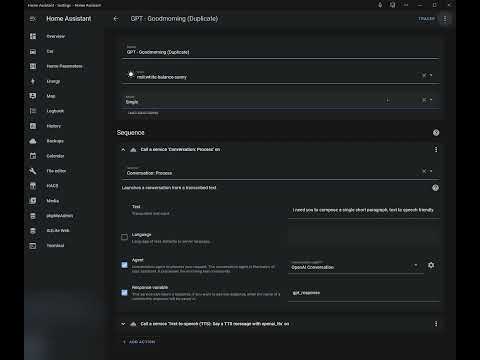
service: tts.speak
target:
  entity_id: tts.openai_nova_engine
data:
  cache: true
  media_player_entity_id: media_player.bedroom_speaker
  message: My speech has improved now!
  options:
    chime: true                          # Enable or disable the chime
    chime_sound: signal2                 # Name of the file in the chime directory, without .mp3 extension
    instructions: "Speak like a pirate"  # Instructions for text-to-speach model on how to speak
-
Go to the sidebar HACS menu
-
Click on the 3-dot overflow menu in the upper right and select the "Custom Repositories" item.
-
Copy/paste https://github.com/sfortis/openai_tts into the "Repository" textbox and select "Integration" for the category entry.
-
Click on "Add" to add the custom repository.
-
You can then click on the "OpenAI TTS Speech Services" repository entry and download it. Restart Home Assistant to apply the component.
After installation (either via HACS or manually), add the OpenAI TTS integration through the Home Assistant UI:
- Go to Settings → Devices & Services.
- Click + Add Integration.
- Search for "OpenAI TTS" and select it.
- Follow the configuration steps in the dialog.
You can configure the following options during setup:
-
TTS Engine: Choose the engine to use.
OpenAI (Official or compatible proxy): Uses the official OpenAI API or a proxy that implements the same API.Kokoro FastAPI: Uses a local instance of Kokoro FastAPI. This is a great option for local processing and avoiding cloud costs.
-
OpenAI API Key (
api_key):- Displayed only if "OpenAI" engine is selected.
- Required for the official OpenAI API. Can be left blank if your OpenAI-compatible proxy does not need it.
-
OpenAI-compatible API URL (
url):- Displayed only if "OpenAI" engine is selected.
- Defaults to
https://api.openai.com/v1/audio/speech. Change this if using a proxy.
-
Kokoro FastAPI URL (
kokoro_url):- Displayed only if "Kokoro FastAPI" engine is selected.
- Defaults to
http://localhost:8880/v1/audio/speech. Enter the full local URL of your Kokoro FastAPI instance. - For setting up Kokoro FastAPI, refer to the Kokoro FastAPI GitHub project.
-
Model (
model):- If "OpenAI" engine is selected, you can choose from models like
tts-1,tts-1-hd, or enter a custom one. - If "Kokoro FastAPI" engine is selected, this field is fixed to "kokoro" and is not user-editable during setup.
- If "OpenAI" engine is selected, you can choose from models like
-
Voice (
voice):- If "OpenAI" engine is selected, choose from standard voices (e.g.,
alloy,echo) or enter a custom one. - If "Kokoro FastAPI" engine is selected, this is a text input field defaulting to a common voice (e.g.,
af_heart). You can enter any valid Kokoro voice name. For a list of available voices, please consult the documentation of your Kokoro FastAPI instance or the Kokoro FastAPI project. The behavior of this field can be further customized in the options (see below).
- If "OpenAI" engine is selected, choose from standard voices (e.g.,
-
Speed (
speed):- Adjust the speech speed (range: 0.25 to 4.0, where 1.0 is the default).
Multiple instances of the integration can be configured, for example, to use different engines, models, or voices simultaneously.
After setting up the integration, you can adjust several options by navigating to its card under Settings → Devices & Services, clicking the three dots, and selecting "Configure" (or by clicking the "CONFIGURE" button on the device page).
Common Options (available for both engines):
- Model: (For OpenAI engine) Change the selected model. For Kokoro, this is fixed.
- Voice: Change the selected voice. Behavior for Kokoro engine depends on "Allow Voice Blending" (see below).
- Speed: Adjust speech speed.
- Instructions: Provide specific instructions to the TTS model (if supported).
- Chime Sound: Enable/disable and select a chime sound to play before speech.
- Audio Normalization: Enable/disable loudness normalization.
Kokoro FastAPI Specific Options:
These options are only available if you have configured the integration to use the Kokoro FastAPI engine:
-
Kokoro: Audio Chunk Size (
kokoro_chunk_size):- Adjusts the audio chunk size for streaming with Kokoro FastAPI. This can sometimes affect latency or intonation.
- Default:
400. Enter an integer value.
-
Kokoro: Allow Voice Blending (
kokoro_voice_allow_blending):- Enables or disables the ability to use blended voice strings. Default: Disabled.
- When Disabled (Default): The "Voice" option above will be a dropdown list of standard Kokoro voices.
- When Enabled: The "Voice" option above becomes a text input field. You can enter a single standard Kokoro voice name or a blended voice string.
- Blended Voice String Format: A plus-separated list of voices with optional weights, e.g.,
voice1(weight1)+voice2(weight2). Example:af_child(0.7)+af_nova(0.3). Refer to the Kokoro FastAPI documentation for details on blending.
Note: To change the core TTS Engine selection, main API Key, or primary URLs (OpenAI URL, Kokoro URL), you will need to remove and re-add the integration.
-
Ensure you have a
custom_componentsfolder within your Home Assistant configuration directory. -
Inside the
custom_componentsfolder, create a new folder namedopenai_tts. -
Place the repo files inside
openai_ttsfolder. -
Restart Home Assistant
-
Add the integration via UI, provide API key and select required model and voice. Multiple instances may be configured.