
- json-and-bson: binary JSON
- what-is-mongodb
- What is MongoDB? | MongoDB | Video
- MongoDB In 30 Minutes: t=6m55s
- default-mongodb-port
- MongoDBm Lab Heroku Deployment Process
- Default MongoDB Port
- mongojs
Mongo CRUD
Create/Insert
Read/Query
- [query-documents[(https://docs.mongodb.com/manual/tutorial/query-documents/)
Update
Delete
-
Difference between scaling horizontally and vertically for databases
-
Why I think Mongo is to Databases what Rails was to Frameworks
-
(Cheerio: Fast, flexible, and lean implementation of core jQuery designed specifically for the server.)[https://cheerio.js.org/]
Result Ordering
Unless you specify the sort() method or use the $near operator, MongoDB does not guarantee the order of query results.
Ascending/Descending Sort
Specify in the sort parameter the field or fields to sort by and a value of 1 or -1 to specify an ascending or descending sort respectively.
var mongojs = require('mongojs')
var db = mongojs(connectionString, [collections])
The connection string should follow the format described in the mongo connection string docs. Some examples of this could be:
- [morgan](HTTP request logger middleware for node.js)
Named after Dexter, a show you should not watch until completion.
Sharding - we do not Shard in Class ;)
Is a type of database partitioning that separates very large databases the into smaller, faster, more easily managed parts called data shards. The word shard means a small part of a whole.
Horizontal scaling means that you scale by adding more machines into your pool of resources whereas Vertical scaling means that you scale by adding more power (CPU, RAM) to an existing machine.
- Installing MongoDB on Windows
- Configuring MongoDB on Windows
- Installing MongoDB on MacOS
- Configuring MongoDB on MacOS
1: Go to the MongoDB download page: MongoDB Download Center
2: Scroll down, go to the green box with the Community Server Tab highlighted.
3: Go to the dropdown menu labeled "Version." Select "Windows Server 2008 R2 64-bit and later, with SSL support," then click the "DOWNLOAD (msi)" button.
4: The next page will thank you for downloading MongoDB then show a newsletter link. You can ignore this. In a few seconds, your browser will notify you that the file is downloading.
5: Open up Windows Explorer and locate the installation file (it should be in the default directory where your browser stores downloads). Open the file and follow the instructions.
-
When the installer prompts you to "Choose Setup Type," click the Complete button, then carry on.
-
A window might pop up mid-installation, asking you whether you’re sure you want to download a particular component of MongoDB. Click yes, otherwise the install will fail.
1: IMPORTANT: You need to create a data directory for your MongoDB installation, or it won't run. Open Git Bash, then cd your way to the root directory:
2: cd c:
3: Run the following command:
4: mkdir -p data/db
5: This is the default location for MongoDB’s databases. You need a directory for your databases, or else you MongoDB will refuse to run.
6: You’ll also want to add MongoDB’s path to the PATH environment variable, so that you can run it easily from the bash command line.
7: First, locate the directory where you installed MongoDB. This is likely C:\\Program Files\\MongoDB\\Server\\<version_number>\\bin. Copy this directory to your clipboard.
8: Then, open up the System menu or Control Panel on your machine, usually accessible via the Start menu or Search Bar in Windows operating systems.
9: Go to Advanced Settings.
- If you are on Windows 10 and opened the Control Panel, click System and Security; System; and Advanced System Settings.
10: When a new window opens up, click the Environment Variables button located toward the bottom of the window.
11: An Environment Variables window should open up. Look at the bottom half of this window, a scrollable table called "System Variables." Look at the Variable column and search for the variable called Path. Click on it, then click the "Edit…" button below.
12: The next window will look different depending on your version of Windows. You’ll either be able to press the "New" button and paste your MongoDB directory into the input box that shows up, or you’ll have to paste the directory at the end of a long string of other directories. So it goes.
13: If you would prefer video instructions for this part, watch this:
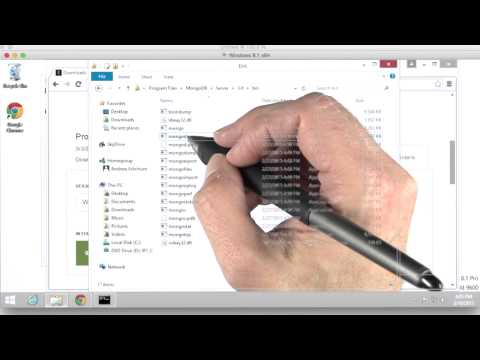
14: Test if it worked: Close your current Git Bash window, then reopen it and run this command: mongod
15: NOTE: No "b" at the end, simply mongod
16: If mongod is still running, great job! You’ve installed MongoDB. Your instructor will take it from here.
17: If mongod didn’t run, and instead your bash threw a "command not found" error, make sure you added MongoDB’s bin directory to your PATH variable (see step B.3). Then, close out git bash and try running mongod again.
18: If mongod starts but closes after a series of prompts, make sure you created the data/db directory in your root. MongoDB cannot run without this directory (see steps 2.1-2.2).
19: If you’re still encountering issues starting mongod, please ask for assistance from one of the TAs or the instructor.
1: Run the following command in terminal:
2: brew install mongodb --with-openssl
1: IMPORTANT: You need to create a data directory for your MongoDB installation, or it will not work.
2: sudo mkdir -p /data/db
3: sudo chmod go+w /data/db
4: With the data/db directory made, you're ready to run MongoDB. Enter this command in your terminal window: mongod
5: NOTE: No "b" at the end, simply mongod
6: If mongod didn’t exit from your window, great job! You’ve installed MongoDB. Your instructor will take it from here.
7: If mongod starts but closes after a series of prompts, make sure you created the data/db directory in your root directory, MongoDB cannot run without this directory (see steps 4.1-4.2).
8: If you’re still encountering issues starting mongod, please ask for assistance from one of the TAs or the instructor.
9: If you do not want to use homebrew, you can alternatively follow these instructions: https://docs.mongodb.com/v3.0/tutorial/install-mongodb-on-os-x/. However, installing MongoDB without homebrew can be a bit of a headache. Installing homebrew on your mac will make your life as a web developer a ton easier.
- IF NEEDED: How to Install Homebrew