

VS Code extension that lists your personal and organizations GitHub repositories, allowing you to clone and access them and create new ones
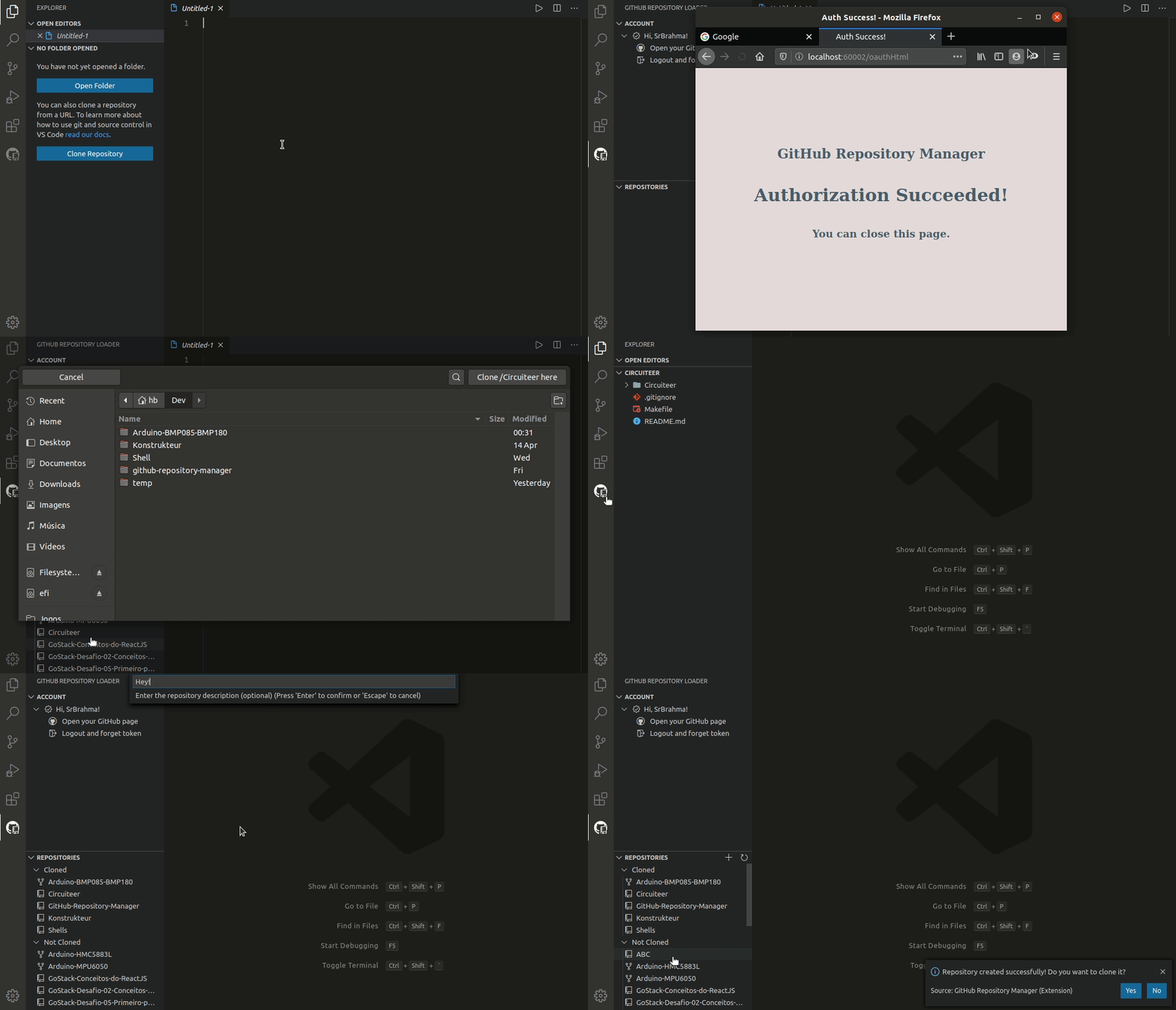
This gif is a little old! We are now using the VS Code integrated GitHub login system and the extension is prettier! The gif will be eventually updated!
To make your GitHub cloned repositories show up in the Cloned tree view, you will need to set the "git.defaultCloneDirectory" on your VSCode settings.json file to an absolute path where your cloned repositories are located (may be deep). On Linux you may use "~" to point to your home directory. On Windows, you must use the "X:\\folderA\\folderB" pattern.
I store my repos under "~/Dev", so that's what I use as my "git.defaultCloneDirectory" value.
While hovering the REPOSITORIES tree view title, a plus (+) button appears. Click on it, and enter the new repository name, description (optional) and visibility. On success, you may choose to clone the new repository.
If you are a member of at least one organization that allows you to create repositories for it, it will be asked, before the repository name input, to pick the new repository owner: your own account or one of those organizations.

You may create a GitHub repository and push your current project within the same flow. If there are multiple folders in your workspace that may be published to GitHub, it will be prompted to pick the desired one.
There are 2 possible cases that allows using that publish functionality:
-
Your project doesn't have a Git yet. After entering the repository name, description and visibility, the repository will be created, the git will be initialized for the workspace folder,
mainbranch will be created and selected, GitHub remote will be added asoriginand your files will then be pushed to it. -
Your project has a Git, but it hasn't a remote yet. After filling the repository information, it will be checked if your git HEAD is
master. If so, it will ask if you want the branch to be renamed tomain. Yes or no, the repository will be created, the GitHub remote is added asoriginand your code is pushed.
Always clone to the directory specified in "git.defaultCloneDirectory".
Colors the repositories icons.


Those * means that the repository is dirty! It means that it has local changes that weren't yet commited! Please, report errors with it! I will soon add an option to individually Delete non-dirty repositories!
How deep on "git.defaultCloneDirectory" the cloned repositories will be searched. A depth of 0 means it will only search in the directory itself, a depth of 3 means it will search up to 3 directories below.
Directories names that our cloned repositories searcher will ignore.
-
Search and clone public repositories
-
Other repositories found by the Cloned Repository Searcher. Useful for quickly opening a repository you don't own.
-
Visualize without cloning (useful for getting some value or checking something from some repository)
-
"Order by" (alphabetically, stars, your open frequency, created on, updated on) in top menu
-
Search repository by name
-
Fetch repositories on demand - Some devs have hundreds or thousands of repos. Instead of fetching all of them on init and displaying all of them together, there could be a [1..100], [101, 200] tree system, for both on demand fetch and display.
-
Remove cloned from local if it isn't dirty (= not locally diff from github)
