If you are reading this, you’ve received one of our tech packs with several bluetooth beacons (URIBeacons) and some Intel Edison boards. This page will help you get setup.
The reason for this project is to get people to try out the Physical Web, prototype something that represents a real scenario and give us feedback. We’ve already received quite a bit of feedback on our github but we’re now trying to encourage more active projects. Please beat on it and let us know: either go to the issues page of our github or just send an email to scottj@google.com.
In order to use the beacons, you need to have the Physical Web app installed on your phone. It currently works on Android 4.4 and iOS 8 devices. Just go to their app stores, search for “Physical Web” and download the app.
The beacons can be set to any URL. When you pull down the notifications tray in Android or the TodayView in iOS, you’ll see a list of nearby beacons. Picking any one will open that URL in Chrome.
To change the URL you need to first go to the “Change URL” section of the app and then push the button on the beacon. This will allow you to type in a new URL. Beacons like this are clearly not secure, these are ‘testing beacons’ that are meant to be easily set for prototyping purposes.
This document describes how to set up the Intel Edison Mini Breakout Kit and install a Physical Web HelloWorld app. The HelloWorld app, aka helloEdison will broadcast a url over Bluetooth Low Energy and mDNS. Additionally, helloEdison will connect via WebSocket to a remote server at the broadcasted url. That remote server also serves up an html client to mobile devices that navigate to the given url. The html client also connects via WebSocket to the remote server. This allows for communication to travel from helloEdison to the remote server to the html Client. The idea is that when you press the tiny white button on the Intel Edison, the helloEdison sends a message to the remote server, which then sends a message to the html client, which then indicates that the button has been pressed.
- Open your Intel Edison Mini Breakout Kit box.
- Remove the Intel Edison chip (it’s the smaller part and says “Intel Edison” on it).
- Remove the Mini-Breakout board.
- Snap the Intel Edison chip onto the Mini-Breakout board (matching the pinouts on the chip with the black receiving slot).
- Fasten the board with the accompanying small nuts that came in a small plastic bag. Be careful not to screw them too tight.
Your assembly should now look like this:
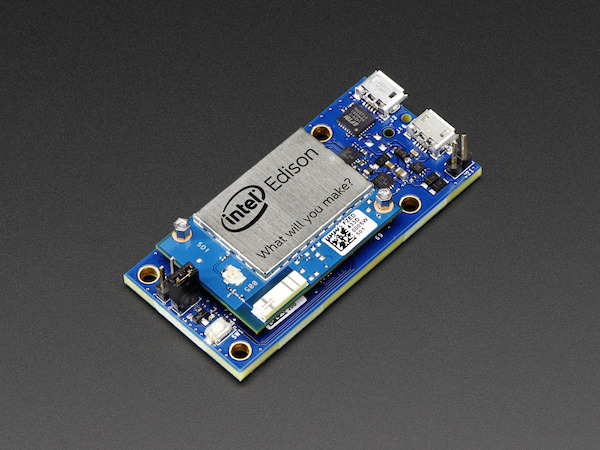
- Go to the appropriate link below depending on your computer’s operating system.
- For Mac https://communities.intel.com/docs/DOC-23193
- For Windows go to https://communities.intel.com/docs/DOC-23192
- For Linux go to https://communities.intel.com/docs/DOC-23200
- Follow the instructions to flash your Intel Edison. Note: The instructions on the page show the Intel Edison Arduino kit, but the same instructions apply to the Intel Edison Mini-Breakout kit. Also, please ignore the micro-switch instruction as it applies only to the Arduino kit.
SSH into your Edison (using PuTTY for Windows, or terminal “screen /dev/...” command for Mac and Linux). To setup login, password, and wifi connection, run (and follow the onscreen instructions):
configure_edison --setup
To add the above repositories to the configuration file, run (copy and paste the three lines at once into the terminal):
echo "src/gz all http://repo.opkg.net/edison/repo/all
src/gz edison http://repo.opkg.net/edison/repo/edison
src/gz core2-32 http://repo.opkg.net/edison/repo/core2-32" >> /etc/opkg/base-feeds.conf
To retrieve the new repositories, run:
opkg update
To install the latest bluetooth stack, run:
opkg install bluez5-dev
Download and extract helloEdisonPackage.zip from the following url (by clicking "View Raw"):
To stop the power button handler service, run:
systemctl stop pwr-button-handler.service
On your local machine open another terminal and cd into the helloEdisonPackage folder To copy the edited power button service file to the Edison /usr/bin folder, run:
scp pwr_button_handler root@10.0.1.42:/usr/bin
(replacing 10.0.1.42 with the current IP address of your Edison)
To start the power button handler service, run:
systemctl start pwr-button-handler.service
To copy the helloEdison folder to “/home/root/”, run:
scp -r helloEdison root@10.0.1.42:/home/root
(replacing 10.0.1.42 with the current IP address of your Edison)
Go back to the ssh terminal that is connected to the Edison
cd into the helloEdison folder
To install the node dependencies for helloEdison, run:
npm install
To make bluetooth ready for helloEdison (note: you’ll have to do this every time you reboot the Edison), run:
rfkill unblock bluetooth
killall bluetoothd
hciconfig hci0 up
cd into the helloEdison project folder and run:
node main.js
- For iOS, download and install Physical Web from the App Store
- For Android, download and install Physical Web from the Play Store
- Find and navigate to the helloWorld url
- Open the Physical Web app on your mobile device
- Scan for nearby beacons
- Look for the entry titled “Hello Intel Edison”
- Tap that entry
- This will navigate you to the given url
- The page will contain a simple graphic of a button
Now press the tiny white button on the Intel Edison. As you do so, on your mobile device watch the page you just navigated to Every time you press the tiny white button on the Intel Edison, the button on the page on your mobile device will indicate that the button has been pressed.