A lightweight Godot addon that helps create simple multiplayer sessions.
One player creates a session and shares the session ID with others through an external channel (WhatsApp, Discord, etc.). The other players can then join and play together. That’s it, no server deployment needed.
Tube works on any platform that supports WebRTC over the internet, see Requirements. It also runs on non-web platforms (Windows, macOS, Linux, Android, iOS) over a local network, without needing an internet connection.
However, the benefit of not having to deploy a server comes with a trade-off: in some cases, two peers may fail to connect. To better understand why this happens, see How it works.
Because no server is deployed by default, Tube may not be suitable for projects that require high stability or support for a large user base. If stability is critical, you can deploy your own servers to ensure reliable connectivity Using your own servers. As it is, Tube is a great option for:
- Rapid prototyping of peer-to-peer multiplayer
- Testing mutliplayer games
- Learning Godot High-level multiplayer
- Local multiplayer game
- Game demo
- Simple indie game
- Private multiplayer game
There’s no strict technical limit on the number of players in a session, but each additional player increases the load on the server peer.
Tube was developed and tested with Godot 4.5, and it may also work with other Godot 4.x versions. It is not compatible with Godot 3.
Tube uses WebRTC, as it, it works automatically on HTML5 export, but require an external GDExtension plugin on other platforms. You can find everything you need in the webrtc-native plugin repository.
Warning
No specific error message will appear if WebRTC implementation is missing. Make sure it’s set up correctly!
When exporting to Android, make sure to enable the INTERNET and CHANGE_WIFI_MULTICAST_STATE permission in the Android export preset before exporting the project or using one-click deploy. Otherwise, network communication of any kind will be blocked by Android.
To use this add-on effectively, it is essential to understand Godot High-Level Multiplayer
To install copy the addons/tube folder into addons Godot project's addons folder. Or download it directly from the Godot asset library
Verify that the addon is activated in your godot project in Project Settings -> Plugins.
Tube is composed of two main elements:
TubeContext: AResourcedefining the configuration the session connexions.TubeClient: ANodemanaging network connection and multiplayer peers.
First, create a new TubeContext for your project in Godot FileSystem inspector -> Create New -> TubeContext. And do the following :
- Enter a
App IDin yourTubeContext. App ID must be exactly 15 ASCII characters. You can generate one automatically by clickingGenerate App ID. App ID must be the same on all instance of your game.
Tip
If your game is only intended for local play, you can skip the following steps 2 and 3. For Web builds, however, steps 2 and 3 are mandatory, since local connections do not work on Web.
-
Add
Trackers URLs, you can use the following:- wss://tracker.openwebtorrent.com
- wss://tracker.files.fm:7073/announce
- wss://tracker.btorrent.xyz/
- wss://tracker.ghostchu-services.top:443/announce
-
Add
Stun Servers URLs, you can use the following:- stun:stun.l.google.com:19302
- stun:stun.cloudflare.com:3478
- stun:stun.bethesda.net:3478
Next add a TubeClient to our game scene : in Godot Scene inspector -> Add Child Node -> TubeClient.
Important
TubeClient must be present in the scene tree to function, and it can be placed anywhere.
However, it should not be removed while a session is open (either, creating, joining, created or joined).
Assign the previously created TubeContext to the Context property of your TubeClient. Optionally, you can also configure:
peer_signaling_timeoutpeer_signaling_max_attemptsmultiplayer_root_node
For more details about the available properties and functions:
- In Godot Scene inspector -> Right click on your
TubeClient->Open Documentation. - In the Script tab, search for
TubeClientin the Help panel.
On only one instance of the game call create_session(), for example:
@onready var label: Label = $Label # Label to display session id
@onready var tube_client: TubeClient = $TubeClient # reference to tube client in scene tree


func _on_button_pressed(): # User press create session button
    tube_client.create_session()
    label.text = tube_client.session_id
This player becomes the server (is_server = true) and have acces to the created session ID in the session_id property.
The server player should share this session ID with others through an external channel (e.g. Discord).
Other players can join by calling join_session(session_id), for example:
@onready var line_edit: LineEdit = $LineEdit # text user input for session id

func _on_button_pressed(): # User press join session button
    tube_client.join_session(line_edit.text)
When the session is successfully created or joined, the corresponding signals are emitted:
session_createdsession_joined
If an error occurs during creation or joining, the client emits:
error_raised(code: ErrorCode, message: String)
(see the TubeClient documentation in Godot for details on signals and error codes).
Any player can leave the session by calling leave_session().
If the server calls it, the session will close for everyone, and session_left will be emitted.
The server can:
- Kick a player using
kick_peer(p_peer_id: int) - Refuse new connections automatically by setting
refuse_new_connections = true
By default, TubeClient automatically configures Godot’s MultiplayerAPI and MultiplayerPeer on the SceneTree root node.
You can customize this behavior by setting the multiplayer_root_node property on TubeClient (see SceneTree.set_multiplayer for more information).
Once peers are connected, use Godot High-level multiplayer to implement your game logic. You can make use of tools such as:
- Godot RPC
- MultiplayerSpawner
- MultiplayerSynchronizer
For exemple:
func _on_some_input(): # Connected to some input.
    transfer_some_input.rpc_id(1) # Send the input only to the server.


# Call local is required if the server is also a player.
@rpc("any_peer", "call_local", "reliable")
func transfer_some_input():
    # The server knows who sent the input.
    var sender_id = multiplayer.get_remote_sender_id()
    # Process the input and affect game logic.
To know more about how to configure and use it, you can look into the demo project
Tube includes a helpful tool called TubeInspector for debugging and visualizing internal network activity.
To use it, add the scene located at /addons/tube/tube_inspector.tscn to your project and assign your TubeClient to it.
Note
Some features, such as latency display and chat, are only available if TubeInspector is part of the MultiplayerAPI scene tree.
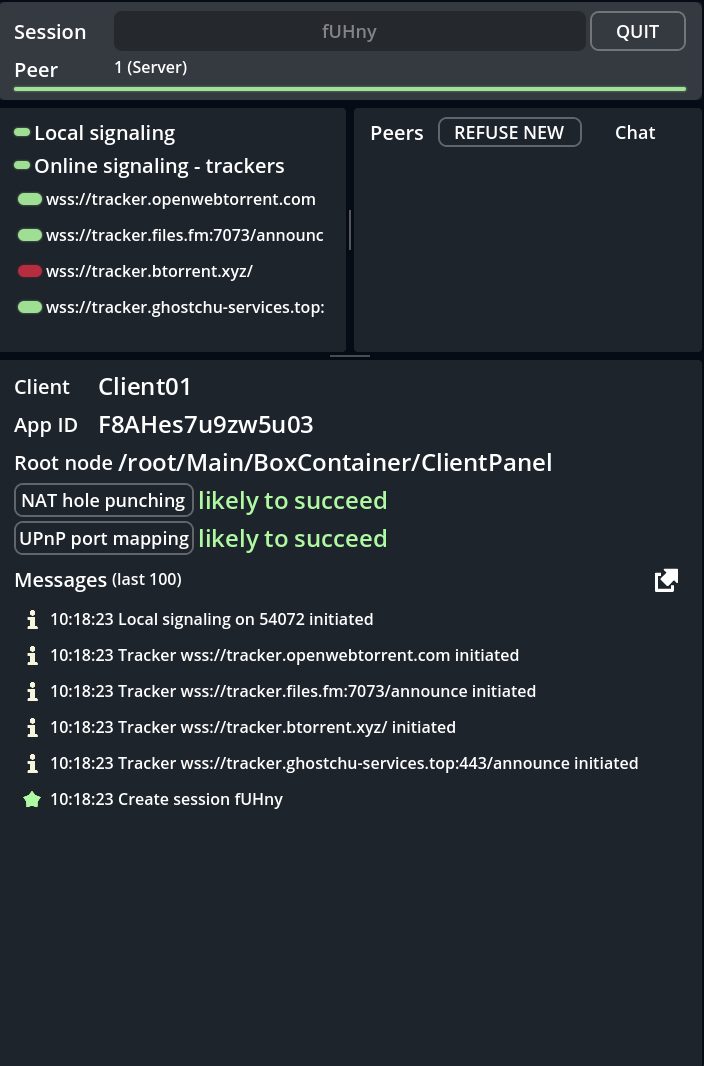
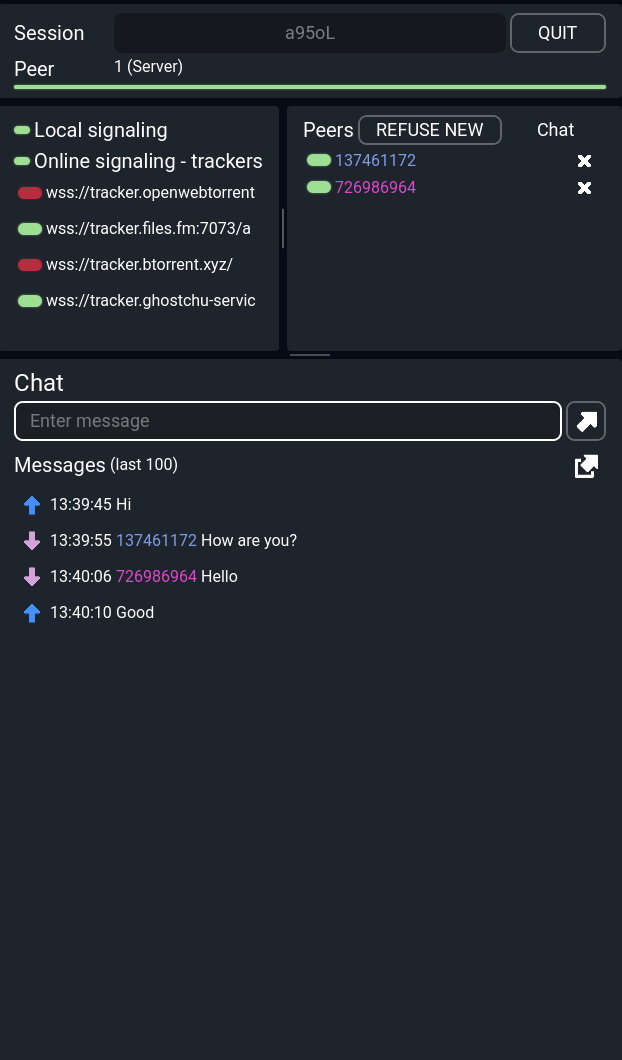
The most common reason a player cannot connect is a symmetric NAT.
A symmetric NAT is a router configuration that prevents NAT hole punching. This means that if both peers are behind a symmetric NAT, the connection will likely fail.
You can check whether you are behind a symmetric NAT using the NAT hole punching field in TubeInspector. Multiple STUN servers with different addresses are required. If the result is unknown, try different STUN domains. This tool is not available on Web platform.
You can also test here: Symmetric NAT test, but note that false positives are common due to browser privacy behavior.
Tube will attempt to map public ports via UPnP. Port mapping can help bypass symmetric NAT.
However, UPnP is not supported on all networks, commonly disabled on corporate, public, or VPN networks.
You can verify UPnP support using the UPnP port mapping field in TubeInspector. Port mapping is not available on Web platform.
If UPnP is available but connections still fail, the timeout may occur before the port opens. Try increasing the client's peer_signaling_timeout or peer_signaling_max_attempts.
If both NAT hole punching and UPnP port mapping show likely to fail for two players, then a direct Internet connection is likely impossible without a relay server.
You can still use Tube with your own servers to ensure reliable connectivity. See: Using your own servers.
Caution
Class 'UPNPDeviceMiniUPNP' already exists
This is a core Godot Engine issue caused by multithreading. There is currently no known way to fix or suppress it without modifying the engine itself. It has no impact on the correct functioning of Tube.
Caution
Invalid status code. Got 'XXX', expected 101.
This refers to a HTTP status code, indicating that a tracker is unavailable or encountered an issue. TubeInspector will show which trackers failed to connect.
This problem is related to tracker availability or network conditions. There is no reliable way to handle this error in GDScript. Because public trackers can occasionally be unstable, we recommend using multiple trackers to improve connection reliability.
Tube establishes a server–client architecture between peers. One peer acts as the server, while all other peers connect to it as clients. The server is responsible for relaying Godot’s RPC (see Godot High-level multiplayer) between peers.
To connect peers to the server, Tube uses WebRTC (Web Real-Time Communication), an open-source technology that enables secure, real-time peer-to-peer data transmission. Establishing a WebRTC connection requires an initial signaling phase, which depends on three external components:
- Signaling servers: Used to exchange connection initialization messages between peers.
- STUN servers: Help peers determine their public address and how they can be reached.
- TURN servers (optional): Act as relays when a direct peer-to-peer connection cannot be established.
For more details on WebRTC, visit the Official WebRTC web site and the WebRTC Godot documentation
On a local network, the server peer listens on determined port. When joining, other peers broadcast their signaling data across the network at destination of the server. Once signaling is complete, peers automatically switch to a WebRTC connection.
STUN and TURN servers are not needed in this mode.
Because the Web platform cannot open listening ports, local signaling is unavailable on Web builds.
For Signaling servers, Tube use WebTorrent tracker servers as signaling servers. Several public trackers are available, such as those listed in Configuration & Utilisation.
It is recommended to use multiple trackers to improve connection reliability, as public trackers can occasionally be unstable.
To learn more about BitTorrent trackers and WebTorrent, see the WebTorrent github and the Wikipedia BitTorrent Tracker page.
If you need more stable connections for your game, you can deploy your own tracker servers, see Using your own servers.
Many public STUN servers are available, such as those provided by Google. You can find an updated list here: Public STUN list
Currently, there are no reliable public TURN servers. Without a TURN server, there is no fallback mechanism when peers cannot establish a direct connection, for example, if both peers are behind a symmetric NAT. To mitigate this, Tube attempts to open ports automatically using UPnP port mapping. However, this feature is not supported on the Web platform.
For maximum reliability, you can deploy your own TURN server and add it to your TubeContext configuration see Using your own servers.
You can deploy your own WebTorrent tracker using the Official Webtorrent Tracker or the OpenWebTorrent Tracker.
Make sure to configure it with WebSocket support, availbale on Internet and set its URL in your TubeContext.
It is strongly recommended to use secure WebSockets (WSS/TLS) for to ensure reliable and encrypted communication and some browser will block non secure communication.
To improve connection reliability, you can host your own TURN server using coturn or eturnal. They can also be used as STUN servers.
Once deployed, add your TURN server’s URL and credentials to your TubeContext.
For security reasons, it’s recommended to use ephemeral credentials to prevent unauthorized access to your TURN server. This approach requires additional setup, such as generating credentials dynamically through a secure backend.
There are also third-party TURN hosting services available, but most are paid solutions.
Inspector icons: https://www.kenney.nl/assets/game-icons