Account creation
Each user needs an own account linked to his Telefonica email address.
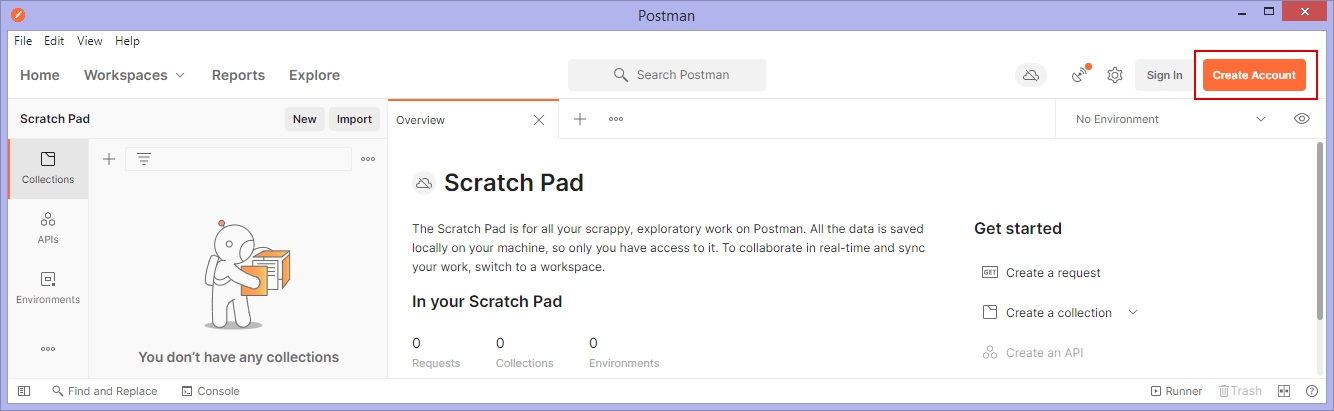
A new user can be created directly from Postman:
 |
|---|
Upon pressing the Create Account button a creation dialogue appears in the browser.
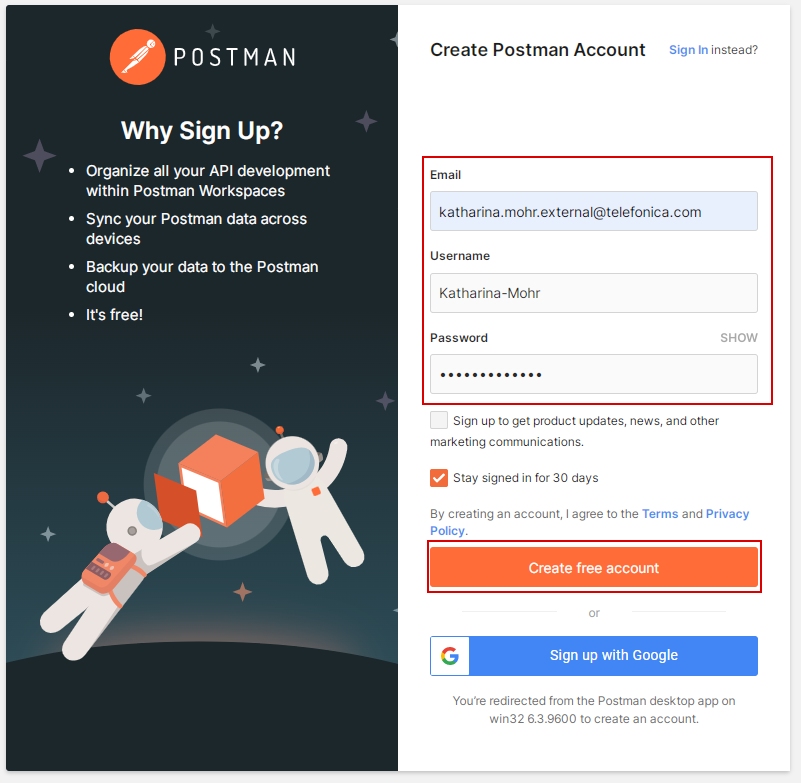
Fill the dialogue according to the following rules:
- Email: your Telefonica email address ending with telefonica.com
- Username: <first name>-<last name>
 |
|---|
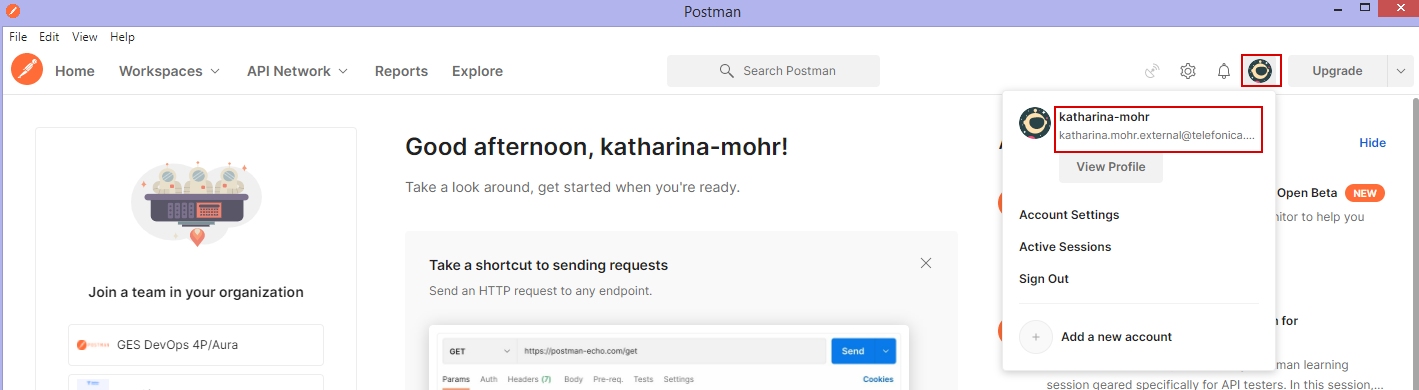
After that your new user should automatically be logged in to Postman.
 |
|---|
Display name change
Whereas the username does not allow to have blanks in it the display name does.
It should have the format "<first name> <last name>".
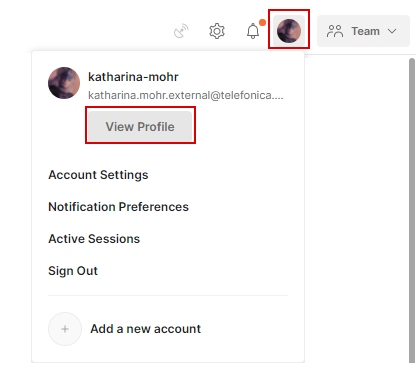
To change it click on the account button in Postman and select View Profile.
 |
|---|
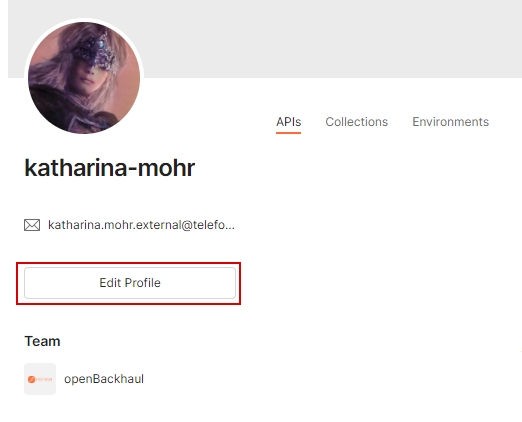
The profile will be displayed in the browser. There press Edit Profile:
 |
|---|
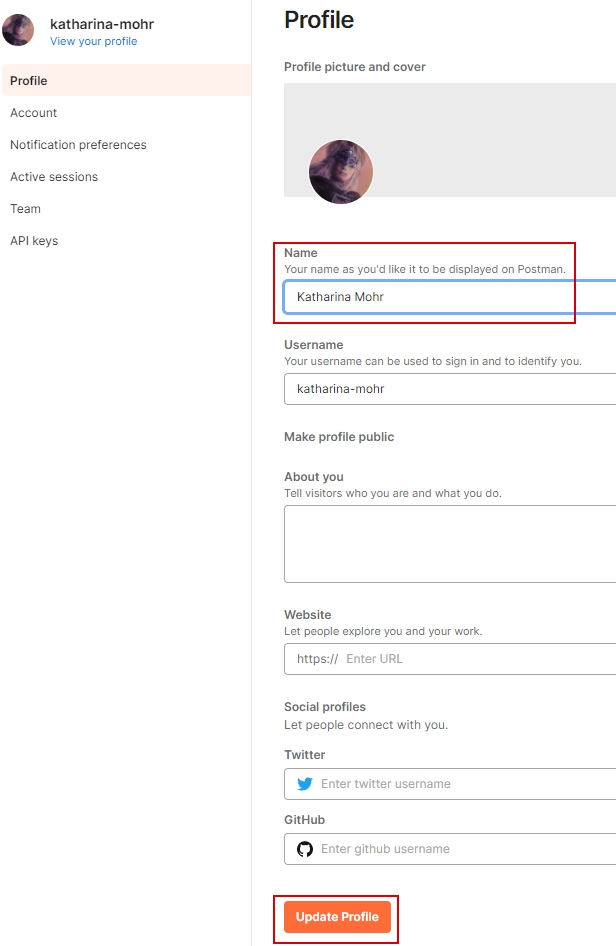
And change the Name field to the required format and apply the change by pressing Update Profile:
 |
|---|
Account activation
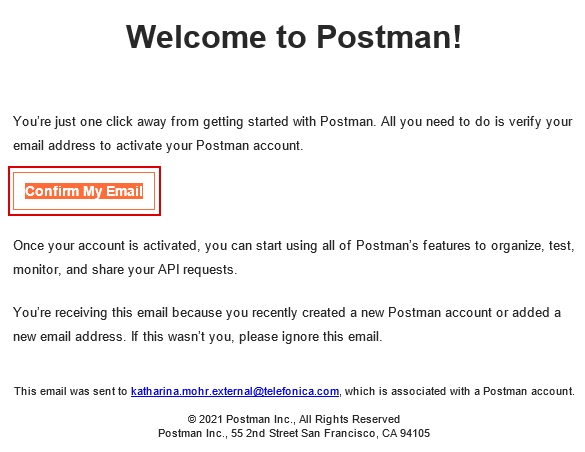
At this point the account still needs to be activated, which can be done from the email which will be sent by the Postman team. Press the Confirm My Email button to do so:
 |
|---|
Become a member of the team
The last step is to notify the plattform owner of your new user account in order to get added to the MW_SDN_Domain team.
Send an email to: Thorsten.Heinze@telefonica.com
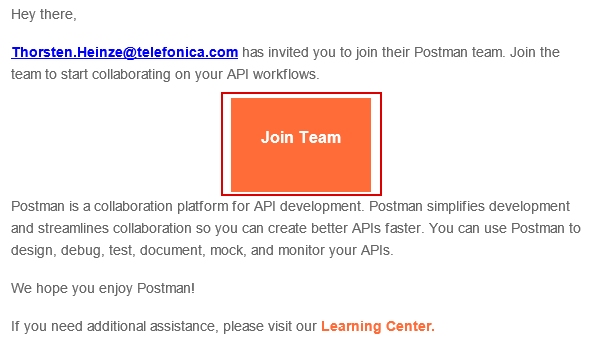
After some time you will get an email inviting you to the team. To do so just press the Join button in the email.
 |
|---|
Post steps
In case of logging for the first time with a new user account also make sure that the proxy settings are set up again (see here for information on how to do that.)