Hurry's main goal is to provide the ability to do actions on datasource results.
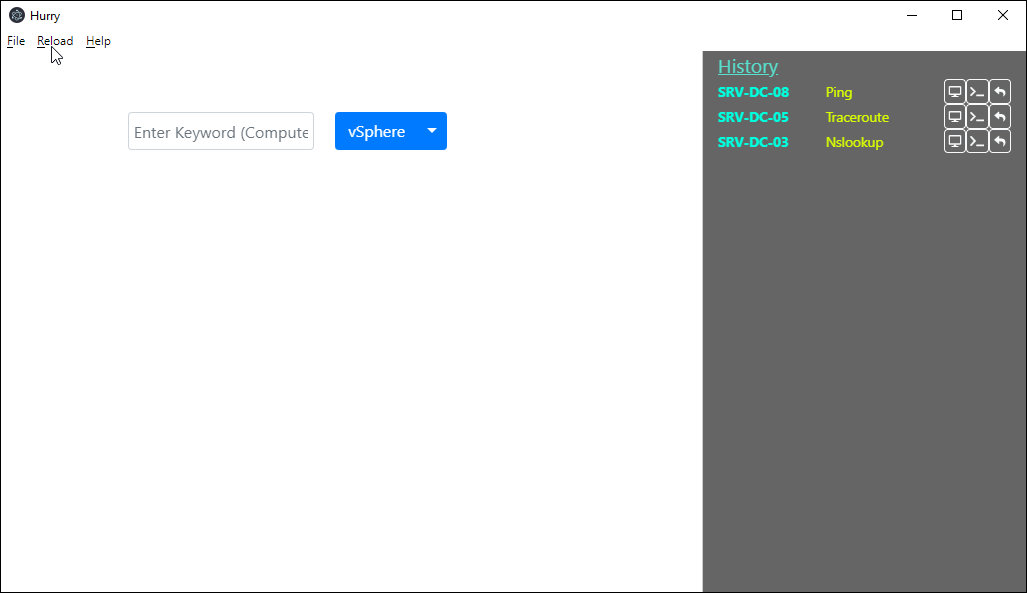
When you start the application, you have a search bar and an history panel on its right
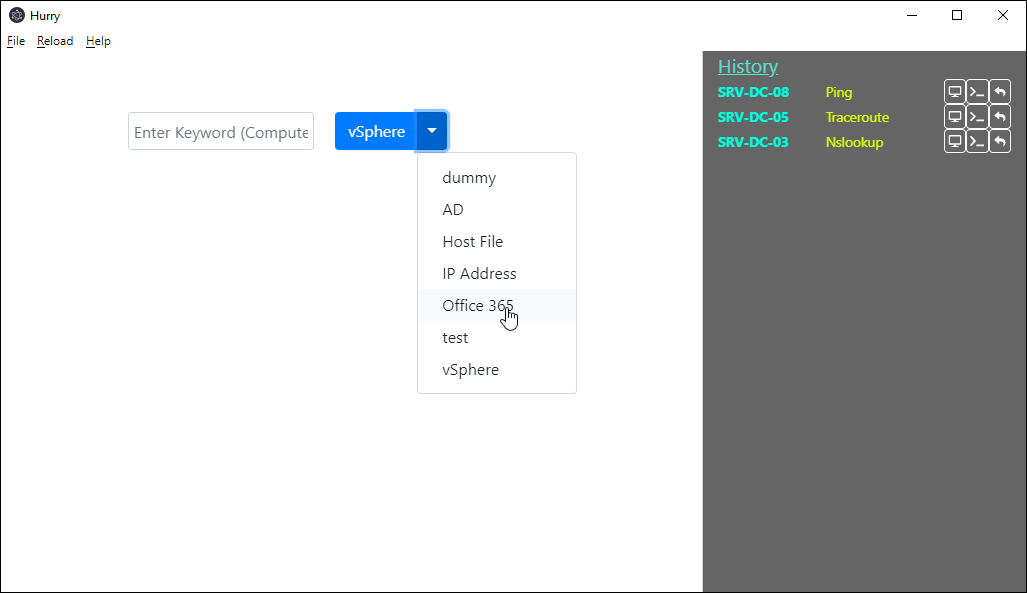
After entering a search keyword, you can select on which datasource you want to search for by clicking on the arrow on the button's left side.
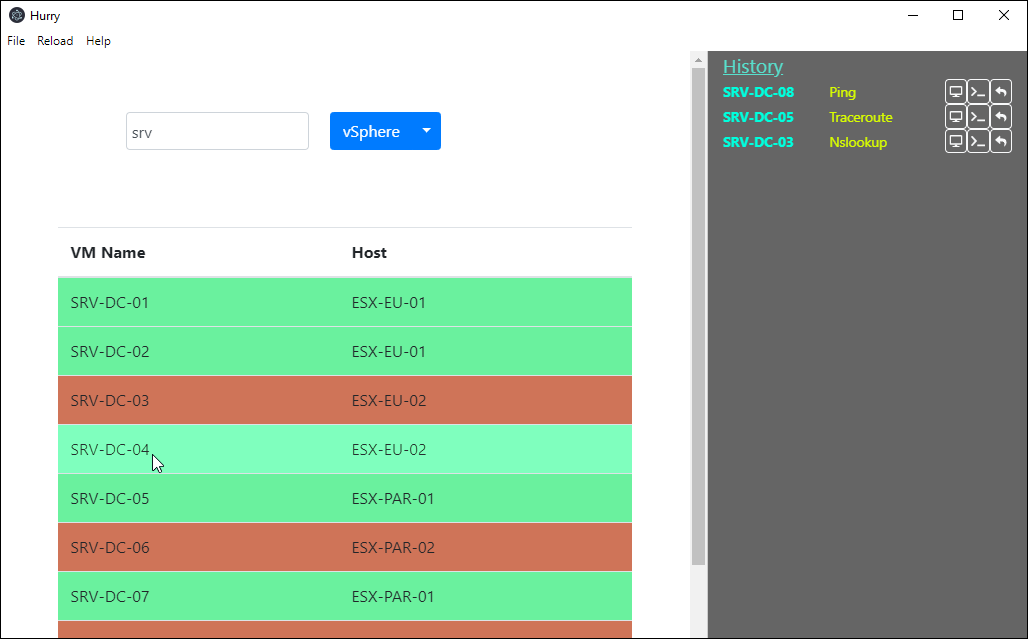
After clicking on the search button, a list of datasource results will be displayed.
If applicable, hurry will try to ping hosts displayed in the result area. The datasource result will be displayed in green or red so you can quickly know which host is up or not.
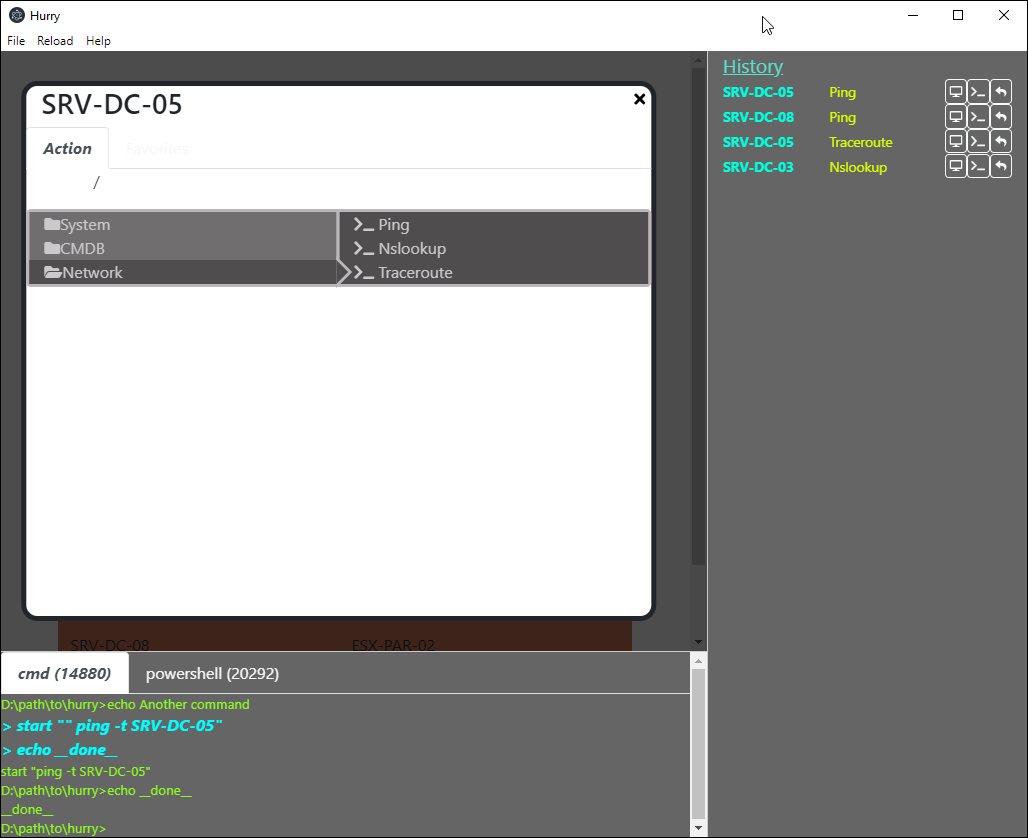
A click on a datasource result will display a contextual menu which will offer the ability to apply actions on this specific datasource result.
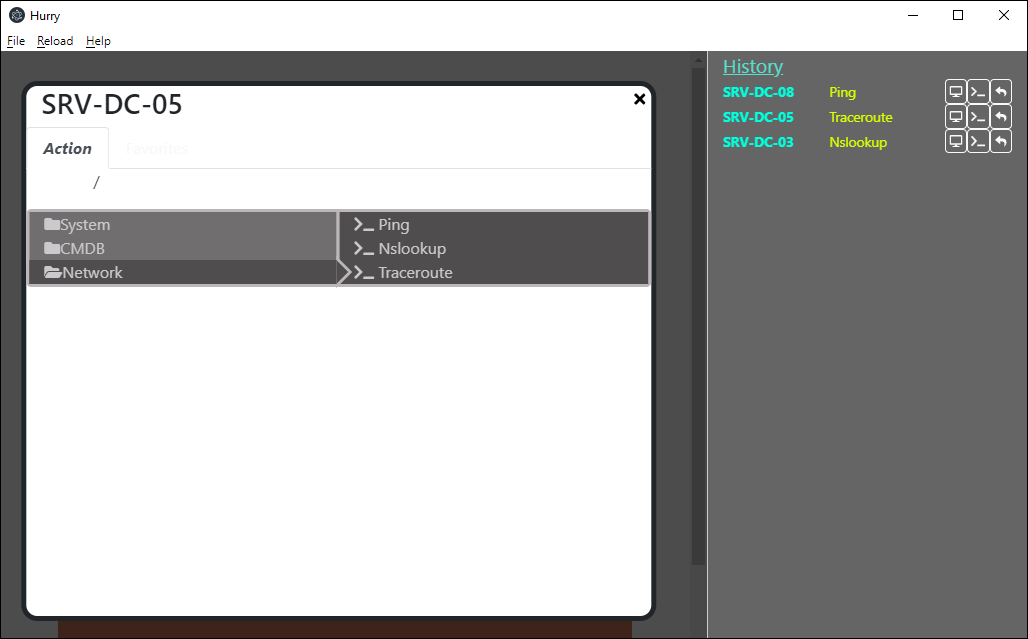
Each action are just a simple command that hurry will type within a shell (currently supported shells are cmd, powershell, sh) for you.
Commands are generated using a command template using variables that Hurry will translate depending on the datasource result.
For instance, the Ping command template can be defined this way :
On Win32 platform, the following command will be run within a cmd.exe process :
start "ping -t #{hostname}" ping -t #{hostname}
On Linux systems, clicking on the Ping action will execute :
xterm -e "ping #{hostname}"
One of Hurry's goals is to be cross platform. For this reason, each menu action will be defined with platform specifics commands.
Here is an example of the Ping action full definition (Hurry has a build-in menu editor so you might not need to do such type of edition)
{
  "caption": "Network",
  "type": "CONTAINER",
  "children": [
    {
      "description": "Do a simple ping on specific host",
      "caption": "Ping",
      "shell": "cmd",
      "type": "COMMAND",
      "platform": "win32",
      "commands": [
        "start \"ping -t #{hostname}\" ping -t #{hostname}"
      ]
    },
    {
      "description": "Do a simple ping on specific host",
      "caption": "Ping",
      "shell": "bash",
      "type": "COMMAND",
      "platform": "linux",
      "commands": [
        "xterm -e \"ping #{hostname}\""
      ]
    },
  ]
}
To understand how commands are executed by Hurry, a process console is available at the bottom of the app for the most curious users. So you can improve your skills or reuse commands that hurry runs for you.