Contributions to the project are appreciated!
This documentation is long and comprehensive, because the project strives for high quality for the icons and aims to minimize extra work as much as possible.
Caution
Contributing requires basic knowledge of making / editing vectors with a vector graphics editor (see the software section). Instructions are provided for some steps, but not for everything.
Note
Having some knowledge of graphic design and design in general is highly recommended.
Before making or requesting an icon for an app/site, refer to the "acceptability criteria".
✔️ Almost always accepted to request or submit.
- Apps / sites that are popular and has Aegis supported 2FA support (specially wanted).
- Examples (not limited to): social media, productivity tools, cloud services, development tools, gaming related etc.
- Almost any app / site / service, that doesn't have the exceptions from below.
- Still in spite of this, aegis-icons has right to reject requests or submissions if needed or necessary.
❔ Needs some examining before accepting or rejecting. Requests and submissions will be reviewed to determine acceptance.
- Forums, message groups and similar sites / communities using pre-existing hosted software.
- Icons based on the software are preferred, as they are more universally usable for users than specific communities.
- Detected with tools like What CMS and W3Techs Site Info.
- Exception: really popular forums can get their own icons (at least over 250,000 total members and high posting activity).
- Icons based on the software are preferred, as they are more universally usable for users than specific communities.
- Platforms that icon requester / submitter is the creator or owner of the platform itself.
- Requests for free work or self-advertising are not accepted.
- Exception: if platform is actually popular and has potential users for Aegis.
- Self-hosted or similar software.
- A suggestion is to have ≥ 500 GitHub/GitLab stars or other non-maintainer activity to support the request.
- If the previously mentioned metrics aren't available, then popularity is measured based on search results.
- Adult content, piracy & gambling related sites / apps / services.
- Mostly acceptable, but submissions must not break any of the "not approved" bullet points.
- These services are always researched from any "not approved" points before accepting.
- App / site being too vague.
- Examples (not limited to): site only has login page and nothing else, search results don't answer what that app / site is either.
- Stating what the app or site does is not enough; there must be at least some evidence from the web. Otherwise, the app or site falls into the shady apps / sites category.
- Ad networks.
- Most of them belongs to shady apps / sites category, because often these services violate privacy on other users expense and trick users for unwanted things.
- Exception: ad networks with ethical standpoints (minimal or no user tracking / data collecting, no dark patterns, high advertiser monitoring etc).
❌ These are never accepted to aegis-icons, no exceptions!
- Apps / sites not having Aegis supported 2FA support.
- Also when service has officially discontinued 3rd party 2FA support (only supporting legacy users) and no known workaround for new users.
- Apps / sites focusing on highly immoral and illegal activity / material.
- Examples (not limited to): black hat hacking, malware, malvertising, money laundering, illegal or highly controversal sexual material / services, harassment / cyberbullying etc.
- Scams or other shady apps / sites.
⚠️ Only for icon submissions: submitting unmodified SVGs / raster images from the web.- Icons must be designed manually for submissions.
Lists of softwares that are suitable for making vectors (and opposite).
✔️ Most used and approved software.
These are recommended because the maintainer can give advice/help for these softwares:
- Adobe Illustrator (industry standard, most used software in this repository)
- Affinity Designer (way cheaper but powerful and better alternatives to Illustrator)
- Figma (more known as interface design tool, but has good enough vector functions for making icons as well)
- Inkscape (popular open source option)
If the software isn't listed here or in the prohibited section, check the software's website.
If the software mentions being a "vector graphics editor" (and not a "photo/image editor"), then the software is most likely acceptable as long as vectors can be saved as SVG.
Note
If the software is outside of the mentioned list, then there is no help or support for vector creation problems.
❌ Some of the softwares are not approved. Change to one of the allowed softwares or cancel the creation of the icon.
- Adobe Photoshop
- Affinity Photo
- Clip Studio Paint
- GIMP
- Krita
- Paint.NET
- (And more...)
These softwares are mostly for photo / image editing and aren't designed for vector creating.
Some of the softwares might have some basic vector editing capabilities, but aren't good enough for e.g. combining logos into one path or creating SVGs without lot of bloat code.
Before creating icons, contributors should decide which way to submit icon creations:
-
Option 1: Fork this project and submit via pull request a.k.a. PR (recommended).
- ℹ️ GitHub Desktop is recommended as a GUI software for this process.
- First, fork the project (how to fork the project in GitHub Desktop).
- Sidenote: creating changes in new branch(es) instead of using
masterbranch is highly recommended.- This approach allows for submitting multiple PRs with ease without aegis-icons's own
masterbranch updates interfering. - Creating branches in GitHub Desktop (remember to also publish that branch after creating one).
- This approach allows for submitting multiple PRs with ease without aegis-icons's own
- When icon is finished, fixed, tweaked or have any new changes, create new commit (creating new commits in GitHub Desktop).
- When writing a commit message for an icon addition or fix, please reference the corresponding issue number (e.g.,
#123 New icon: whateveror#321 Fix icon: coolbrand). This ensures the corresponding issue is automatically closed with a helpful comment and a direct link to the new or updated icon.
- When writing a commit message for an icon addition or fix, please reference the corresponding issue number (e.g.,
- When ready to submit to aegis-icons, create a pull request.
-
Option 2: Submit the icon for review by opening a new issue (select "Icon submission") and add the file(s) / info.
- This is the easiest option, but can become more complicated route later on if new changes are needed.
- Submitting via new issue is also more inconvenient to the maintainers.
To ensure that icons have been made correctly based of the CONTRIBUTING guidelines, all contributers must create a submission issue or pull request for filling requests (excludes organisation members).
Search through the logo resources to find a vector-based image (SVG, AI, EPS, PDF).
Caution
Never use JPG / PNG / GIF / WebP or other raster images (as is)!
Here are things to check, go though these options in order:
- Press kit on the company website
- Eg. Zenkit has "Press Kit" page, that has ZIPs containing vector-based logos.
- Look for pages like: Brand(ing), Press, Media, Logos, Assets, Marketing, About etc.
- Trying searching too:
logo site:offical-site-for-app-or-site.com
- Trying searching too:
- Embedded logo(s) on company website
-
Easiest way for finding / downloading SVGs from web pages is using SVG Gobbler browser extension (Chrome & Firefox, open source).
-
Ways without extension:
- Try right-clicking logo image and selecting Save image as..., and see if the save dialogue appears with SVG (not as JPG, PNG, GIF, WebP or any other raster graphic format).
- If right-clicking the image does not have an option for Save image as..., try using Inspect at the bottom of the right-click menu. This opens the developer tools which can reveal hidden URLs.
- Eg. at Codeberg, inspecting the logo in the left side of the navigation or logo at center reveals the location of SVG. Right-click and "open in new tab" to see the SVG file.
- Sometimes SVG is embedded as inline. This means that instead of linking to an external file, the whole SVG file code is added to the HTML site code (see SVG code example). In that case, copy the SVG code completely from HTML (website embedded SVG starts with
<svg& so forth and ends with</svg>), open a text editor and save copypasted text asfilename.svg. To test if the file works, open the file into a web browser (drag-and-drop SVG to tab bar or shortcut: Ctrl [⌘ Cmd]+O).
- If right-clicking the image does not have an option for Save image as..., try using Inspect at the bottom of the right-click menu. This opens the developer tools which can reveal hidden URLs.
- Right-click the website and select View page source, then press Ctrl [⌘ Cmd]+F to open the search tool and type
SVGto look for possible SVG vector files. Web inspector is also useful and better tool for some users / use cases (press F12 on the website, go to "Inspector" / "Elements" tab, then press Ctrl [⌘ Cmd]+F to search).- Eg. You Need A Budget reveals the hidden SVG resource in HTML metadata section (
https://www-assets.youneedabudget.com/wp-content/themes/dupatta/dist/images/safari-pinned-tab_[alphanumerical-string].svg) which can be copy-paste into the browser and save (Ctrl [⌘ Cmd]+S).
- Eg. You Need A Budget reveals the hidden SVG resource in HTML metadata section (
- Try right-clicking logo image and selecting Save image as..., and see if the save dialogue appears with SVG (not as JPG, PNG, GIF, WebP or any other raster graphic format).
-
- If everything has failed so far, then check logo resources section.
- Remember though, logo has to be latest one that company uses.
- As a last resort, image tracing with raster images can be attempted.
⚠️ Only use tools recommended in the "image tracing tools" section. Using tool outside of the list is not acceptable.
- Making a vectorised logo from scratch is also an option with the necessary skills and patience.
Tip
Is the SVG file broken? SVG compression with SVGO or SVGOMG might just fix the file.
Warning
Watch out for SVGs that are using raster graphics (example). These are not common, but does exist.

When making icons, download and use provided templates.
- For Illustrator, use
ai_template.ait(for primary icons) orai_template_generic.ait(for generic icons)..aitis Illustrator template file format, don't save over template file! (Read save and export for more info).
- Other softwares, use
svg_template.svg(for primary icons) orsvg_template_generic.svg(for generic icons).
Go these instructions in order:
- Always use logomark1 if brand is using one.
- If the logo only has text (known as logotype1), use that instead.
- Only if absolutely necessary: if the logotype appears too long and hard to see at smaller sizes, make the icon similar to a favicon / app icon or use the first letter of the logotype.
- Stay inside of the guides as much as possible.
- Square like shaped logos shouldn't step outside of the guides (size wise).
- For wider logos, furthest left & right side guides are max size limit.
- Guides don't necessarily mean that the logo's size should be exactly between guide a to guide b; they represent more often a safe area for the logo or a suggestion for logo's size.
- Technically centre doesn't always look center visually. The logo can be visually centred, if necessary.
- This can be a hard concept to understand, so here's few articles / resources:
- "The PLAY button is not optical alignment" by Xue Gu [wayback machine]
- "‘Eyeballing’ or Optical Alignment in Design" by Sergey Vlastiuk [archive.today]
- "Optical Adjustment – Logic vs. Designers" by Luke Jones [archive.today]
- Visual Center tool (not always accurate results to human eye).
- This can be a hard concept to understand, so here's few articles / resources:
- Compare the icon to other icons, try to keep logo size visually consistent to other icons.
Documentation coming soon... (krisu5 will add basic documentation)
In Adobe Illustrator (click to reveal)
- Open Layers window, if it's not already open (shortcut: F7 or menu: Window ➜ Layers)
- Ungroup all the layer groups related to the logo completely.
- "Target select" the layer group in Layers window by clicking "circle" (○) on the right (Shift+Click to select multiple groups).
- Press Ctrl [⌘ Cmd]+Shift+G multiple times until everything is ungrouped.
- Keep all the logo parts "target selected" and make compound path (menu: Object ➜ Compound Path ➜ Make or shortcut: Ctrl [⌘ Cmd]+8).
- If compound pathing doesn't work, open Pathfinder window (menu: Window ➜ Pathfinder or shortcut: Ctrl [⌘ Cmd]+Shift+F9) and press "Unite" (top-left icon in the window under "Shape modes" text).
In Affinity Designer (click to reveal)
- Open Layers window, if it's not already open (menu: View ➜ Studio ➜ Layers).
- In canvas, use "Move" tool (V) and select logo layers by click & drag across the logo (avoid selecting circle).
- Ungroup multiple times until everything in the logo is ungrouped (Ctrl [⌘ Cmd]+Shift+G).
- Unselect everything (click outside of canvas with "Move" tool).
- Repeat step 2.
- ℹ️ Before moving to step 6, read and do "Note for Affinity Designer users" part downwards.
- Combine logo (menu: Layer ➜ Geometry ➜ Add).
In Inkscape (click to reveal)
- Open Objects window (menu: Object ➜ Objects).
- Select all the objects related to logo (Shift+Click in the Objects window).
- Ungroup the object multiple times until everything is ungrouped (menu: Object ➜ Ungroup or shortcut: Ctrl [⌘ Cmd]+Shift+G).
- Combine the objects to together (menu: Path ➜ Combine).
Note – For Affinity Designer users:
Change "fill mode" of the logo vector and its parts from "Winding (Non-Zero)" into "Alternative (Even-Odd)" (menu: Layer ➜ Fill Mode). Otherwise, undesired CSS rules are created for the SVGs and the vector path should contain everything.
Go these instructions in order:
- Never use white as background (abbreviation: BG), white is always preserved for logo (a.k.a. foreground, short for FG).
- Don't use random colour.
- Don't use gradients, use solid colours.
- Keep everything at 100% opacity, no blending etc.
- Logo / FG should always use white (
#FFFFFF).- Exceptions:
fg.var&fg.bg.varicons.
- Exceptions:
- If a brand guideline has documented brand colours (example [wayback machine]), then go with that. Use the primary brand colour that is specifically stated in the guideline or based on what colour is used most.
- If there's no guidelines and logo only has one colour, use logo colour as icon background.
- For multi-colour logos, pick the best looking or most used colour.
- Tip: In Illustrator, if the logo is using gradient, use this method [wayback machine] to extract all the colours in the gradient to the swatches.
- For multi-colour logos, pick the best looking or most used colour.
⚠️ Only when absolutely necessary: if there's no brand guidelines and only found white versions of the logo, pick some colour from website (preferably from header or site's most used colour).- If an icon being created uses a dark background, a
bg.varicon version must be made as well.- Or conversely, if the background is too bright for a white logo, a
fg.varicon version should be created. - Check with "BG colours to avoid" SVG if
bg.varversion is needed.
- Or conversely, if the background is too bright for a white logo, a
- For generic icons, use templates (
ai_template_generic.aitorsvg_template_generic.svg) and don't change the BG colours!

Note
var is abbreviation of variation.
-
bg.varicons are for dark / AMOLED themes. These are made when primary icon has dark background that blends in when using the darker theme.- Examples: primary Steam icon, Steam
bg.varicon. - Use brighter alternative background.
- If there's no brand guidelines for alternative colours, check the website or app to see what other colours there might be.
- Check with "BG colours to avoid" SVG if
bg.varversion is needed.
- Examples: primary Steam icon, Steam
-
fg.varicons are made when primary icon's BG colour is too bright and hard to see with white logo.- Examples: primary Snapchat icon, Snapchat
fg.varicon. - Use black (
#000000) as foreground colour.
- Examples: primary Snapchat icon, Snapchat
-
fg.bg.varis combination of both variations, for edge cases whenbg.varBG colour is too bright and makes white logo hard to see.⚠️ Only make these if absolutely necessary! Find better BG colour forbg.varif possible to avoid making these.- Check with "BG colours to avoid" SVG if
fg.bg.varversion is needed.
- Check with "BG colours to avoid" SVG if
- Examples: Lichess
bg.varicon, Lichessfg.bg.varicon - Use black (
#000000) as foreground colour forbg.varversion.


"Alternative" – in this case – means icons for brands that provide alternative logos of their brands.
- Examples: primary IVPN icon, IVPN
alticon.


Just change the logo for alternative version.
"Generic" – in this case – means icons that doesn't represent any brand and are using symbol-like vectors.
- Use
ai_template_generic.aitorsvg_template_generic.svgtemplate, depending on the software. - Don't change the background colour of the template (
#6750a42). - Foreground colour is always white (
#FFFFFF). - Use these icon libraries:
- Phosphor Icons (primary, use light weight)
- Cryptocurrency Icons (when Phosphor Icons doesn't have an icon for cryptocurrency)
Note
Please read the info about naming at the filename section.
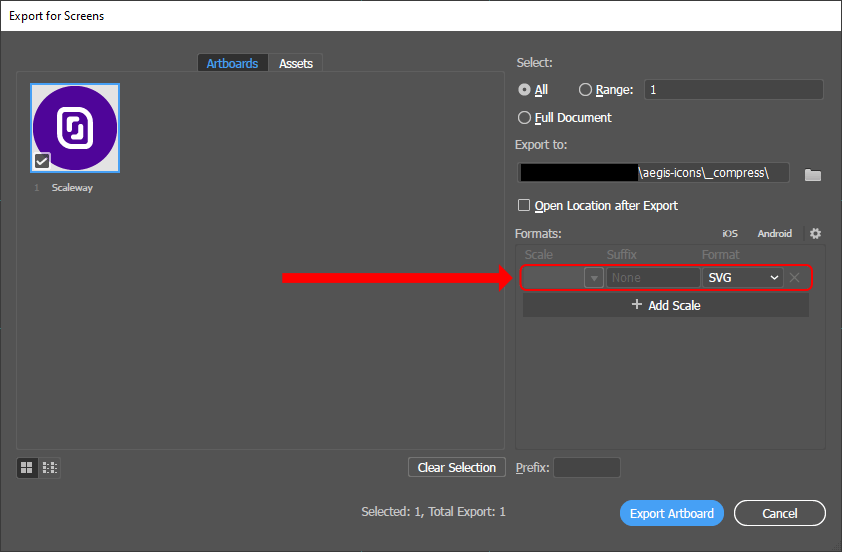
- If using Adobe Illustrator CC 2017 or newer, save the file as SVG with "Export for Screens" option (shortcut: Ctrl [⌘ Cmd]+Alt [⌥ Option]+E or menu: File ➜ Export ➜ Export for Screens...) with these settings.
- For older Illustrator versions, check the other methods mentioned here [wayback machine]
- Saving (temporarily) to
aifile format for making edit requests may be faster and easier to do.
- For other softwares:
- Before saving final version, remember to remove the guide strokes!
- In Affinity Designer, export file with "SVG (digital - small size)" preset.
- Saving (temporarily) to
afdesignfile format for making edit requests may be faster and easier to do.
- Saving (temporarily) to
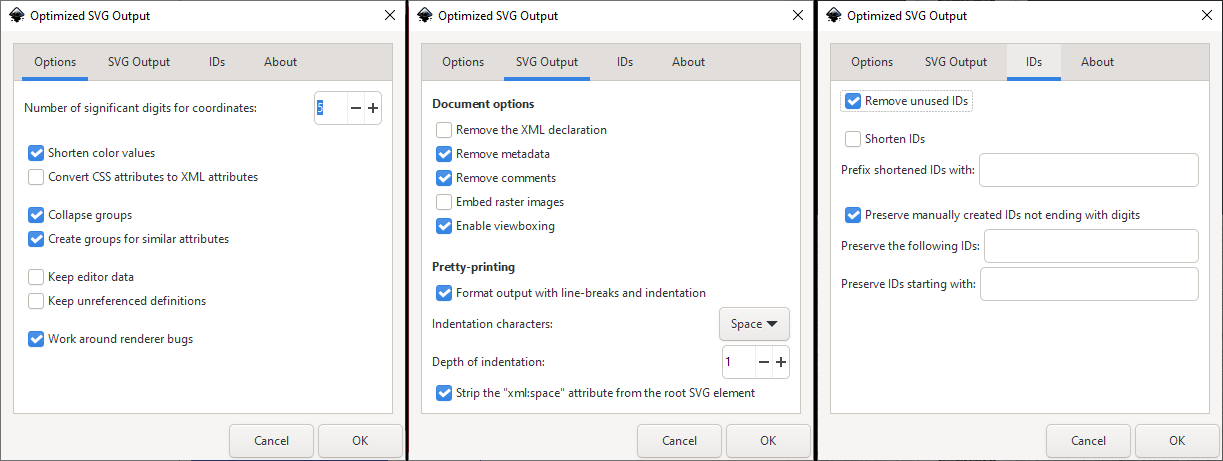
- In Inkscape, save the file as "Optimized SVG". (:warning: Hugely important!)
- In the prompt window, use these settings! (:warning: Equally important!)
- In software that's non-above, save as "SVG" or "Plain SVG", whichever is the safest available option.
- ❌ Don't make PNG files! PNG files are legacy content (with some exceptions).
- When submitting a pull request, read also the directories section.
Next, do SVG compression & cleanup.
If comfortable with command line tools:
- Install Node.js and SVGO
- Use this command:
(Or for Windows systems, a batch file is available).
svgo --multipass --pretty --indent 3 -f "input/folder/path/here" -o "output/folder/path/here"
For those unfamiliar with command line usage:
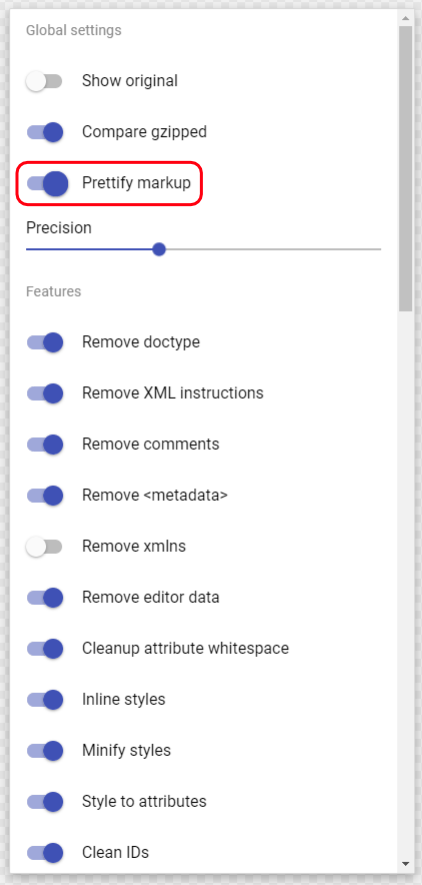
- Use SVGOMG
- Just tick "Prettify markup" before downloading the compressed SVG.
- Don't make other changes to settings.
<svg xmlns="http://www.w3.org/2000/svg" viewBox="0 0 1024 1024">
   <circle cx="512" cy="512" r="512" style="fill:#BG-HEX-COLOR"/>
   <path d="PRETTY-LONG-LOGO-PATH" style="fill:#LOGO-HEX-COLOR"/>
</svg>
▲ SVG code formatting example
- 🗒️ Checklist for SVG formatting:
- Check that the indentation is either 2 or 3 spaces.
- Check that the order of all the elements and attributes is EXACTLY same as the SVG code formatting example.
- Check that possible
fill="prefixes are changed tostyle="fill: - Remove all the elements and attributes that aren't featured in the SVG code formatting example.
- See the example SVG code after manual cleanup for aimed optimal result.
Caution
Test the SVG on the web browser that the svg still works after edits! (drag-and-drop SVG to tab bar or "Open File..." shortcut: Ctrl [⌘ Cmd]+O).
When everything is done and ready to go, submit icons with either as pull request or issue.
- Primary icons ➜
/icons/1_Primary/folder.- Means all the logo based icons that aren't variations / alternatives.
- Variation and alternative icons ➜
/icons/2_Variations/folder.
- Generic icons ➜
/icons/3_Generic/folder.
- For the outdated icons, see the new versions, version naming and organising old files section.
Caution
When naming brand based icon(s), check how brand capitalised and spell the name from their app / website (check the capitalisation / spelling from browser tab title or body text of the website, not from the logo!).
Note
Filename character limitations: Only use ISO basic Latin alphabet letters, numbers, spaces, dashes and other safe ASCII characters (list of forbidden ASCII).
- Primary icon:
[Company / product / app / site name].<ext>- Examples:
Adobe.svg,Best Buy.svg,FACEIT.svg,itch.io.svg
- Icon variations with alternate logo:
[Primary icon name] alt.<ext>- Example:
IVPN alt.svg
- Icon variations with black foreground or different background colour:
[Primary icon name] bg.var.<ext>[Primary icon name] fg.var.<ext>- Examples:
Squarespace bg.var.svg,Snapchat fg.var.svg
- Icon variations with black foreground and different background colour:
[Primary icon name] fg.bg.var.<ext>- Example:
Lichess fg.bg.var.svg
- Alt. icons with black foreground or/and different background colour:
[Primary icon name] alt bg.var.<ext>[Primary icon name] alt fg.var.<ext>[Primary icon name] alt fg.bg.var.<ext>- Example:
Discourse alt bg.var.svg
- Generic icon:
- Name as what the icon symbolises with big capital letter.
- Example:
Cloud.svg
- New versions of icons are only made when there is a major change (new logo or brand colour).
- Logos with only barely noticable brand related changes with same brand colour (example by T-Mobile), doesn't need new icon version.
- Icon files that are outdated for the first time,
v1is added to end of the filename.- Examples:
Codeberg v1.svg.
- Examples:
- Version label number increases for outdated icons when new versions of the primary icon are released (
v2,v3,v4,v5etc.). - Outdated versions are moved to directory:
/icons/4_Outdated/. ⚠️ Only for maintainers: Icons of now dead service (or didn't have 2FA etc.) should be moved to aegis-icons / misc'sremoved_iconsdirectory just as is.- Also add info to the directory's README on why icon was removed.

As of 2021-07-25, aegis-icons doesn't actively make PNG icons anymore.
Instead, PNGs are only made when noticing problems with SVG on Aegis and are added to aegis-icons / png-files repo. PNGs are only made by maintainers to keep files & compressions consistent.
List of SVG icons with known rendering issues and PNG counterparts are available here.
Warning
Please do not submit PRs that make changes to JSON files!
Because of the JSON update process, currently only maintainers are to make changes to JSONs.
If changes related to JSONs are needed, create an issue instead (choose "Other").
Resources marked with star (:star:) are recommended / most used by the maintainers.
Resources for finding logos in vector format, when no official brand kit / vector logos are available.
Caution
Remember to always double check if logo provided by these resources is the latest one company uses!
- Brandfetch (not always accurate results)
- LogoSearch ⭐
- Seeklogo
- Simple Icons ⭐
- VectorWiki
- Worldvectorlogo
- Wikimedia Commons
- Wikipedia pages of the brand ⭐
More resources at LogoSearch's "Alternative Logo Sources" list.
logo site:offical-site-for-app-or-site.comfiletype:pdf site:offical-site-for-app-or-site.com(vectors can be extracted from PDFs, as logos in these PDFs are often vector-based)."app-or-site-name-here" svgor"app-or-site-name-here" vector.
Caution
Only use image tracing tool if there's no other option, always use ready-made vectors if available.
In a nutshell, image tracing means converting raster image (PNG, JPG etc.) to vector file (SVG, EPS, AI etc.) with vector paths, more info at Wikipedia.
⚖️ Rule of thumb with image tracing:
- Use high resolution image if possible.
- Preferably with image that doesn't have many colours.
- Doesn't have any compression artifacts.
- If image does have artifacts, try Pix Fix tool to remove them.
Warning
Using tool outside of these recommendations below can do mediocre job and is not acceptable.
Maintainer has tested many image tracing tools and these are only actually good ones so far (yes, even Illustrator is mediocre).
- Vector Magic ⭐
- The one of best – if not the best – image tracer, often used by the maintainer. Unfortunately commercial software, trial only allows previews.
- Vectorizer.AI ⭐
- From makers of Vector Magic. Unfortunately also commercial, almost as good results as Vector Magic.
- Vectorizer.io ⭐
- Not as good as previous two but still great image tracer. Generating vectors without account / freely is possible.
- There's a loophole to download the SVG: use SVG Gobbler after vector is generated.
- Alternatively: Inspect the output image (Ctrl [⌘ Cmd]+Shift+C), copy the SVG code from dev tools and use plain text editor to create & save as SVG file.
- There's a loophole to download the SVG: use SVG Gobbler after vector is generated.
- Not as good as previous two but still great image tracer. Generating vectors without account / freely is possible.
- Vectorizer(.com)
- Out of these four options, this one is worst one of the bunch. But best part is that it's completely free to use and still better then most other tools out there.
Need to check if service has 2FA? These list apps / websites that support 2FA and in what kind of format.
"app-or-site-name-here" AND 2fa OR mfa OR otp OR totp OR factor authentication OR step verification OR time-based one-time
or
site:official-domain-of-the-app-or-site.com 2fa OR mfa OR otp OR totp OR factor authentication OR step verification OR time-based one-time
(Issue guidelines was last updated on: 2026-02-21)
- App / site related requests has to have Aegis-compatible 2FA support one way or another, this project does not make icons outside of Aegis usage.
- Always double-check if the requested service has 2FA support. Proof of Aegis-compatible 2FA can be added to the issue form's "Proof of the Aegis-compatible 2FA" section.
- For the similar icons for general purpose, check out Simple Icons instead.
- Always double-check if the requested service has 2FA support. Proof of Aegis-compatible 2FA can be added to the issue form's "Proof of the Aegis-compatible 2FA" section.
- Check that the icon being requested doesn't already exist or have open / closed issues in the repository.
- Icon packs aren't continuously updated in every new icon (see the pack releases). Icons created before the next icon pack update are downloadable on the website.
- Read the issue form carefully and follow the instructions.
- Don't open more then 5 icon request issues at the same time.
- More icon requests can be submitted after all current requests have been completed.
- Aegis-icons can reject any icon request for any reason, but most requests are fulfilled. Typically an explanation and possibly an alternative option are provided if the request is rejected.
- Possible reasons for rejections (among others):
- App / site not offering Aegis supported 2FA in the first place.
- Forum not popular enough (forum software related icon is the alternative).
- No high quality logo resources available.
- More info about approved & unapproved types of apps / sites.
- Possible reasons for rejections (among others):
- For questions or miscellaneous suggestions, check out FAQ first.
- Be respectful to the maintainers and contributers.
Here's all the footnotes:
Footnotes
-
Article: Logo, Logomark, Logotype - What's The Difference And What Do You Need? [wayback machine] ↩ ↩2
-
This colour is taken from Material Design 3's colour system (token:
Primary40, hex:#6750a4). ↩