Pisano Feedback Android SDK helps you collect surveys and user feedback in your Android applications.
This repository is a sample app repo. The SDK source code is not in this repo.
- Module:
app/— single sample application (XML layouts + Kotlin). - The sample UI (buttons, forms) is native; the survey UI is rendered by the SDK after
PisanoSDK.show(...)(your app does not build survey screens itself).
SDK artifact used by this sample: co.pisano:feedback (version 1.3.30, Maven Central)
- Sample alignment: This repository’s
app/build.gradledepends onco.pisano:feedback:1.3.30. - For integrators on 1.3.28 / 1.3.29: Treat 1.3.30 as a recommended upgrade on the same public API surface:
setCode(...)required inPisanoSDKManager.Builder, optional per-callcodeonshow/healthCheck, noflowId. Bump the dependency and rebuild; no API migration is needed if you are already on the post–1.3.27 model.
Framework-level details: Pisano/feedback-android releases.
These changes landed in 1.3.28+ and still apply in 1.3.30.
You must call .setCode("YOUR_CODE") on PisanoSDKManager.Builder. This is your survey/channel code from the Pisano panel.
val manager = PisanoSDKManager.Builder(context)
    .setApplicationId("YOUR_APP_ID")
    .setAccessKey("YOUR_ACCESS_KEY")
    .setCode("YOUR_CODE")   // required
    .setApiUrl("https://api.pisano.co")
    .setFeedbackUrl("https://web.pisano.co/web_feedback")
    .setEventUrl("https://track.pisano.co/track")   // optional
    .setDebug(BuildConfig.DEBUG)                    // optional, recommended
    .build()

PisanoSDK.init(manager)All APIs use code instead of flowId. Update every show(), healthCheck(), and related usage accordingly.
Single rule: The value you pass to .setCode(...) on the Builder (before PisanoSDK.init(manager)) is the default survey/channel for the SDK session. On PisanoSDK.show(...) and PisanoSDK.healthCheck(...), if you omit code or pass null, the SDK always uses that init code. A non-null code argument overrides the init code for that call only; the next call without code uses the init default again.
codeis optional. Omitted /null→ use.setCode(...)from init.- Non-null
code→ override for thisshowonly.
- Same rule: omit or
null→ initcode; non-null → override for this check only.
Useful when one app displays multiple surveys from different channels.
// Uses init (Builder) code (no per-call override)
PisanoSDK.show()

// Override for this call only (example)
PisanoSDK.show(
    viewMode = ViewMode.BOTTOM_SHEET,
    language = "tr",
    code = "ANOTHER_SURVEY_CODE"
)The backend may return display_rate (0–100). When this call is skipped, the SDK does not open the UI and emits PisanoActions.DISPLAY_RATE_LIMITED via your ActionListener.
When the survey is configured to show only once (or within a delay window), the SDK may emit PisanoActions.DISPLAY_ONCE and skip opening the widget again.
.setDebug(BuildConfig.DEBUG) // verbose logs in debug buildsdependencies {
implementation 'co.pisano:feedback:1.3.30'
}- Before (≤ 1.3.27):
setCodewas not required. - After (1.3.28+):
setCodeis required.
// Before (1.3.27)
// PisanoSDK.show(..., flowId = "SOME_FLOW")

// After — explicit survey code for this call
PisanoSDK.show(viewMode = ViewMode.DEFAULT, code = "SOME_CODE")

// Or use the default from init (omit `code` entirely)
PisanoSDK.show()| API | code |
If you omit code (or pass null) |
|---|---|---|
PisanoSDKManager.Builder.setCode(...) |
Required | N/A — init cannot run without it |
PisanoSDK.show(..., code = ...) |
Optional | Always uses the code from setCode / init |
PisanoSDK.healthCheck(..., code = ...) |
Optional | Always uses the code from setCode / init |
PisanoSDK.track(...) |
N/A | Uses current SDK context |
- Pisano Feedback Android SDK — v1.3.30 Release Notes
- Features
- Requirements
- Installation
- Run the sample app
- Local credentials (do not commit)
- Quick Start
- Code samples
- API Reference
- Configuration
- Build / Run
- Tests
- Frequently Asked Questions
- Troubleshooting
- Smoke tests
- Pisano platform: where to get credentials
- ✅ SDK-hosted Survey UI: Surveys/questions are rendered by the SDK (typically via embedded web content)
- ✅ Native sample app UI: Sample screens implemented with XML Views + Kotlin
- ✅ Kotlin & Java SDK API: The SDK can be used from Kotlin and Java
- ✅ Flexible View Modes: Full-screen and bottom sheet view options
- ✅ Event Tracking: Ability to track user activities
- ✅ Health Check: Ability to check SDK status
- ✅ User Information Support: Ability to send user data
- ✅ Multi-Language Support: Ability to display surveys in different languages
- ✅ Custom Title: Customizable title support
- ✅ Code-based configuration: Single source in
init()(applicationId, accessKey, code, URLs); all API calls use this state - ✅ Display rate throttling: Backend can send
display_rate(0–100); SDK shows or skips deterministically and reportsDISPLAY_RATE_LIMITEDwhen skipped
From this sample project (app/build.gradle and root build.gradle):
- minSdk: 21
- compileSdk / targetSdk: 34
- Java: 17 (toolchain /
compileOptions) - Android Gradle Plugin: 8.7.3
- Kotlin: 1.9.24
allprojects {
    repositories {
        google()
        mavenCentral()
    }
}dependencies {
implementation 'co.pisano:feedback:1.3.30'
}Add the following permissions to your AndroidManifest.xml:
<uses-permission android:name="android.permission.INTERNET" />
<uses-permission android:name="android.permission.ACCESS_NETWORK_STATE" />- Open the repo root in Android Studio
- Select the
appconfiguration - Run on an emulator or a device
Debug APK:
./gradlew :app:assembleDebugThis repository does not include any API keys.
To run locally, you must provide your own PISANO_* credentials. This sample reads secrets at build-time and injects them into BuildConfig.
Where values come from (priority order):
- Gradle
-Pproperties - Environment variables
pisano-config.plist(optional, local-only; gitignored)local.properties(gitignored)
Recommended local setup:
- Copy
local.properties.example→local.properties - Fill the keys (do not commit
local.properties)
Optional (for quick local testing):
- Create
pisano-config.plistin the repo root (gitignored) and fill the same keys.
If credentials are missing, the sample app will not initialize the SDK (it skips init) and shows a user-facing warning, so opening the widget may not work until you add your own credentials.
See: Local credentials (do not commit)
Required keys:
PISANO_APP_IDPISANO_ACCESS_KEYPISANO_CODE(your survey/channel code from the Pisano panel)PISANO_API_URLPISANO_FEEDBACK_URLPISANO_EVENT_URL(optional)
In this sample, SDK init is done once at app startup:
PisanoSampleApplication→PisanoSdkBootstrapper.ensureInitialized(...)
If config is missing, init is skipped and the sample shows a user-facing warning (and logs a safe message without secrets).
In this sample, MainActivity calls PisanoSDK.show(...) when you press Get Feedback.
The sample also supports a deep link to pass a code override:
pisano://show?code=...
Single rule to remember: whatever you pass to .setCode(...) on PisanoSDKManager.Builder becomes the default channel/survey code for the process after PisanoSDK.init(manager). On show and healthCheck, if you do not pass code (or you pass null where the API allows it), the SDK always uses that init code—it does not pick a different code by itself.
- Multi-survey apps: pass an explicit
codeon eachshow(...)so it is obvious which survey each screen opens.
You can initialize at app startup (recommended):
import android.app.Application
import android.util.Log
import com.example.app.BuildConfig   // replace with your application module’s BuildConfig
import co.pisano.feedback.data.helper.ActionListener
import co.pisano.feedback.data.helper.PisanoActions
import co.pisano.feedback.managers.PisanoSDK
import co.pisano.feedback.managers.PisanoSDKManager

class MyApplication : Application() {
    override fun onCreate() {
        super.onCreate()

        val manager = PisanoSDKManager.Builder(this)
            .setApplicationId("YOUR_APP_ID")
            .setAccessKey("YOUR_ACCESS_KEY")
            .setCode("YOUR_CODE")
            .setApiUrl("https://api.pisano.co")
            .setFeedbackUrl("https://web.pisano.co/web_feedback")
            .setEventUrl("https://track.pisano.co/track")
            .setDebug(BuildConfig.DEBUG)
            .setCloseStatusCallback(object : ActionListener {
                override fun action(action: PisanoActions) {
                    when (action) {
                        PisanoActions.INIT_SUCCESS -> {
                            Log.d("Pisano", "SDK initialized successfully")
                        }
                        PisanoActions.INIT_FAILED -> {
                            Log.e("Pisano", "SDK initialization failed")
                        }
                        PisanoActions.SEND_FEEDBACK -> {
                            Log.d("Pisano", "Feedback sent")
                        }
                        PisanoActions.CLOSED -> {
                            Log.d("Pisano", "Survey closed")
                        }
                        else -> {}
                    }
                }
            })
            .build()

        PisanoSDK.init(manager)
    }
}import android.app.Application;
import android.util.Log;
import co.pisano.feedback.data.helper.ActionListener;
import co.pisano.feedback.data.helper.PisanoActions;
import co.pisano.feedback.managers.PisanoSDK;
import co.pisano.feedback.managers.PisanoSDKManager;
public class MyApplication extends Application {
@Override
public void onCreate() {
super.onCreate();
PisanoSDKManager manager = new PisanoSDKManager.Builder(this)
.setApplicationId("YOUR_APP_ID")
.setAccessKey("YOUR_ACCESS_KEY")
.setCode("YOUR_CODE") // required
.setApiUrl("https://api.pisano.co")
.setFeedbackUrl("https://web.pisano.co/web_feedback")
.setEventUrl("https://track.pisano.co/track")
.setDebug(BuildConfig.DEBUG) // optional, recommended
.setCloseStatusCallback(new ActionListener() {
@Override
public void action(PisanoActions action) {
Log.d("Pisano", "action=" + action);
}
})
.build();
PisanoSDK.INSTANCE.init(manager);
}
}Basic usage (uses init code; no per-call override):
import co.pisano.feedback.managers.PisanoSDK

PisanoSDK.show()   // same as omitting `code` — uses `.setCode(...)` from Builder / init
Advanced usage:
import android.graphics.Color
import android.graphics.Typeface

val customer = PisanoCustomer(
    name = "John Doe",
    email = "john@example.com",
    phoneNumber = "+1234567890",
    externalId = "CRM-12345",
    customAttributes = hashMapOf(
        "language" to "en",
        "city" to "New York"
    )
)

val title = Title(
    text = "We Value Your Feedback",
    textSize = 20f,
    textColor = Color.BLACK,
    textStyle = Typeface.BOLD,
    backgroundColor = Color.WHITE
)

val payload = hashMapOf(
    "source" to "app",
    "screen" to "home"
)

PisanoSDK.show(
    viewMode = ViewMode.BOTTOM_SHEET,
    title = title,
    language = "en",
    payload = payload,
    pisanoCustomer = customer,
    code = null   // explicit: use init `code`; pass a non-null string to override for this call only
)Initializes the SDK. This method must be called either at application startup (usually in the Application class) or before calling the show() method.
Parameters:
pisanoSDKManager: PisanoSDKManager- SDK configuration manager (required)applicationId: String- Your application's unique IDaccessKey: String- Your API access keycode: String- Your widget code (required)apiUrl: String- API endpoint URLfeedbackUrl: String- Feedback widget URLeventUrl: String?- Event tracking URL (optional; required if you usePisanoSDK.track)isDebug: Boolean- Whentrue, SDK logs (e.g. display_rate skip, fetch success/fail) are printed to Logcat with tagPISANO_SDK(optional, defaultfalse)closeStatusActionListener: ActionListener?- Initialization result callback (optional)
Example:
val manager = PisanoSDKManager.Builder(context)
    .setApplicationId("app-123")
    .setAccessKey("key-456")
    .setCode("code-789")
    .setApiUrl("https://api.pisano.co")
    .setFeedbackUrl("https://web.pisano.co/web_feedback")
    .setEventUrl("https://track.pisano.co/track")
    .setDebug(true)
    .setCloseStatusCallback(object : ActionListener {
        override fun action(action: PisanoActions) {
            when (action) {
                PisanoActions.INIT_SUCCESS -> {
                    println("SDK initialized successfully")
                }
                PisanoActions.INIT_FAILED -> {
                    println("SDK initialization failed")
                }
                else -> {}
            }
        }
    })
    .build()

PisanoSDK.init(manager)Displays the feedback widget.
Parameters:
viewMode: ViewMode- View mode (default:ViewMode.DEFAULT)ViewMode.DEFAULT: Full-screen overlayViewMode.BOTTOM_SHEET: Bottom sheet mode
title: Title?- Custom title (optional)language: String?- Language code (e.g., "en", "tr") (optional)payload: HashMap<String, String>?- Extra data (optional)pisanoCustomer: PisanoCustomer?- User information (optional)code: String?- Optional. Widget code for this call. If not provided, the SDK uses the code frominit()(boot). If provided, this code is used for this request (e.g. to show a different widget than the one configured at init).
User Information Fields:
name: String?- User nameemail: String?- Email addressphoneNumber: String?- Phone numberexternalId: String?- External system ID (CRM, etc.)customAttributes: HashMap<String, Any>?- Custom attributes
Example:
val customer = PisanoCustomer(
    name = "John Doe",
    email = "john@example.com",
    externalId = "USER-123"
)

val title = Title(
    text = "We Value Your Feedback",
    textSize = 20f,
    textColor = Color.BLACK
)

PisanoSDK.show(
    viewMode = ViewMode.BOTTOM_SHEET,
    title = title,
    language = "en",
    payload = null,
    pisanoCustomer = customer,
    code = null   // use init `code`
)
Using init code (default):
If you omit code or pass null, the SDK always uses the .setCode(...) value from PisanoSDKManager.Builder / PisanoSDK.init.
// Uses the code from init — `code` omitted
PisanoSDK.show(viewMode = ViewMode.BOTTOM_SHEET, language = "en")

// Equivalent intent — explicit null where you name other parameters
PisanoSDK.show(viewMode = ViewMode.BOTTOM_SHEET, language = "en", code = null)
Overriding code for a single call:
You can pass a different code for this call only; the SDK will use it for this request (e.g. to show another widget).
// Uses "PSN-other-widget" for this call only; init code is unchanged
PisanoSDK.show(
    viewMode = ViewMode.BOTTOM_SHEET,
    language = "tr",
    code = "PSN-other-widget"
)Tracks user activities and automatically triggers the feedback widget if needed.
Parameters:
event: String- Event name (required)payload: HashMap<String, String>?- Event data (optional)pisanoCustomer: PisanoCustomer?- User information (optional)languageCode: String?- Language code (optional)
Example:
val payload = hashMapOf(
    "product_id" to "PROD-123",
    "price" to "99.99",
    "currency" to "USD"
)

val customer = PisanoCustomer(
    externalId = "USER-456",
    email = "user@example.com"
)

PisanoSDK.track(
    event = "purchase_completed",
    payload = payload,
    pisanoCustomer = customer,
    languageCode = "en"
)Clears the SDK's local data (Shared Preferences). This is useful when logging out a user to ensure fresh state for the next user.
Example:
PisanoSDK.clearAction()Checks the SDK status. It is recommended to use this before displaying the widget.
Parameters:
language: String?- Language code (optional)pisanoCustomer: PisanoCustomer?- User information (optional)payload: HashMap<String, String>?- Extra data (optional)code: String?- Optional. Widget code for this check. If not provided, the SDK uses the code frominit()(boot). If provided, this code is used for this request.isHealthCheckSuccessful: (Boolean) -> Unit- Health check result (true: successful, false: failed)
Example (uses init code):
PisanoSDK.healthCheck(
    pisanoCustomer = PisanoCustomer(externalId = "USER-789")
) { isHealthy ->
    if (isHealthy) {
        PisanoSDK.show()
    } else {
        Log.e("Pisano", "SDK health check failed")
    }
}
With code override (check a different widget):
PisanoSDK.healthCheck(
    pisanoCustomer = PisanoCustomer(externalId = "USER-789"),
    code = "PSN-other-widget"
) { isHealthy ->
    if (isHealthy) {
        PisanoSDK.show(code = "PSN-other-widget")
    }
}import androidx.appcompat.app.AppCompatActivity
import co.pisano.feedback.data.helper.ViewMode
import co.pisano.feedback.data.model.PisanoCustomer
import co.pisano.feedback.managers.PisanoSDK
class MainActivity : AppCompatActivity() {
override fun onCreate(savedInstanceState: Bundle?) {
super.onCreate(savedInstanceState)
setContentView(R.layout.activity_main)
findViewById<Button>(R.id.showFeedbackButton).setOnClickListener {
PisanoSDK.show(
viewMode = ViewMode.BOTTOM_SHEET,
language = "en",
pisanoCustomer = PisanoCustomer(externalId = "USER-123"),
code = null // use init `code`; set non-null to override for this call only
)
}
findViewById<Button>(R.id.trackEventButton).setOnClickListener {
PisanoSDK.track(
event = "button_clicked",
payload = hashMapOf("button_name" to "feedback_button")
)
}
}
}import co.pisano.feedback.data.helper.ViewMode;
import co.pisano.feedback.data.model.PisanoCustomer;
import co.pisano.feedback.managers.PisanoSDK;
public class MainActivity extends AppCompatActivity {
@Override
protected void onCreate(Bundle savedInstanceState) {
super.onCreate(savedInstanceState);
setContentView(R.layout.activity_main);
Button showFeedbackButton = findViewById(R.id.showFeedbackButton);
showFeedbackButton.setOnClickListener(v -> {
PisanoCustomer customer = new PisanoCustomer(
null, // name
"USER-123", // externalId
null, // email
null, // phoneNumber
null // customAttributes
);
PisanoSDK.INSTANCE.show(
ViewMode.BOTTOM_SHEET,
null, // title
"en", // language
null, // payload
customer,
null // code — null uses init `setCode`; non-null overrides this call only
);
});
Button trackEventButton = findViewById(R.id.trackEventButton);
trackEventButton.setOnClickListener(v -> {
HashMap<String, String> payload = new HashMap<>();
payload.put("button_name", "feedback_button");
PisanoSDK.INSTANCE.track(
"button_clicked",
payload,
null,
null
);
});
}
}The SDK also notifies about widget close status through the ActionListener callback.
val manager = PisanoSDKManager.Builder(context)
    .setApplicationId("YOUR_APP_ID")
    .setAccessKey("YOUR_ACCESS_KEY")
    .setCode("YOUR_CODE")                    // required
    .setApiUrl("https://api.pisano.co")
    .setFeedbackUrl("https://web.pisano.co/web_feedback")
    .setDebug(BuildConfig.DEBUG)              // optional, recommended
    .setCloseStatusCallback(object : ActionListener {
        override fun action(action: PisanoActions) {
            when (action) {
                PisanoActions.CLOSED -> {
                    Log.d("Pisano", "Widget closed")
                }
                PisanoActions.SEND_FEEDBACK -> {
                    Log.d("Pisano", "Feedback sent")
                }
                PisanoActions.OUTSIDE -> {
                    Log.d("Pisano", "Closed by clicking outside")
                }
                PisanoActions.DISPLAY_ONCE -> {
                    Log.d("Pisano", "Already shown before")
                }
                PisanoActions.DISPLAY_RATE_LIMITED -> {
                    Log.d("Pisano", "Skipped due to display_rate throttling")
                }
                PisanoActions.CHANNEL_PASSIVE -> {
                    Log.d("Pisano", "Survey is in passive state")
                }
                else -> {}
            }
        }
    })
    .build()

PisanoSDK.init(manager)import co.pisano.feedback.data.helper.ViewMode
import co.pisano.feedback.managers.PisanoSDK
// Full-screen overlay (default) — uses init `code`
PisanoSDK.show(viewMode = ViewMode.DEFAULT, code = null)
// Bottom sheet — uses init `code`
PisanoSDK.show(viewMode = ViewMode.BOTTOM_SHEET, code = null)The backend can return display_rate (0–100) in /detail and/or /trigger. The SDK uses this value to deterministically throttle show() attempts:
100: always show0: never show- Example
50: show, skip, show, skip, ... (1st call shows, 2nd skips, 3rd shows, ...)
This decision is code-based (state is stored per widget code). If the code changes, throttling starts fresh for the new code. If display_rate changes for the same code, the internal counter is reset.
If a show() attempt is skipped due to display_rate, the SDK will not open UI and will emit PisanoActions.DISPLAY_RATE_LIMITED via the callback.
import android.graphics.Color
import android.graphics.Typeface
import co.pisano.feedback.data.model.Title
import co.pisano.feedback.managers.PisanoSDK

val title = Title(
  text = "WE VALUE YOUR FEEDBACK",
  textSize = 18f,
  textColor = Color.BLUE,
  textStyle = Typeface.BOLD,
  backgroundColor = Color.WHITE
)

PisanoSDK.show(title = title, code = null) // use init `code`import co.pisano.feedback.data.model.PisanoCustomer
import co.pisano.feedback.managers.PisanoSDK
val customer = PisanoCustomer(
name = "John Doe",
email = "john@example.com",
phoneNumber = "+1234567890",
externalId = "CRM-12345",
customAttributes = hashMapOf(
"language" to "en",
"city" to "New York"
)
)
PisanoSDK.show(pisanoCustomer = customer, code = null)Valid user keys (customer attributes):
customAttributes:HashMap<String, Any>(your custom keys and values)
./gradlew :app:assembleDebugUnit tests:
./gradlew testInstrumented tests (requires emulator/device):
./gradlew connectedAndroidTestPisanoSdkSmokeTest auto-skips if PISANO_* config is missing (so CI doesn’t fail).
- Launch app (SDK init logs)
- Tap Get Feedback → survey opens
- Fill → submit
- Close → verify callback/log status
No. The sample app UI is native, but the survey/question UI is rendered by the SDK after PisanoSDK.show(...).
In PisanoSampleApplication via PisanoSdkBootstrapper.ensureInitialized(...) (boot once).
Call PisanoSDK.init(...) once at application startup (typically in your Application class), before the first PisanoSDK.show(...) / healthCheck / track.
Yes, when you want to verify reachability or configuration before opening the widget (same idea as the iOS sample: health check → then show).
Set sdk.dir=... in local.properties, or export ANDROID_HOME / ANDROID_SDK_ROOT.
- Verify
PISANO_*config values - Ensure network access
If you integrate the SDK into your own app and see errors like:
retrofit2/Retrofit$Buildercom/google/gson/GsonBuilder
Ensure your app includes the required runtime deps (this sample does):
implementation 'com.google.code.gson:gson:2.10.1'
implementation 'com.squareup.retrofit2:retrofit:2.9.0'
implementation 'com.squareup.retrofit2:converter-gson:2.9.0'
implementation 'com.squareup.okhttp3:okhttp:4.9.3'The backend can send display_once (boolean) and optionally display_once_delay_period. The SDK stores "shown" state locally and, if a delay period is set, will not show again until that period has passed. display_once_delay_period is in hours (e.g. 24 = once per day). When skipped, the callback receives PisanoActions.DISPLAY_ONCE.
code is your survey/channel code from the Pisano panel. The SDK sends it (along with applicationId, accessKey, and bundle_id) in every /detail and /trigger request. It is stored once at PisanoSDK.init(...) and reused for all subsequent calls. On Android, bundle_id is the application package name (context.packageName).
In show() and healthCheck(), code is optional. If you omit it or pass null, the SDK always uses the exact code from .setCode(...) / init—not another implicit value. If you pass a non-null string, that value is used for that call only; the next call without code uses the init default again.
The backend can return display_rate (0–100). The SDK decides deterministically whether to show or skip (e.g. 50 → show, skip, show, skip…). When skipped, the UI does not open and the callback receives PisanoActions.DISPLAY_RATE_LIMITED. Other cases: DISPLAY_ONCE, CHANNEL_PASSIVE, or quota/trigger rules.
If you need custom rules:
# Pisano SDK
-keep class co.pisano.feedback.** { *; }
-dontwarn co.pisano.feedback.**
This sample includes an instrumented smoke test: PisanoSdkSmokeTest.
- Make sure
applicationId,accessKey,code,apiUrl, andfeedbackUrlare set inPisanoSDKManager.Builder(...)(required); seteventUrlif you usetrack - Check that API URLs are correct and accessible
- Check that internet permissions are in the
AndroidManifest.xmlfile
- SDK init (boot once)
PisanoSDK.healthCheck(...)
If credentials are missing, the test will skip (so CI won’t fail).
Run on an emulator/device:
./gradlew :app:connectedAndroidTest- Make sure the
PisanoSDK.init()method completed successfully (with validapplicationId,accessKey,code) - Perform a health check to verify SDK status
- Check internet connection
- If the callback receives
DISPLAY_RATE_LIMITED, the backend'sdisplay_ratecaused this call to be skipped (deterministic throttling)
When using Java, use PisanoSDK.INSTANCE:
PisanoSDK.INSTANCE.show(...)Bottom sheet feature depends on Material Design Components. If the bottom sheet is not working, you can use full-screen mode (ViewMode.DEFAULT).
Check your ProGuard rules. The consumer-rules.pro file is automatically included, but you may need to add custom rules.
The values you use in the SDK (applicationId / accessKey / code / apiUrl / feedbackUrl) come from the Pisano panel. The steps match the iOS sample documentation; screenshots are hosted in Pisano/feedback-sample-ios-app so you can paste the same images into Confluence or view them on GitHub.
- In the Pisano panel, go to Profile → Mobile applications (or equivalent).
- Click Create Mobile Application.
- Enter an Application name and add package name / bundle identifiers for each platform (Android package name, e.g.
com.yourcompany.app). - Save. The app card shows App ID and Access Key (copy buttons).
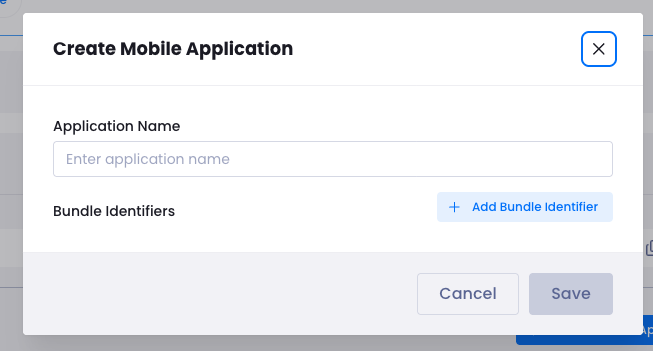
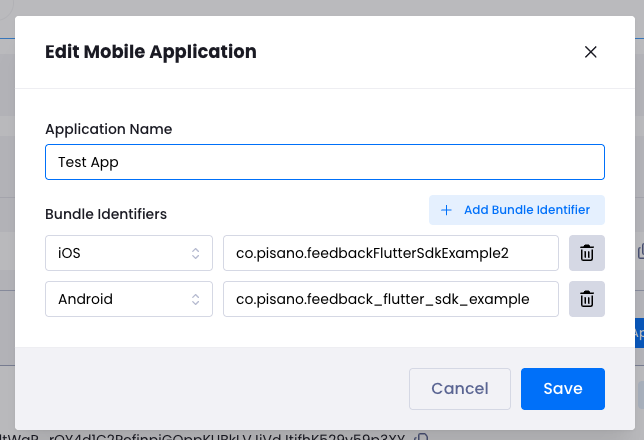

Use App ID with .setApplicationId(...) and Access Key with .setAccessKey(...).
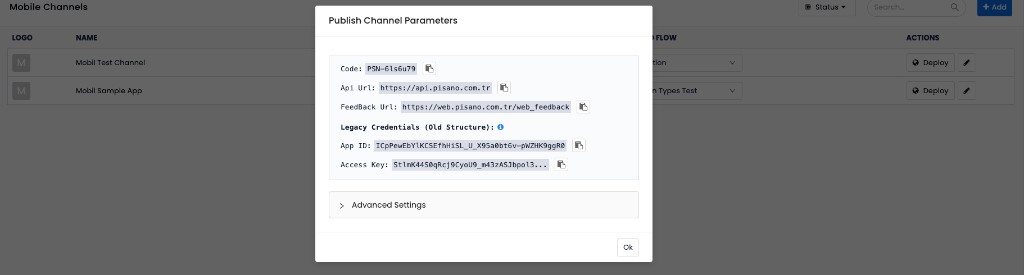
- Go to Mobile Channels, create or open a channel, then click Deploy.
- In Publish Channel Parameters, copy from the top section:
- Code →
.setCode("...")(required at init; optional override onshow/healthCheck) - Api Url →
.setApiUrl("...") - Feedback Url →
.setFeedbackUrl("...")
- Code →
Ignore Legacy credentials in that modal for the current SDK model; use Code, Api Url, and Feedback Url from the top, plus App ID and Access Key from step 1.