
This widget helps the researcher calculate and document amounts used in reactions for stoichiometry.
The widget can be added to a LabArchive Notebook page.
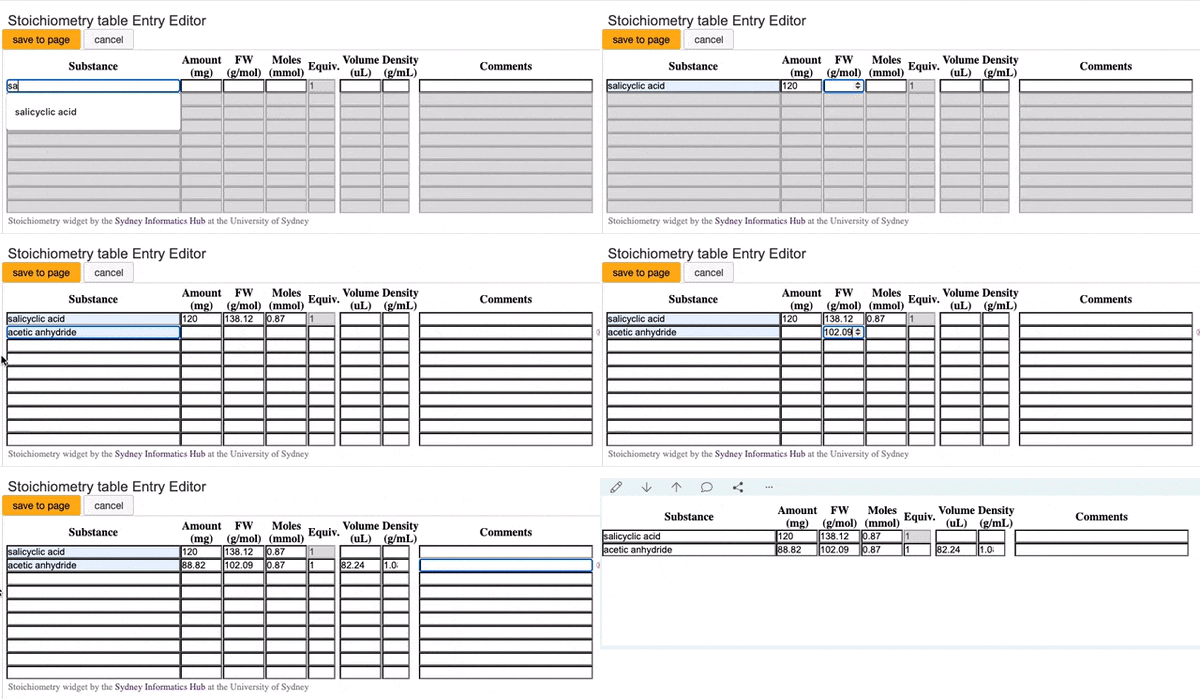
It was developed by the Sydney Informatics Hub from an initial version by Dr. Samuel Banister.
Report issues and wishes on GitHub.
To install, you will need to copy the contents of widget.html and script.js into the Widget Manager.
- Go to the Widget Manager
- Under Available Widgets click New
- Enter the widget title: Stoichiometry Table (or whatever you choose to call it for your notebooks)
- In the Widget HTML Editor tab, click the Source button on the toolbar.
- In a new browser window:
- Go to https://github.com/Sydney-Informatics-Hub/labarchives-stoichiometry-widget/raw/master/widget.html
- Select All (find this in the Edit menu)
- Copy (find this in the edit menu)
- Close that browser window.
- Back in your Widget HTML Editor: Select All and Paste.
- Change to the Script Editor tab.
- In a new browser window:
- Go to https://github.com/Sydney-Informatics-Hub/labarchives-stoichiometry-widget/raw/master/script.js
- Select All (find this in the Edit menu)
- Copy (find this in the edit menu)
- Close that browser window.
- Back in your Script Editor: Select All and Paste
- Click the Save Widget button next to the Title entry box.
See https://labarchives.kayako.com/knowledgebase/article/View/408/286/501-what-are-widgets
The software requirements detail expected behaviour for each modification to the table's data.
The permitted user inputs to the Stochiometry widget and the subsequent results are documented for the following two scenarios -
- When first entering data into the table
- When changing the values of the experiment
On launching the Stochiometry widget to add to the page, only row 1 will be enabled on entry, although subsequent rows will be displayed.
For row 1 initial entry, the permitted ways of entering values are tabulated below -
| User Enters | Automatically Calculated |
|---|---|
| amt then fw | moles |
| fw then amt | moles |
| moles then fw | amt |
| fw then moles | amt |
The equiv value for row 1 is set to 1 and cannot be edited by the user.
For all non-initial rows for initial entry, the permitted ways of entering values are tabulated below -
| User Enters | Automatically Calculated |
|---|---|
| equiv then fw | mol and amt |
| fw then equiv | mol and amt |
| fw then amt | mol and equiv |
| amt then fw | mol and equiv |
| equiv | mol |
| mol | equiv |
| amt then mol | equiv and fw |
| fwd then mol | equiv and amt |
Once the first row and the rows needed for experiment are filled, add the Stochiometry to the page.
For row 1, the behaviour is as below -
| User Changes | Automatically Calculated |
|---|---|
| amt | mol and amt are recalculated for all rows which have valid values |
| mol | mol and amt are recalculated for all rows which have valid values |
| fw | amt is recalculated for row 1 |
For rows greater than 1, the behaviour is as below -
| User Changes | Automatically Calculated |
|---|---|
| amt | equiv and moles are recalculated for the row for which the amt was changed |
| equiv | amt and moles are recalculated for the row for which the equiv was changed |
| fw | amt and moles are recalculated for the row for which the fw was changed |
If the user enters density to the experiment, the volume will be automatically calculated by the formula - volume = amount / density
Filling density and volumes field is optional to the experiment and is used when gases are involved in the chemical equation.
Volume will be re-calculated whenever the amount value changes.