




The spec workspace for developers running AI agents through Spec-Driven Development. Catch bad specs before they become bad code.
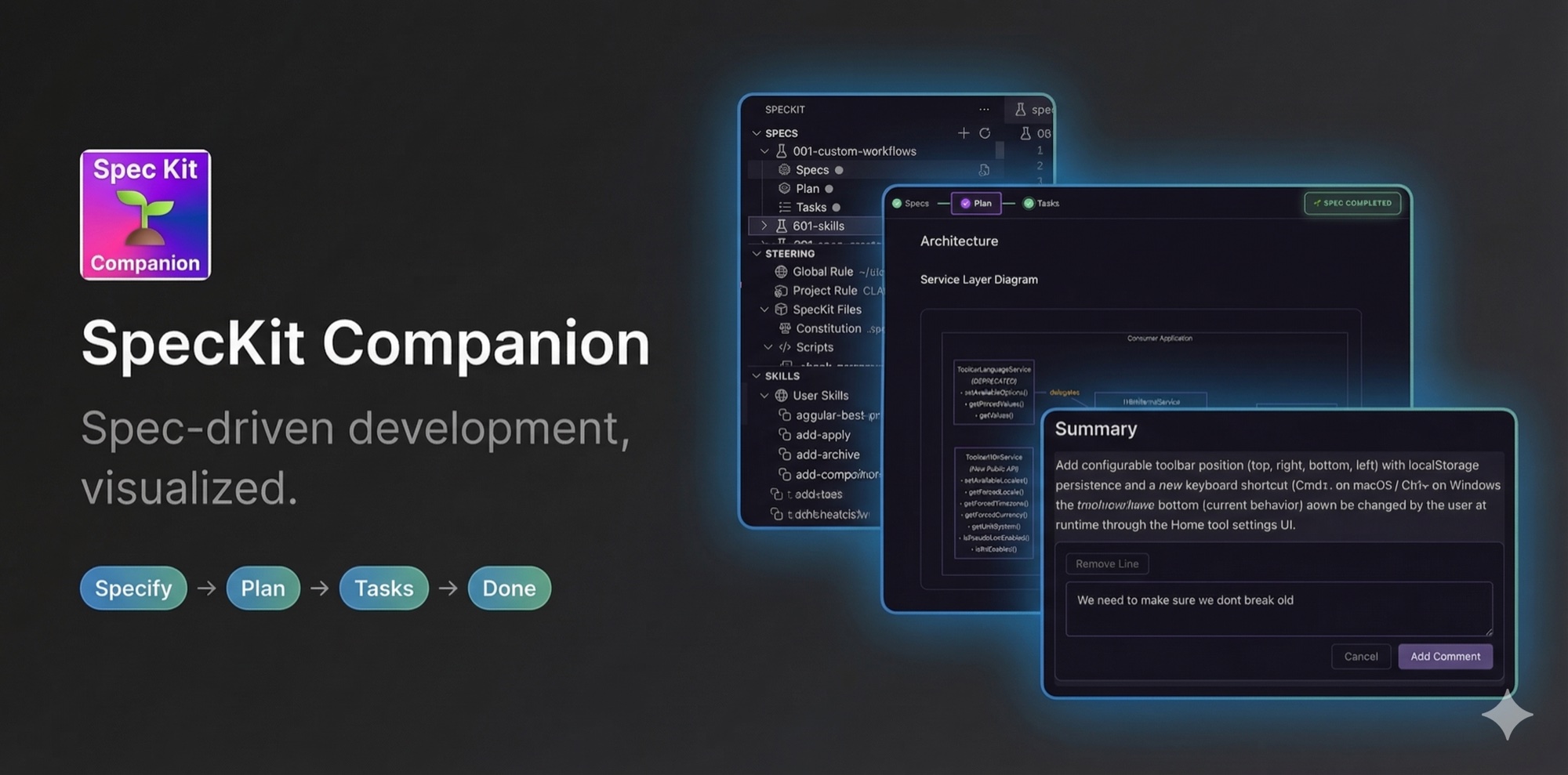
- v0.15.0 Group header bulk actions, group-aware right-click menu, copy spec path/name, diff-view fix
- v0.14.0 Pinned viewer header + responsive TOC, onboarding card, always-show activity-bar icon
- v0.13.0 Color-coded badge statuses, live elapsed timers, fuzzy spec filter, sort options
- Full changelog →
Review AI-generated specs the way you review code. Add inline comments on specific lines, refine requirements, and catch a vague requirement before the AI turns it into 200 lines of wrong code.
Plug any AI assistant into any spec-driven workflow. Six providers ship today (Claude Code, Gemini, GitHub Copilot, Codex, Qwen, OpenCode), and the workflow engine accepts custom phases, commands, and sub-documents. Drop in Agent Teams Lite, your own SDD process, or anything that takes commands and produces markdown.
Spec-driven phases without leaving VS Code. Each feature flows through Specify, Plan, Tasks, Done, with progress tracking, sticky headers, and a structured viewer built for long specs.
Guide your features through structured phases with a dedicated editor that renders markdown specs, shows phase progress, and provides one-click actions for each step. Mermaid diagrams render inline with zoom controls for navigating complex diagrams. After each action, a toast confirms the result and the viewer auto-advances to the next phase.
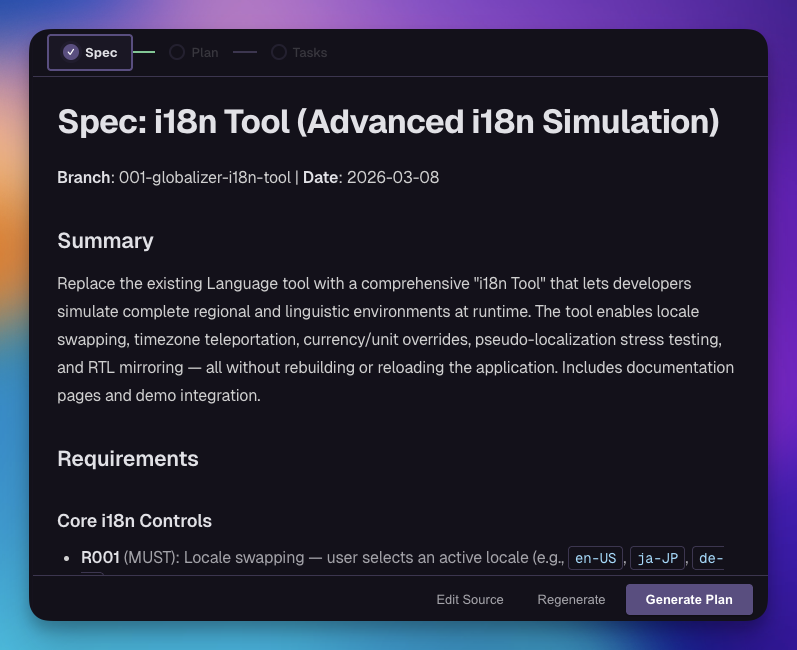 Workflow editor. One click moves a feature from Specify to Plan to Tasks to Done. Markdown stays in your repo, never on a server.
Review spec documents with inline comments. Add feedback directly on specific lines, refine requirements, and collaborate on specs before implementation begins.
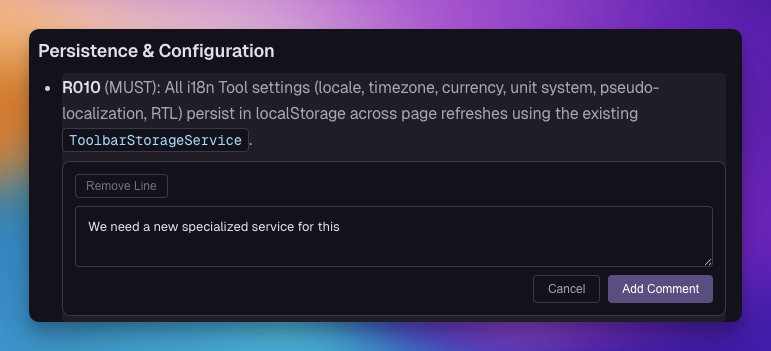 Inline review comments. Catch a vague requirement on line 12 before the AI turns it into 200 lines of wrong code.
Create new specs with a dedicated dialog. Write a detailed description, select your workflow, and attach screenshots or mockups for context.
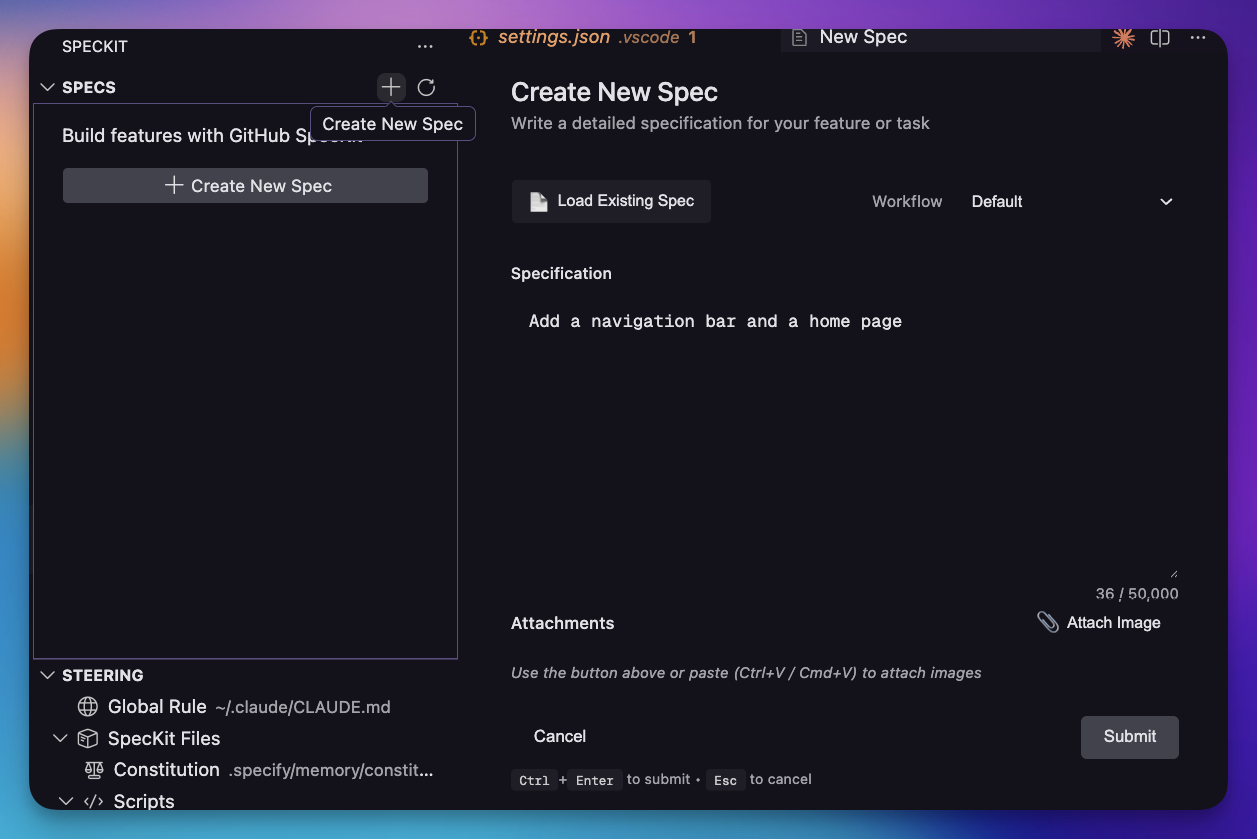 Create-spec dialog. Write a detailed description, pick a workflow, attach a screenshot. The AI never sees a one-liner.
Each feature flows through four phases:
Specify: Define requirements with user stories and acceptance scenarios.
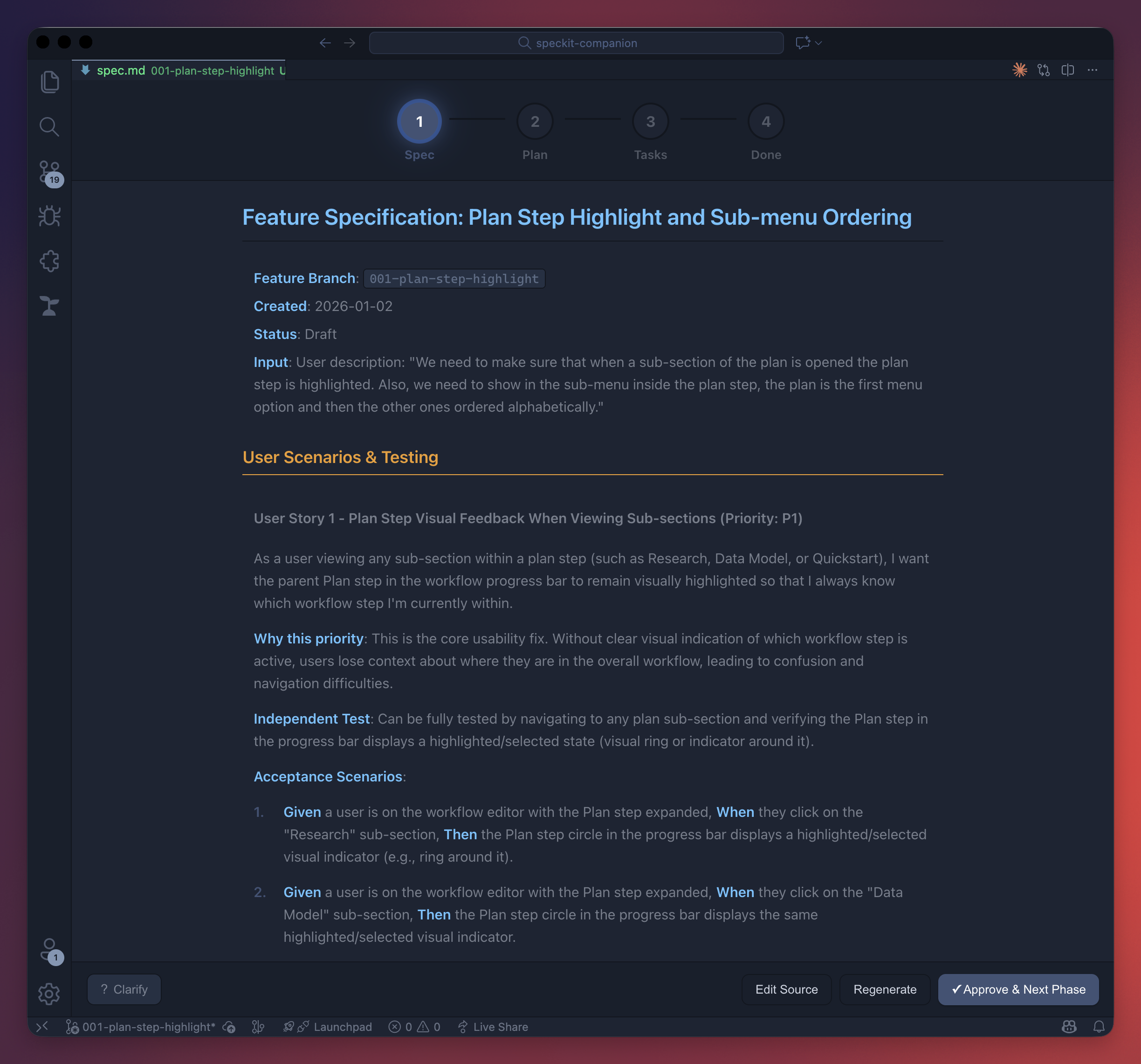 Specify phase. User stories, acceptance scenarios, and edge cases captured before any code is written.
Plan: Create the technical design with research, data models, and implementation strategy.
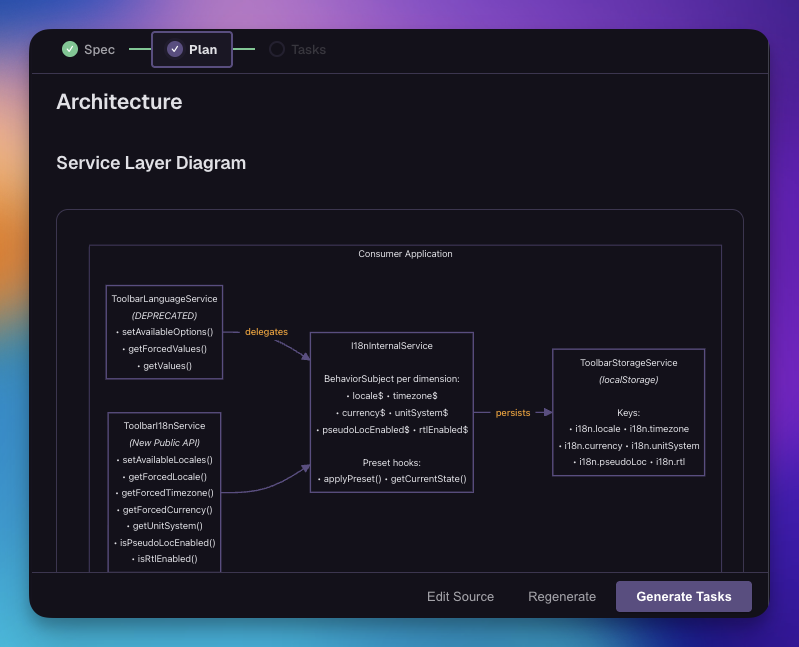 Plan phase. Architecture, data models, and research grouped under a single step with sub-document chips.
Tasks: Generate an implementation checklist with progress tracking and parallel execution markers.
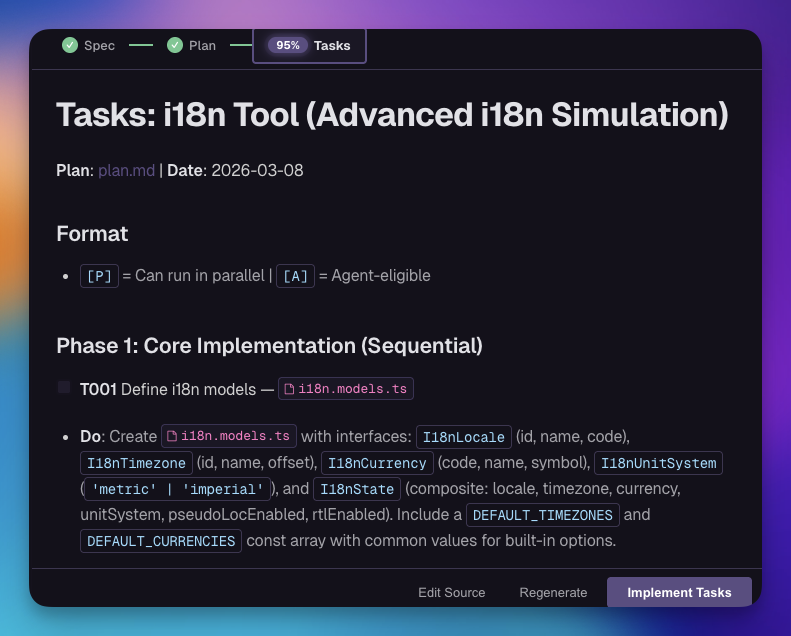 Tasks phase. Generated checklist with parallel-execution markers and live progress.
The spec viewer is built for fast scanning of long-form specs:
- Title-leading header: the spec name dominates above a compact
[STATUS] [⌥ branch] · datecluster, so the page anchor is the first thing your eye lands on. - Sticky chrome: step tabs (Specification / Plan / Tasks) and header stay pinned at the top while you scroll.
- Children rail: when a step has sub-files (e.g., Plan's
data-model.md,quickstart.md,research.md), they render as chips directly under the active step tab, with the parent step itself as the first chip so any sub-doc has a one-click path back to the overview. - Table of contents: sticky outline column on the left of the content area. Defaults to h2-only (so phase-heavy
tasks.mdreads as a clean ~7-entry list); a small+toggle expands h3 subsections when needed. Auto-hides on narrow panes. - Quiet content: when the structured header has the metadata, in-content duplicates (the
Input:block, repeated branch chips, literalSlug:/Date:paragraphs) are suppressed so the body is just the spec content. - Diagrams: wide mermaid diagrams scroll horizontally inside the prose column instead of bleeding past it. Each diagram has its own
−/ Reset /+zoom controls. - Activity panel: an
Activitytoggle on the right side of the navigation bar swaps the markdown pane for a card-stack overview of everything.spec-context.jsoncarries — Approach (one-line strategy + status pill + PR link + commit/PR checkpoints + last action), Phases (per-step duration and recorded substeps with actor badges), Tasks (per-T###status, summary, file chips, inline concerns), Decisions, Concerns, and Files touched (clickable). Each card hides itself when its data is missing, so a lean speckit-style spec collapses to just Phases. Visibility is gated by thespeckit.viewer.activityPanelsetting —"off"(hide toggle),"beta"(default; toggle shows a beta pill),"on"(toggle without the pill). Substep timestamps are intentionally not surfaced as durations because SDD/AI emit them by hand and they're not reliable; only step-level boundaries (extension-stamped) get duration text.
SpecKit Companion isn't tied to a single methodology. Swap out the default phases for any SDD workflow such as Agent Teams Lite, your own team's process, or anything that uses commands and produces markdown files. Define custom steps, labels, output files, and sub-documents. Add custom commands that appear as action buttons in specific phases (e.g., Verify, Archive, Commit, Create PR).
The sidebar, progress tracking, and workflow editor all adapt automatically to your custom workflow. See Configuration below.
The sidebar organizes everything your AI assistant needs: Specs for feature development, Steering for AI guidance documents, Agents for custom agent definitions, Skills for reusable capabilities, and Hooks for automation triggers.
Specs are grouped into three collapsible sections, each with a count in the header: Active, Completed, Archived. Filter by name, sort by number/name/date/status, multi-select to bulk-archive or complete, and right-click for per-spec actions like Reveal in File Explorer. Right-click also offers Copy Path (workspace-relative path) and Copy Name (slug only) for referencing specs in PRs, chat, or external tools. Right-click a group header to apply lifecycle actions to every spec in the group at once (e.g., Archive all, Reactivate all) — each gated by a confirmation dialog. Header badges and tree icons are color-coded by status so progress reads at a glance.
When a step command is running, the spec shows a spinner and a live elapsed timer; a step-complete notification fires when it finishes (toggle via speckit.notifications.stepComplete).
For the full reference (lifecycle button matrix, badge tier mapping, transition logging, all icon meanings), see docs/sidebar.md.
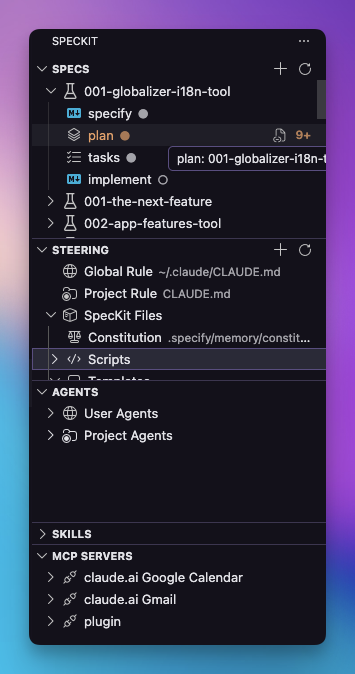 Sidebar at a glance. Active, Completed, and Archived spec groups with counts; steering, agents, skills, and hooks one click away.
Fonts (Geist Variable) and icons (codicons) ship bundled inside the extension .vsix. The spec viewer, spec editor, and workflow editor all render identically on a plane with no internet connection. No runtime requests to CDNs for fonts or icon glyphs.
Actions that change the spec's lifecycle are protected so a misfired click is easy to walk back:
- Regenerate queues behind a 5-second undo toast. Clicking Undo or pressing Esc cancels the regeneration; otherwise the backend fires when the timer elapses.
- Archive, Complete, and Reactivate each require two clicks. The first click swaps the button label to "Confirm?" for 3 seconds; a second click within that window confirms. Otherwise the label reverts silently and nothing happens.
- Locked future steps: while a step is running, downstream step tabs lock and surface a tooltip explaining why, so dispatched work cannot be interrupted by an out-of-order click.
- The OS-level Reduce Motion preference is honored globally. In-flight step pulses and other infinite animations stop when it's enabled.
- Install the extension from a
.vsixfile or the VS Code marketplace - Open the sidebar: the SpecKit icon is always visible in the activity bar; with no folder open, clicking it shows an empty-state panel with an Open Folder action
- Create a spec: once a folder is open, click the
+button in the Specs view to start your first feature
Looking for "what does good look like?" The repo's own specs/ directory is the answer. Every feature ships with the spec that drove it. A few worth opening:
specs/008-spec-viewer-ux/: full SpecKit flow: spec, plan, research, data model, quickstart, tasks, plus checklists and contracts.specs/065-multi-select-specs/: minimal SDD flow: justspec.md+plan.md+tasks.mdfor a small UX change.specs/051-explorer-viewer-fixes/: minimal SDD flow: same lean shape, applied to a focused bug-fix bundle.
Compare the file lists side by side to see the contrast between the full and minimal flows.
| Feature | Claude Code | GitHub Copilot CLI | Gemini CLI | Codex CLI | Qwen Code | OpenCode |
|---|---|---|---|---|---|---|
| Steering File | CLAUDE.md | .github/copilot-instructions.md | GEMINI.md | AGENTS.md | QWEN.md | AGENTS.md |
| Steering Path | .claude/steering/ | .github/instructions/*.instructions.md | Hierarchical GEMINI.md | Hierarchical AGENTS.md | .qwen/steering/ | Hierarchical AGENTS.md |
| Agents | .claude/agents/*.md | .github/agents/*.agent.md | Limited support | Hierarchical AGENTS.md | Not supported | .opencode/agent/*.md |
| Hooks | .claude/settings.json | Not supported | Not supported | Not supported | Not supported | Not supported |
| MCP Servers | .claude/settings.json | ~/.copilot/mcp-config.json | ~/.gemini/settings.json | ~/.codex/config.toml | ~/.qwen/settings.json | ~/.opencode/opencode.jsonc |
| CLI Command | claude |
ghcs / gh copilot |
gemini |
codex |
qwen |
opencode |
Configure your preferred provider: Settings > speckit.aiProvider
Controls whether AI CLIs run with permission prompts (safe) or bypass them (YOLO):
{
  "speckit.permissionMode": "interactive"
}| Value | Behavior |
|---|---|
"interactive" |
The CLI prompts before taking actions (recommended) |
"auto-approve" |
(YOLO) Skip all permission prompts. Faster but no review of tool calls. |
This applies to all providers that support it: Claude (--permission-mode bypassPermissions), Copilot (--yolo), and Qwen (--yolo). Gemini and Codex ignore this setting.
Copilot exception: GitHub Copilot CLI cannot surface permission prompts in
-pmode. Even withpermissionMode: "interactive", the extension auto-switches Copilot to auto-approve at dispatch time — otherwise the terminal would silently hang waiting for a prompt that never appears. This is enforced at runtime; dismissing the startup warning toast does not re-enable interactive mode for Copilot.
Controls how speckit commands are formatted when sent to AI providers:
{
  "speckit.commandFormat": "auto"
}| Value | Behavior |
|---|---|
"auto" |
Let the AI provider decide the format (default) |
"dot" |
Always use dot notation (e.g., speckit.plan) |
"dash" |
Always use dash notation (e.g., speckit-plan) |
Use auto unless your speckit version requires a specific command format. Override with dot or dash when the provider's default doesn't match what your setup expects.
Controls whether the extension prepends a short context-update preamble to every SpecKit step prompt sent to the AI CLI:
{
  "speckit.aiContextInstructions": true
}| Value | Behavior |
|---|---|
true (default) |
Prepend a marker-wrapped preamble that instructs the AI to keep .spec-context.json current, including canonical substeps (e.g., plan.research, plan.design, implement.run-tests). |
false |
Send the raw /speckit.<step> command with no preamble. Useful if your AI ignores it or you're debugging raw prompts. |
The preamble adds ~200–300 tokens per dispatch and is identical across all providers (Claude, Gemini, Copilot, Codex, Qwen). Extension-side step-boundary writes remain the hard guarantee for startedAt / completedAt: this preamble unlocks finer-grained substep tracking.
When a dispatched spec step finishes, the extension shows a VS Code information message naming the spec and step (e.g. Spec 074 · Plan complete). The message includes an Open spec action that focuses the viewer for that spec. VS Code routes info messages to the native OS notification surface when the window is unfocused, so you can tab away during long runs.
{
  "speckit.notifications.stepComplete": true
}
Set to false to silence the message while keeping the in-viewer elapsed timer.
By default, specs live in specs/. You can configure multiple directories or use glob patterns:
{
  "speckit.specDirectories": ["specs", "openspec/changes/*"]
}
Simple names (e.g., specs) list their children as specs. Patterns with wildcards treat each match as a spec folder.
When you use SDD-style workflows, the extension can auto-create a feature branch at a chosen phase. Configure via .sdd.json at the workspace root:
{
  "branchStage": "implement",
  "branchNameFormat": "{type}/{slug}"
}| Field | Values | Description |
|---|---|---|
branchStage |
"specify" | "implement" |
Phase at which the feature branch is created. Use specify to branch as soon as the spec exists; use implement to branch only when implementation begins. |
branchNameFormat |
template string | Pattern for the branch name. Supported placeholders: {type} (workflow step name), {slug} (spec slug). Example: feat/{slug} or {type}/{slug}. |
The active feature branch is recorded in .spec-context.json as workingBranch; the original branch field stays as the immutable audit value.
Define alternative workflows with custom steps, output files, and sub-documents. Any SDD methodology that uses commands and produces markdown files can be plugged into SpecKit Companion.
Here's a full configuration using Agent Teams Lite, a multi-agent SDD framework:
{
  "speckit.customWorkflows": [
    {
      "name": "agent-teams-lite",
      "displayName": "Agent Teams Lite (SDD)",
      "description": "Multi-agent SDD workflow",
      "steps": [
        { "name": "specify", "label": "Spec",   "command": "sdd-spec",   "file": "spec.md", "subDir": "specs" },
        { "name": "plan",    "label": "Design", "command": "sdd-design", "file": "design.md", "includeRelatedDocs": true },
        { "name": "tasks",   "label": "Tasks",  "command": "sdd-tasks",  "file": "tasks.md" }
      ]
    }
  ],
  "speckit.specDirectories": ["specs", "openspec/changes/*", "openspec/changes/archive/*"],
  "speckit.customCommands": [
    { "name": "verify",  "title": "Verify",  "command": "/sdd-verify",  "step": "tasks", "tooltip": "Validate implementation matches specs" },
    { "name": "archive", "title": "Archive", "command": "/sdd-archive", "step": "tasks", "tooltip": "Archive completed change" }
  ]
}
Notice how custom workflows, spec directories, and custom commands work together:
- The workflow defines Spec → Design → Tasks phases with custom labels and commands
specDirectoriestells the sidebar where to find specs (including archived ones)- Custom commands add Verify and Archive buttons to the Tasks phase
{
  "speckit.customWorkflows": [
    {
      "name": "sdd",
      "displayName": "SDD Workflow",
      "steps": [
        { "name": "specify",   "label": "Specify",   "command": "sdd.specify",   "file": "spec.md" },
        { "name": "plan",      "label": "Plan",      "command": "sdd.plan",      "file": "plan.md" },
        { "name": "tasks",     "label": "Tasks",     "command": "sdd.tasks",     "file": "tasks.md" },
        { "name": "implement", "label": "Implement", "command": "sdd.implement", "actionOnly": true }
      ],
      "commands": [
        {
          "name": "auto",
          "title": "Auto Mode",
          "command": "sdd:auto",
          "step": "specify",
          "tooltip": "Goes through the whole specification in auto mode"
        }
      ]
    }
  ]
}Workflows can define commands: extra action buttons that appear next to the primary action for a given step. For example, a command with "step": "specify" renders as a button next to Submit in the spec editor.
{
  "commands": [
    {
      "name": "auto",
      "title": "Auto Mode",
      "command": "sdd:auto",
      "step": "specify",
      "tooltip": "Runs the full pipeline automatically"
    }
  ]
}| Property | Required | Description |
|---|---|---|
name |
Yes | Unique command identifier |
command |
Yes | Command to execute (e.g., "sdd:auto": no leading slash needed) |
step |
Yes | Which workflow step to show this button on (e.g., "specify") |
title |
No | Button label (defaults to name) |
tooltip |
No | Hover text for the button |
Commands with step: "specify" appear as secondary buttons next to Submit in the spec creation dialog. Multiple commands per step are supported.
Steps can declare child documents that appear as expandable items in the sidebar:
{
  "steps": [
    {
      "name": "plan",
      "label": "Plan",
      "command": "speckit.plan",
      "file": "plan.md",
      "subDir": "plan"
    }
  ]
}
This scans plan/ for .md files and shows them as children of the Plan step. You can also use an explicit list:
{
  "subFiles": ["plan/architecture.md", "plan/api-design.md"]
}| Property | Required | Description |
|---|---|---|
name |
Yes | Step identifier (e.g., "specify", "design") |
command |
Yes | Slash command to execute (e.g., "sdd.specify") |
label |
No | Display name in sidebar (defaults to capitalized name) |
file |
No | Output file for this step (defaults to {name}.md) |
actionOnly |
No | When true, the step has no output file and is hidden from the document tree (e.g., an "Implement" step that just runs a command) |
subFiles |
No | Array of child file paths shown under this step |
subDir |
No | Directory to scan for child .md files (non-recursive) |
includeRelatedDocs |
No | When true, unassigned .md files in the spec folder are grouped under this step. Only one step should have this flag. |
- The sidebar shows only the steps declared by the active workflow
- Steps with missing output files appear as "not started"
- Steps with
actionOnly: trueare action-only. They appear in the workflow editor but not in the file tree - When a spec is created via the editor, the selected workflow is automatically persisted to
.spec-context.jsonin the spec directory - If no workflow is selected, the
speckit.defaultWorkflowsetting is used (falls back to the built-in default) - Once persisted, all subsequent operations (viewer, step execution, command palette) use the same workflow consistently
- The default workflow (
spec.md→plan.md→tasks.md→ implement) is always available
Add custom slash commands that appear in the workflow editor and the SpecKit: Run Custom Command picker.
{
  "speckit.customCommands": [
    "review",
    {
      "name": "commit",
      "title": "Commit Changes",
      "command": "/speckit.commit",
      "step": "tasks",
      "tooltip": "Generate a commit for completed work",
      "requiresSpecDir": false
    },
    {
      "name": "pr",
      "title": "Create PR",
      "command": "/speckit.pr",
      "step": "tasks",
      "tooltip": "Create a pull request for the feature"
    }
  ]
}
Properties:
name: Command identifiertitle: Display name in pickercommand: Slash command to executestep: Phase to show in:spec,plan,tasks, orall(default)tooltip: Description shown on hoverautoExecute: Auto-run in terminal (default: true)requiresSpecDir: Inject spec directory (default: true)
Every spec directory holds a .spec-context.json file that is the single
source of truth for lifecycle state. The viewer derives badges, pulse,
highlight, and footer button visibility from this file only. File
existence is never used to infer step completion.
{
  "workflow": "speckit-companion | sdd | sdd-fast | speckit-terminal",
  "specName": "060-spec-context-tracking",
  "branch": "060-spec-context-tracking",
  "currentStep": "specify | clarify | plan | tasks | analyze | implement",
  "status": "draft | specifying | specified | planning | planned | tasking | ready-to-implement | implementing | completed | archived",
  "stepHistory": {
    "specify": { "startedAt": "ISO", "completedAt": "ISO|null", "substeps": [ { "name": "validate-checklist", "startedAt": "ISO", "completedAt": "ISO|null" } ] }
  },
  "transitions": [
    { "step": "specify", "substep": null, "from": { "step": null, "substep": null }, "by": "extension", "at": "ISO" }
  ]
}
The full JSON Schema lives at
src/core/types/spec-context.schema.json and
specs/060-spec-context-tracking/contracts/spec-context.schema.json.
The extension itself records stepHistory[step].startedAt /
completedAt and the canonical status whenever a step is dispatched
(via the SpecKit commands or the viewer's Approve / Regenerate buttons),
and when a spawned terminal closes, independent of AI cooperation. Spec
status changes (Mark as Completed, Archive, Reactivate) write the
canonical status and append a transition entry, no longer relying on the
legacy setSpecStatus path. Write failures log to the SpecKit output
channel without blocking dispatch.
- Unknown top-level fields are preserved across writes.
transitionsis append-only. Never rewrite prior entries.- When the viewer opens a spec with no context file, it writes a minimal
draftdocument; no step is marked completed from file presence alone.
draft → specifying → specified → planning → planned → tasking →
ready-to-implement → implementing → completed → archived.
Legacy shapes (status: "active", status: "tasks-done", or files that
only contain { status: "completed" }) are coerced by
normalizeSpecContext at read time.
git clone https://github.com/alfredoperez/speckit-companion.git
cd speckit-companion
npm install
npm run compile- Open the project in VS Code
- Press
F5to launch Extension Development Host
npm run package
# Output: speckit-companion-{version}.vsix| Platform | Support | Notes |
|---|---|---|
| macOS | Yes | Fully supported |
| Linux | Yes | Fully supported |
| Windows WSL | Yes | Supported |
| Windows | Yes | All bash-only providers (Copilot, Claude, OpenCode, Qwen) auto-detect PowerShell and use the equivalent Get-Content -Raw substitution; cmd.exe is supported on a best-effort basis (long prompts may exceed cmd's 8191-char line limit — switch to PowerShell or Git Bash if you hit it). |
PRs welcome. See CONTRIBUTING.md for local setup, the F5 dev-host loop, test conventions, the Conventional Commit style this repo uses, and the README docs map you should follow before opening a PR.
This project started from the amazing work at https://github.com/notdp/kiro-for-cc
MIT License