- Removing libraries (Unuse button)
- Verbose output
- Predefined library defines (e. g. SPDLOG_FMT_EXTERNAL)
- Library dependencies
Library Manager shows current library configuration state for all project configurations (e. g. Release|x64) and modifies Additional Include Directories, Additional Library Directories and Additional Dependencies with one click.
To use Library Manager you should define library pack files with configuration for each library. The format is:
<LibraryPack>
	<Library>
		<Name>fmt</Name>
		<IncludePath>fmt\include</IncludePath>
		<LibPath>fmt\lib</LibPath>
		<Condition Configuration="Debug" Platform="x64">
			<Lib>fmtd.lib</Lib>
		</Condition>
		<Condition Configuration="Release" Platform="x64">
			<Lib>fmt.lib</Lib>
		</Condition>
	</Library>
	<Library>
		<Name>OpenCV</Name>
		<IncludePath>opencv\include</IncludePath>
		<LibPath>opencv\x64\vc15\lib</LibPath>
		<Lib>opencv_calib3d410.lib</Lib>
		<Lib>opencv_core410.lib</Lib>
		<Lib>opencv_dnn410.lib</Lib>
		<Lib>opencv_features2d410.lib</Lib>
		<Condition Configuration="Release" Platform="x64"></Condition>
		<Condition Configuration="Debug" Platform="x64"></Condition>
	</Library>
	<Library>
		<Name>spdlog</Name>
		<IncludePath>spdlog-1.x\include</IncludePath>
		<Condition Configuration="Release" Platform="x64"></Condition>
		<Condition Configuration="Debug" Platform="x64"></Condition>
		<Condition Configuration="Release" Platform="x86"></Condition>
		<Condition Configuration="Debug" Platform="x86"></Condition>
	</Library>
</LibraryPack>
Lib and LibPath can appear more than once inside Library or Condition tags. There should be a Condition tag for each supported configuration. Lib and LibPath may be omitted if the library is header only.
IncludePath and LibPath can be absolute or relative to the current library pack file.
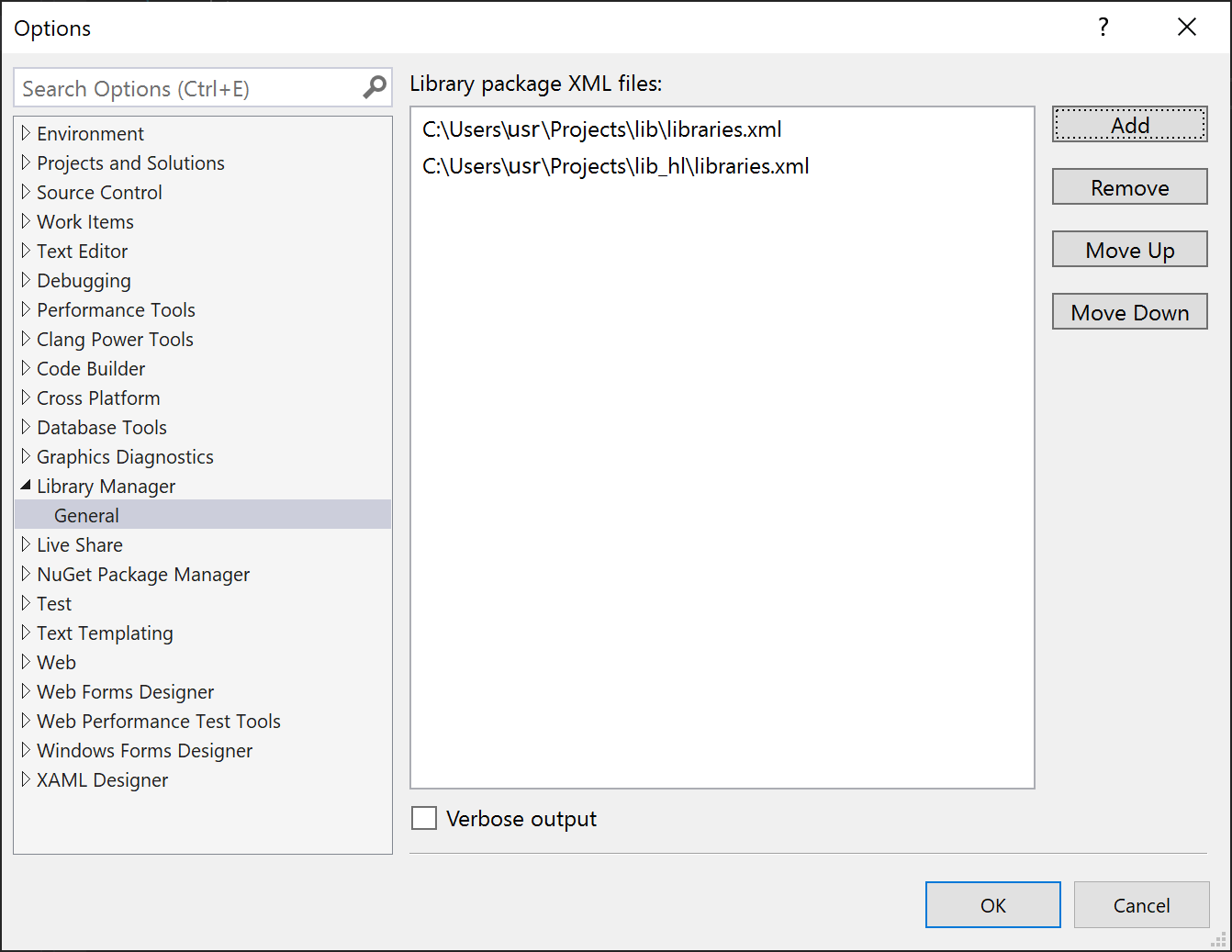
Library pack files should be added in Tools->Options->Library Manager options page.
To view current library configurations - right click on a project in solution explorer and choose 'Libraries...'
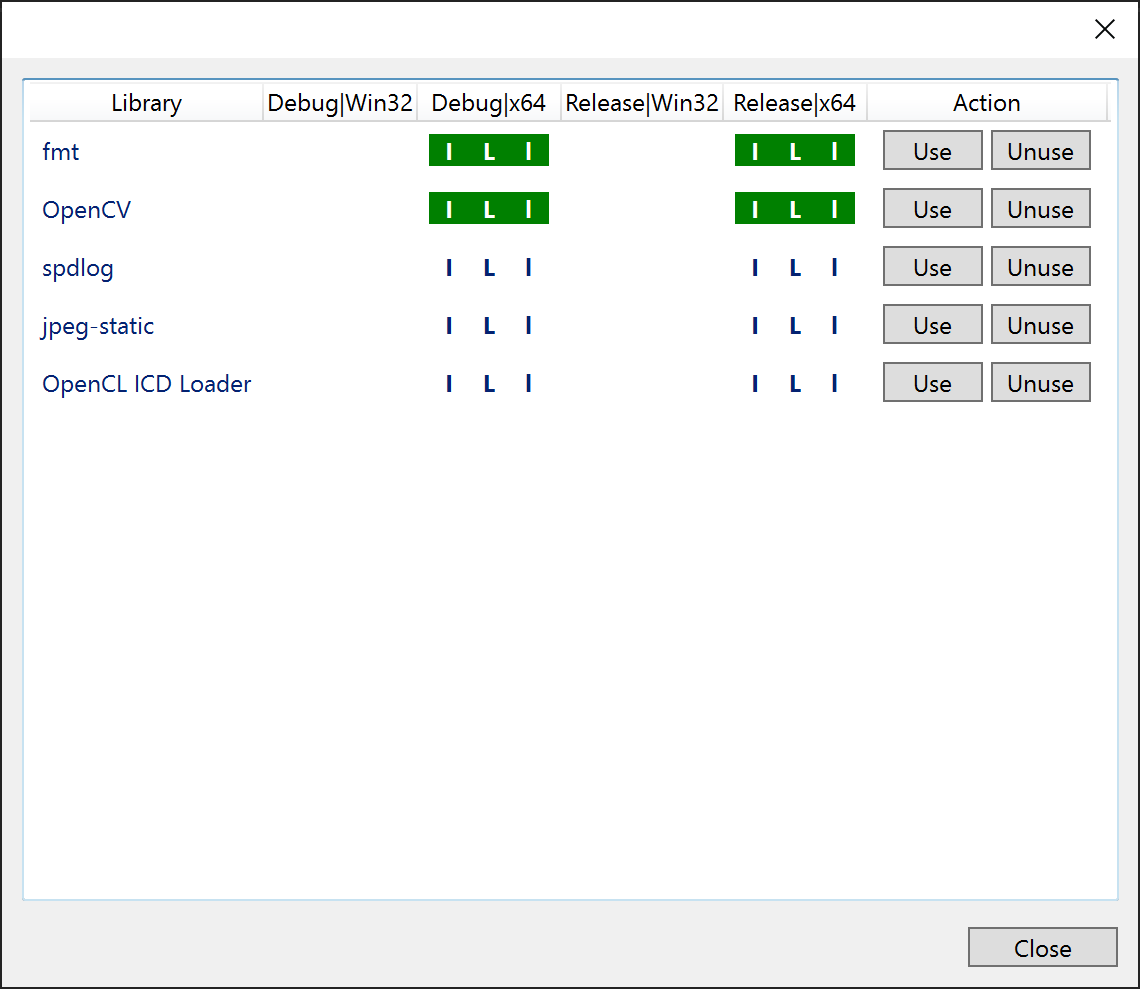
I L l indicator show current library configuration state - Include Directory configured, Library Directory configured, Library Dependency configured respectively. Green - fully configured, Blue - partially configured (if a library has multiple Library Directories or Libraries), White - not configured. Indicator not visible - library has no Condition tag for the corresponding project configuration.
Use Use button to modify project configuration to use a library. It will modify Additional Include Directories, Additional Library Directories and Additional Dependencies project properties with entries from library configuration xml file.
https://github.com/Microsoft/VSSDK-Extensibility-Samples/tree/master/Options
https://hmemcpy.com/2015/03/adding-a-custom-property-page-to-existing-project-types-in-visual-studio/ microsoft/VSProjectSystem#137
https://docs.microsoft.com/en-us/visualstudio/extensibility/visual-cpp-project-extensibility?view=vs-2019 https://github.com/Microsoft/VSSDK-Extensibility-Samples/tree/master/VisibilityConstraints
https://aka.ms/pauhge Extension samples on GitHub Use a sample project to kickstart your development.
https://aka.ms/l24u91 Extensibility chat room on Gitter Meet other extension developers and exchange tips and tricks for extension development.
https://aka.ms/spn6s4 Channel 9 videos on extensibility Watch videos from the product team on Visual Studio extensibility.
https://aka.ms/ui0qn6 Extensibility Tools Install an optional helper tool that adds extra IDE support for extension authors.