MCP Desk - Your Own MCP Client built with Electron, React, and TypeScript.
View Demo
·
Report Bug
·
Request Feature
Explore the visual design and functionality of MCP Desk through these screenshots:
Here are some screenshots showcasing the mcp-desk application:
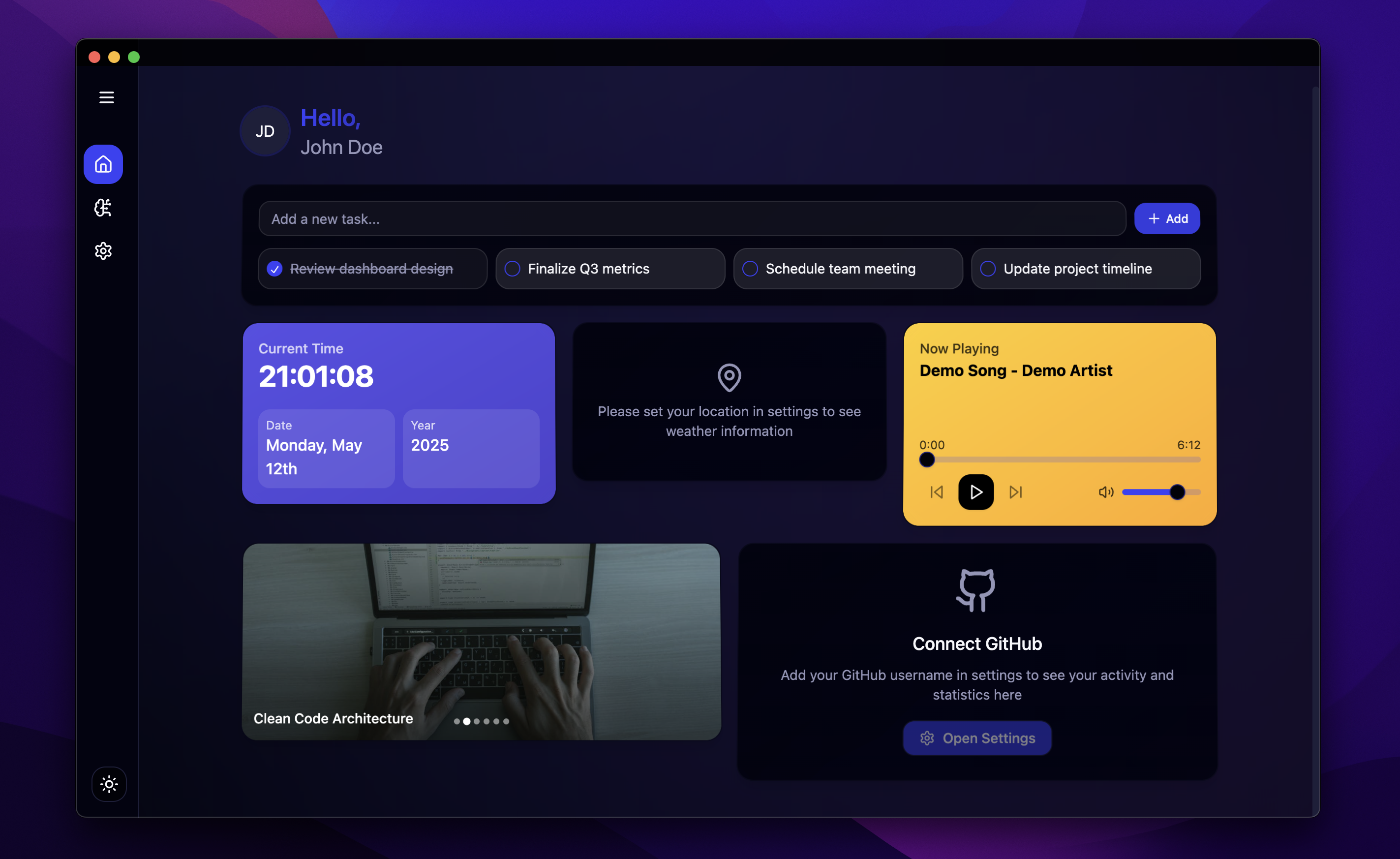
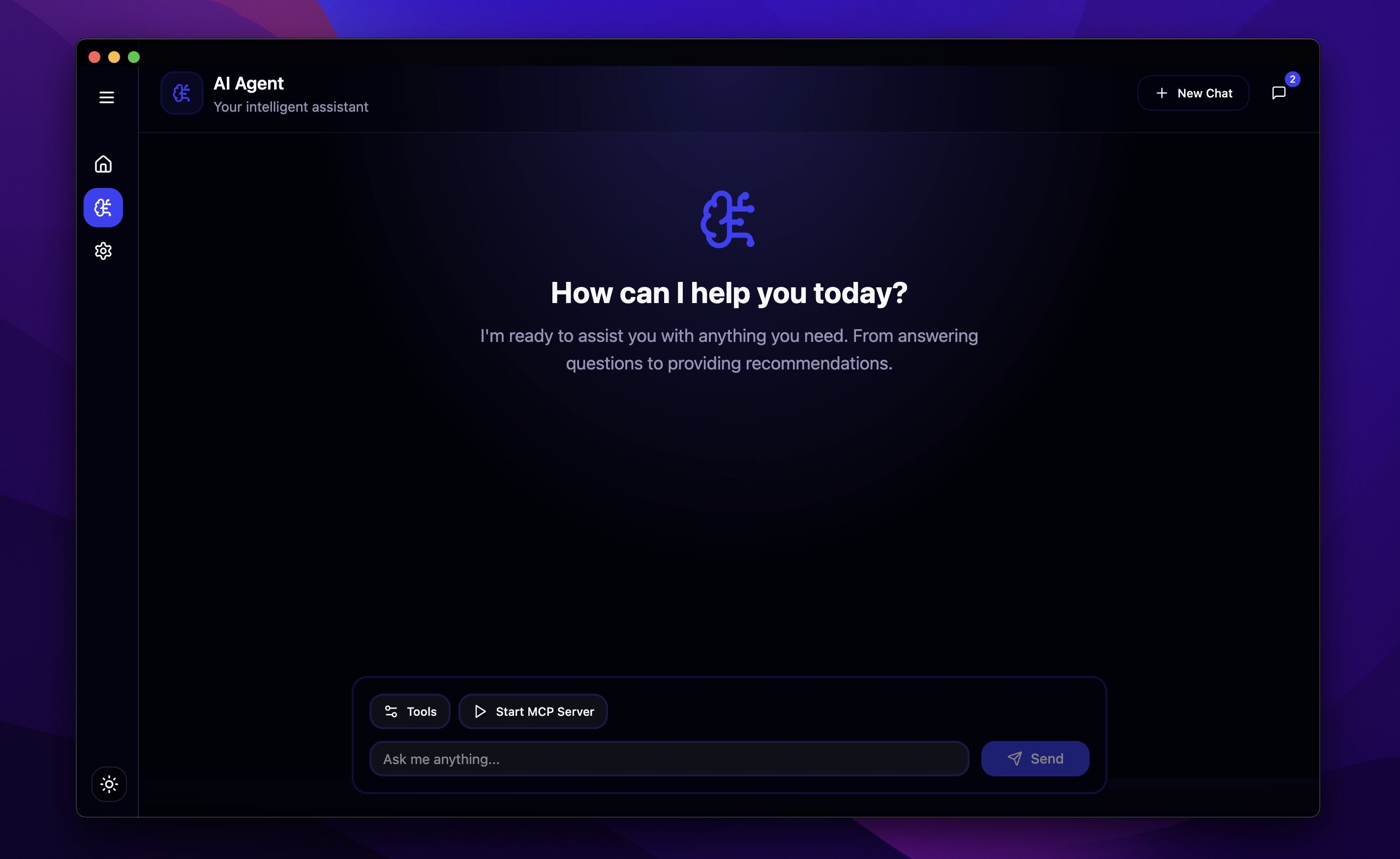
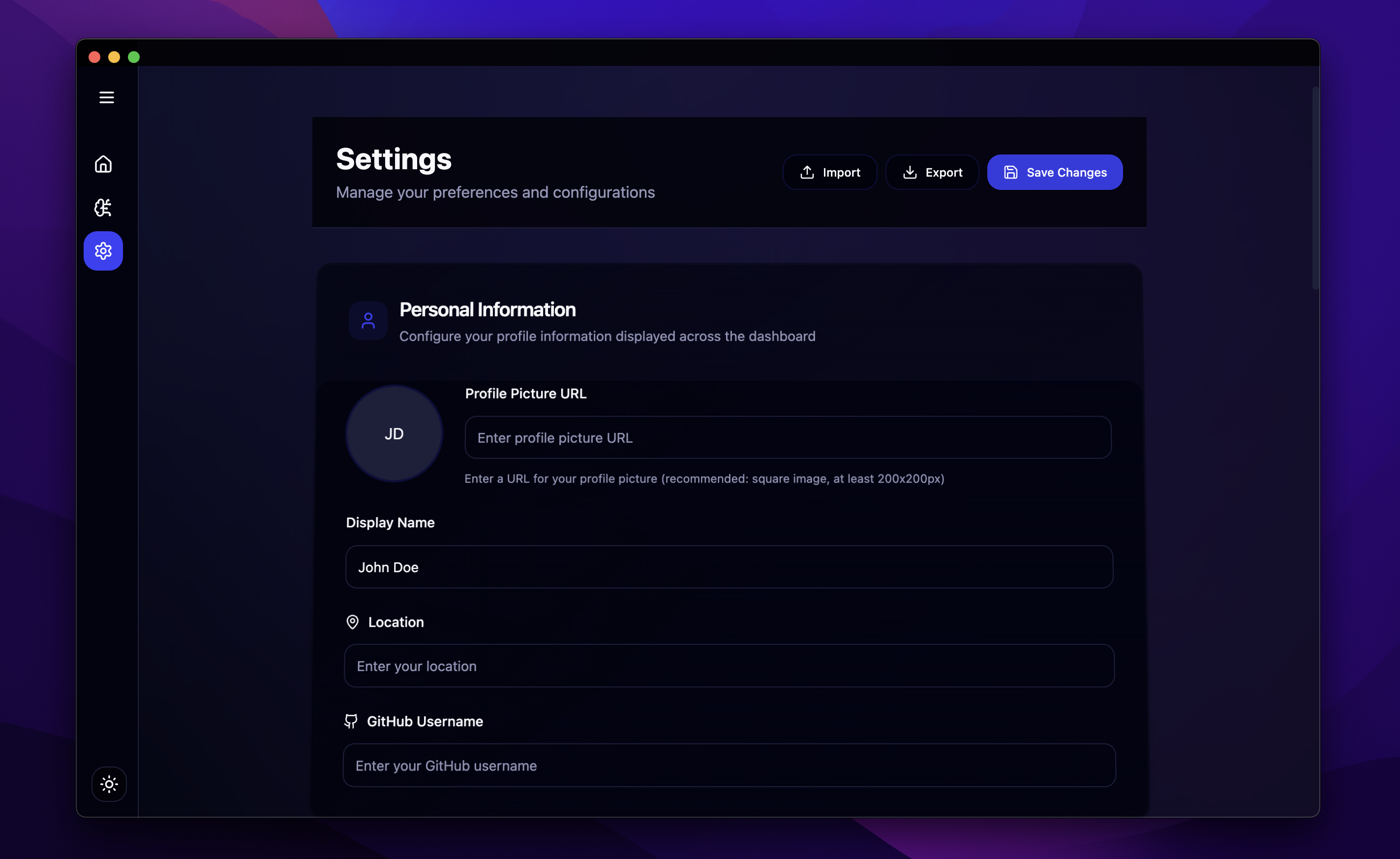
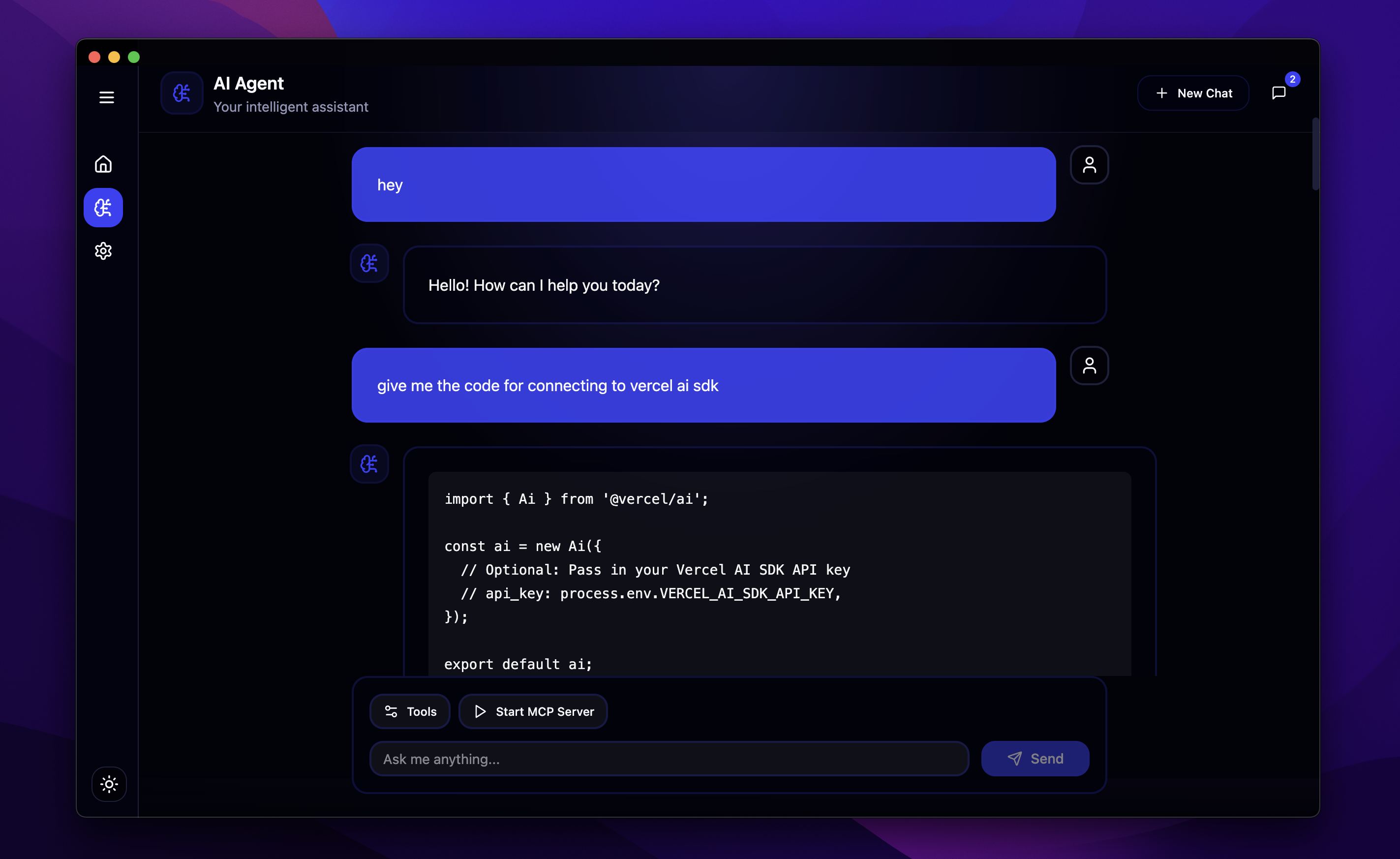
Table of Contents
mcp-desk is a desktop application designed to serve as a client for interacting with Multi-Capability Platform (MCP) servers. Built using modern web technologies within the Electron framework, it provides a user-friendly interface for managing MCP configurations and leveraging AI agent capabilities, including tool usage powered by models like those from OpenRouter via Langchain.
The application features a chat interface for interacting with AI agents, settings management for MCP server configurations, and the ability to import/export application settings.
- Electron Desktop Application: Cross-platform compatibility (Windows, macOS, Linux).
- React Frontend: Modern UI built with React and TypeScript.
- Shadcn UI & Tailwind CSS: Utilizes Shadcn UI components and Tailwind CSS (v3) for a consistent and utility-first styling approach.
- MCP Client: Connect to and interact with MCP servers using
easy-mcp-use. - AI Agent Chat: Integrated chat interface powered by Langchain and OpenRouter models.
- Tool Usage: Supports AI models capable of tool calling.
- Model Selection: Allows users to select different LLM models.
- Settings Management: Configure MCP server details and manage application settings.
- Import/Export: Backup and restore application settings (stored in localStorage) via JSON files.
- Markdown Support: Renders assistant messages in Markdown format within the chat UI.
- IPC Communication: Efficient communication between the main and renderer processes.
- Electron - Cross-platform desktop app framework
- Electron Vite - Build toolchain for Electron
- React - UI library
- TypeScript - Strongly typed JavaScript
- Tailwind CSS (v3) - Utility-first CSS framework
- Shadcn UI - Re-usable UI components
- Langchain - Framework for developing applications powered by language models
- OpenRouter - AI models and API
- easy-mcp-use - Library for interacting with MCP servers
Follow these steps to get a local copy of mcp-desk up and running for development or contribution. If you just want to use the application, see the Download Pre-built Application section below.
If you just want to use mcp-desk without setting up a development environment, you can download the latest pre-built version for your operating system directly from the GitHub Releases page:
Download the appropriate file for your system (.dmg for macOS, .exe for Windows) and install it as you would any other application.
Note for Linux Users: Currently, pre-built packages for Linux are not available in the release. Linux users should follow the Installation and Build instructions to set up the project locally and then run pnpm build:linux to generate the Linux distribution file.
- Node.js (Check
package.jsonengines or project requirements for specific version) pnpmpackage managernpm install -g pnpm
- Clone the repository (Update URL if needed)
git clone https://github.com/debsouryadatta/mcp-desk.git cd mcp-desk - Install dependencies using pnpm
pnpm install
To run the application in development mode with hot-reloading:
pnpm run devTo build the application for distribution:
# For Windows
pnpm run build:win

# For macOS
pnpm run build:mac

# For Linux
pnpm run build:linux
The built application packages will be located in the dist or a relevant output directory specified by electron-builder.
After launching the application (pnpm run dev or by running the built executable):
- Configure MCP Server: Navigate to the settings section to input your MCP server configuration details.
- Select LLM Model: Choose your preferred language model from the available options.
- Interact via Chat: Use the chat interface to send requests to the configured AI agent.
- Manage Settings: Use the import/export functionality in settings to back up or restore your configurations.
Refer to the application's UI for more detailed usage instructions.
Contributions are welcome! If you have suggestions for improving mcp-desk, please feel free to contribute.
- Fork the Project
- Create your Feature Branch (
git checkout -b feature/AmazingFeature) - Commit your Changes (
git commit -m 'Add some AmazingFeature') - Push to the Branch (
git push origin feature/AmazingFeature) - Open a Pull Request
Debsourya Datta - X Profile @debsourya005 - Email debsouryadatta@gmail.com
Project Link: https://github.com/debsouryadatta/mcp-desk