An enhanced and actively maintained NAT traversal and reverse proxy system with Web UI.



⭐️ Give us a star on GitHub if you like it!
NPS is a lightweight and efficient NAT traversal and reverse proxy system for exposing services behind NAT or firewalls. It supports multiple protocols such as TCP, UDP, HTTP, HTTPS, and SOCKS5, and provides a Web management interface for convenient deployment and monitoring.
Based on the original NPS project, NPS Enhanced has evolved into an actively maintained and extensively improved edition with continuous refactoring, better stability, and many practical enhancements for modern deployment scenarios.
- Before asking questions, please check: Documentation and Issues
- Contributions welcome: Submit PRs, feedback, or suggestions to help improve the project
- Join the discussion: Connect with other users in our Telegram Group
- Android: djylb/npsclient
- OpenWrt: djylb/nps-openwrt
- Mirror: djylb/nps-mirror
-
Easy to install
Provides simple deployment methods for Docker, Linux, and Windows, making setup and updates straightforward. -
Lightweight and efficient
Designed to stay lightweight while delivering strong performance for daily NAT traversal and reverse proxy usage. -
Easy to manage
Comes with a Web UI for configuration, monitoring, and routine management, reducing deployment and maintenance complexity. -
Powerful and flexible
Supports multiple proxy types, transport protocols, and practical features for a wide range of private-network access scenarios.
-
Multi-Protocol Support
Supports TCP/UDP forwarding, HTTP/HTTPS reverse proxy, HTTP/SOCKS5 proxy, P2P mode, Proxy Protocol support, HTTP/3 support, and more for different private-network access scenarios. -
Cross-Platform Deployment
Compatible with major platforms such as Linux and Windows, and can be easily installed as a system service. -
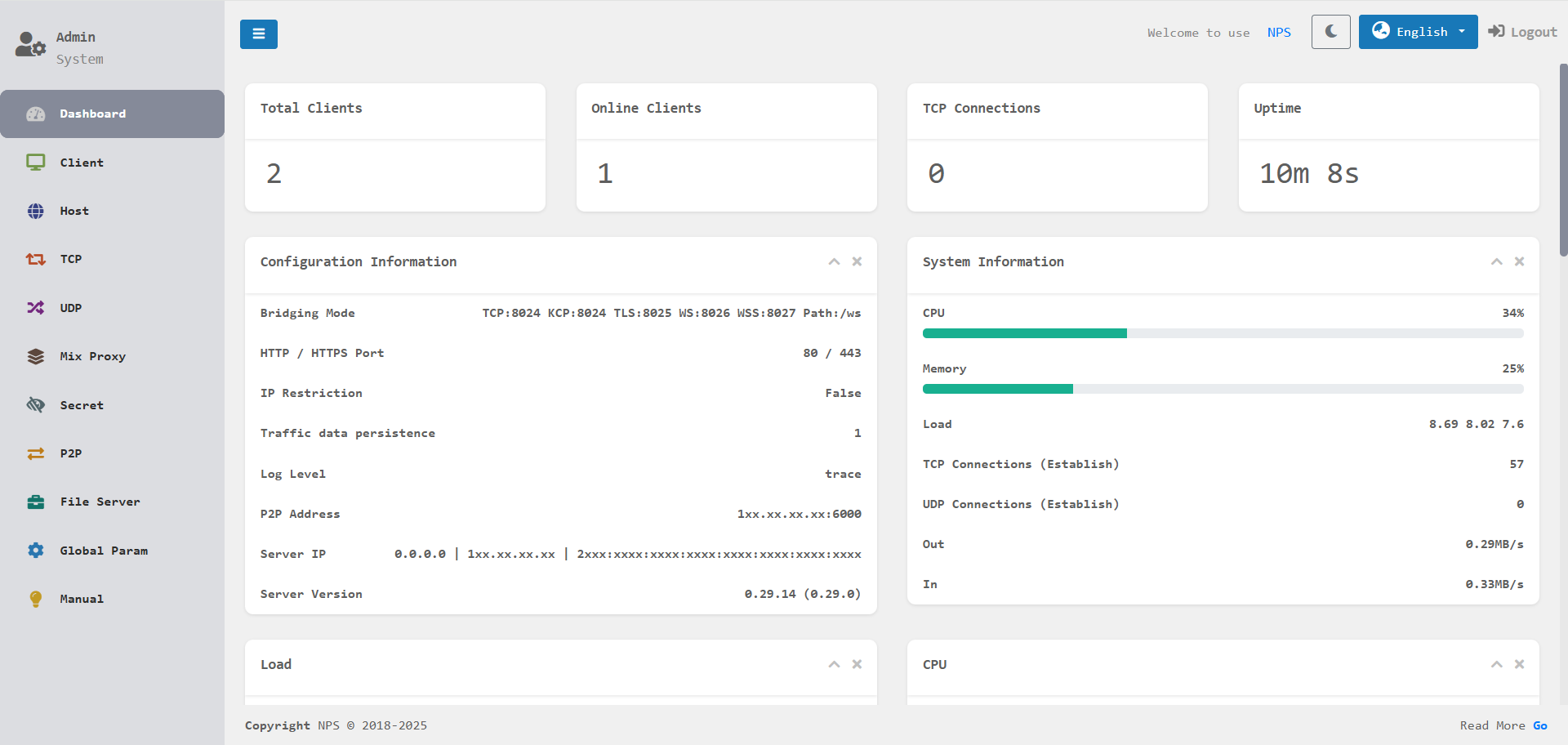
Web Management Interface
Provides real-time monitoring of traffic, connection status, and client states with an intuitive and user-friendly interface. -
Security and Extensibility
Built-in features such as encrypted transmission, traffic limiting, access expiration controls, certificate management, and certificate renewal help improve security and manageability. -
Multiple Connection Protocols
Supports connecting to the server using TCP, KCP, TLS, QUIC, WS, and WSS protocols.
For more detailed configuration options, please refer to the Documentation.
If you need to obtain the real client IP, you can use it together with mmproxy. For example: SSH.
docker pull duan2001/nps
docker run -d --restart=always --name nps --net=host -v $(pwd)/conf:/conf -v /etc/localtime:/etc/localtime:ro duan2001/nps
Tip: After installing NPS, edit
nps.conf(for example: listening ports and Web admin credentials) before starting the service.
docker pull duan2001/npc
docker run -d --restart=always --name npc --net=host duan2001/npc -server=xxx:123,yyy:456 -vkey=key1,key2 -type=tls,tcp -log=off
Tip: Get
-server,-vkey, and-typefrom the client page in the NPS Web UI to avoid manual input mistakes.
# Install (default configuration path: /etc/nps/; binary file path: /usr/bin/)
wget -qO- https://raw.githubusercontent.com/djylb/nps/refs/heads/master/install.sh | sudo sh -s nps
nps install
nps start|stop|restart|uninstall

# Update
nps update && nps restart
Tip: For first-time setup, edit
/etc/nps/nps.confand verify it before runningnps start.
Windows 7 users should use the version ending with old: 64 / 32
.\nps.exe install
.\nps.exe start|stop|restart|uninstall

# Update
.\nps.exe stop
.\nps-update.exe update
.\nps.exe startwget -qO- https://raw.githubusercontent.com/djylb/nps/refs/heads/master/install.sh | sudo sh -s npc
/usr/bin/npc install -server=xxx:123,yyy:456 -vkey=xxx,yyy -type=tls -log=off
npc start|stop|restart|uninstall
# Update
npc update && npc restartTip: For
npc install, use the command generated on the client page in the NPS Web UI.
Windows 7 users should use the version ending with old: 64 / 32
.\npc.exe install -server="xxx:123,yyy:456" -vkey="xxx,yyy" -type="tls,tcp" -log="off"
.\npc.exe start|stop|restart|uninstall

# Update
.\npc.exe stop
.\npc-update.exe update
.\npc.exe start
Tip: The client supports connecting to multiple servers simultaneously. Example:
npc -server=xxx:123,yyy:456,zzz:789 -vkey=key1,key2,key3 -type=tcp,tlsHere,xxx:123uses TCP, andyyy:456andzzz:789use TLS.
If you need to connect to older server versions, add
-proto_version=0to the startup command.



![@dependabot[bot]](https://avatars.githubusercontent.com/in/29110?s=64&v=4)


