remote...lemote...lemode......Lemonade!!! 🍋 🍋
Lemonade is a remote utility tool. (copy|paste|open browser) over TCP.

go get github.com/pocke/lemonadeOr download from latest release
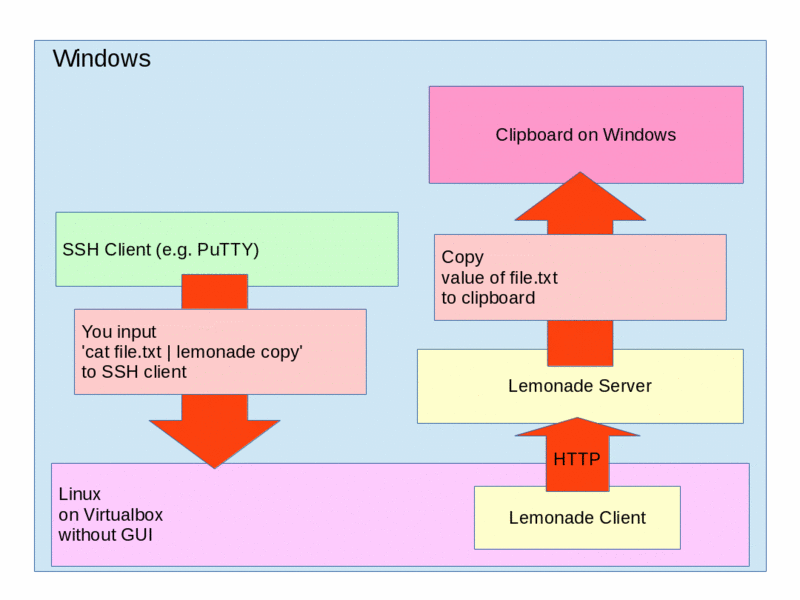
For example, you use a Linux as a virtual machine on Windows host.
You connect to Linux by SSH client(e.g. PuTTY).
When you want to copy text of a file on Linux to Windows, what do you do?
One solution is doing cat file.txt and drag displayed text.
But this answer is NOT elegant! Because your hand leaves from the keyboard to use the mouse.
Another solution is using the Lemonade.
You input cat file.txt | lemonade copy. Then, lemonade copies text of the file to clipboard of the Windows!
In addition to the above, lemonade supports pasting and opening URL.
Usage: lemonade [options]... SUB_COMMAND [arg]
Sub Commands:
  open [URL]                  Open URL by browser
  copy [text]                 Copy text.
  paste                       Paste text.
  server                      Start lemonade server.

Options:
  --port=2489                 TCP port number
  --allow="0.0.0.0/0,::0"     Allow IP Range             [Server only]
  --host="localhost"          Destination hostname       [Client only]
  --trans-loopback=true       Translate loopback address [open subcommand only]
  --trans-localfile=true      Translate local file path  [open subcommand only]
--help Show this message$ lemonade server# You want to copy a text
$ cat file.txt | lemonade copy
# You want to paste a text from the clipboard of Windows
$ lemonade paste
# You want to open an URL to a browser on Windows.
$ lemonade open 'http://google.com'You can override command line options by configuration file.
There is configuration file at ~/.config/lemonade.toml.
port = 1234
allow = '192.168.0.0/24'portis a listening port of TCP.allowis a comma separated list of a allowed IP address(with CIDR block).
port = 1234
host = '192.168.x.x'
trans-loopback = true
trans-localfile = trueportis a port of server.hostis a hostname of server.trans-loopbackis a flag of translation loopback address.trans-localfileis a flag of translation localfile.
Detail of trans-loopback and trans-localfile are described Advanced Usage.
Default: true
This option works with open command only.
If this option is true, lemonade translates loopback address to address of client.
For example, you input lemonade open 'http://127.0.0.1:8000'.
If this option is false, server receives loopback address.
But this isn't expected.
Because, at server, loopback address is server itself.
If this option is true, server receives IP address of client. So, server can open URL!
Default: true
This option works with open command only.
If this option is true, lemonade translates path of local file to address of client.
For example, you input lemonade open ./file.txt.
If this option is false, server receives ./file.txt.
But this isn't expected.
Because, at server, ./file.txt doesn't exist.
If this option is true, server receives IP address of client. And client serve the local file. So, server can open the local file!
You can use lemonade as a xdg-open, pbcopy and pbpaste.
For example.
$ ln -s /path/to/lemonade /usr/bin/xdg-open
$ xdg-open  'http://example.com' # Same as lemonade open 'http://example.com'