A minimal GTK4 Markdown note-taking app.
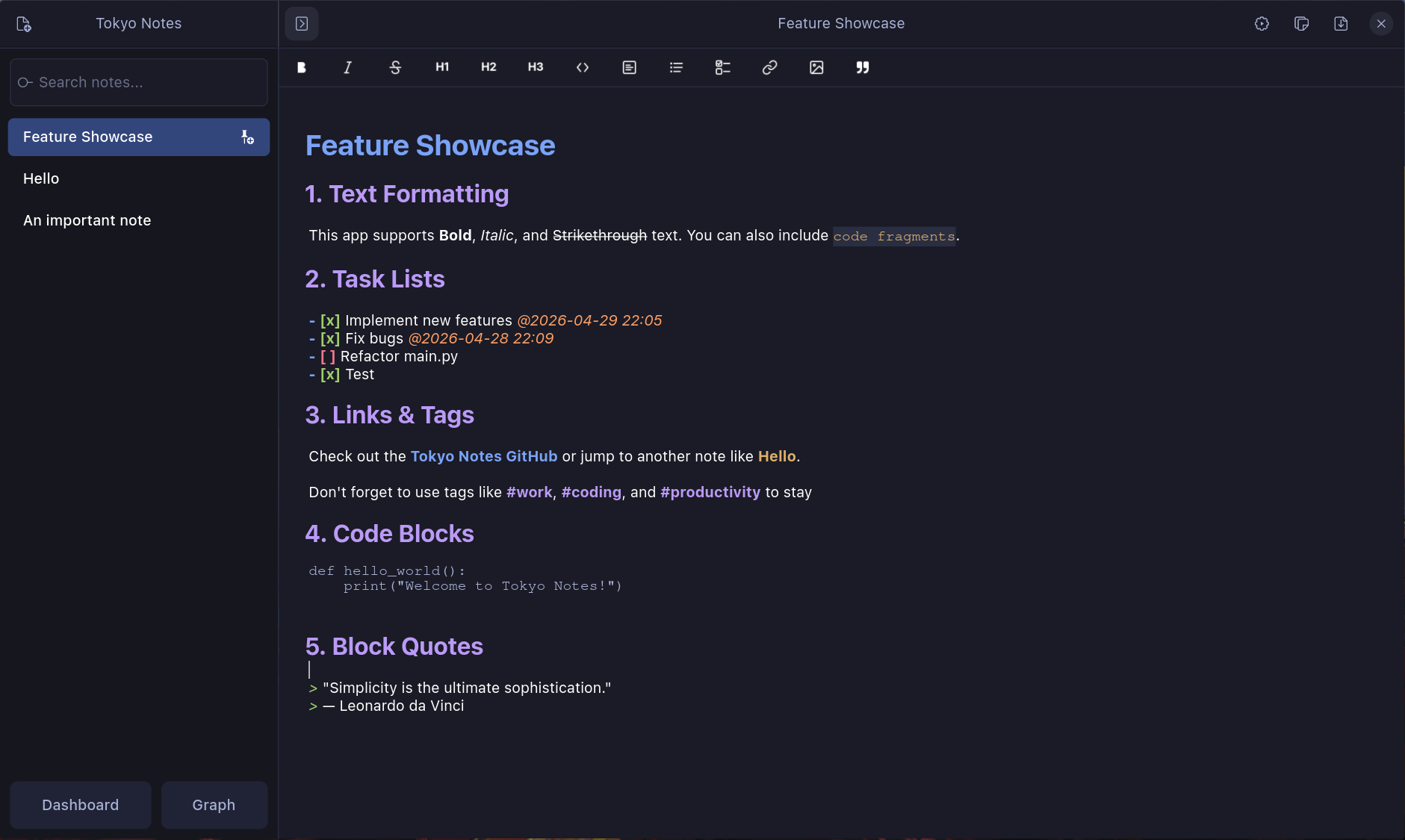
- Task Management: Dashboard with Today, Week, and All views, featuring deadline tracking and jump-to-line navigation.
- Thematic Animations: "Sakura Celebration" particle effect when completing tasks in Dashboard.
- Archive System: Keep your workspace clean by archiving finished notes.
- Knowledge Graph: Visualize and navigate connections between your notes.
- Exporting: Save notes as PDF or copy raw Markdown to the clipboard instantly.
- Themes: Multiple themes including Tokyo Night, Nord, and Cyberpunk 2077.
- Full-Text Search: Find notes by title or keyword content.
Requires Python 3, PyGObject, GTK4, Libadwaita, and Libadwaita Icons.
# Arch Linux
yay -S tokyo-notes-git

# macOS (using Homebrew to install dependencies)
brew install gtk4 libadwaita pygobject3 adwaita-icon-theme
git clone https://github.com/tanay1337/tokyo-notes.git
cd tokyo-notes
python3 main.py

# Others (after installing dependencies)
git clone https://github.com/tanay1337/tokyo-notes.git
cd tokyo-notes
python3 main.py| Shortcut | Action |
|---|---|
Ctrl/Cmd + N |
New Note |
Ctrl/Cmd + D |
Toggle Dashboard |
Ctrl/Cmd + F |
Focus Search |
Ctrl/Cmd + G |
Knowledge Graph |
Ctrl/Cmd + Shift + T |
Insert Timestamp |
Ctrl/Cmd + Shift + Z |
Zen Mode |
Delete |
Delete selected note (with confirmation) |
Escape |
Close Dashboard / Clear Search / Return to Editor |
Ctrl/Cmd + Q |
Quit |
- Deadlines: Type
@to open a date/time picker for task deadlines. - Note Links: Type
[[to pick a note to link to. - Lists: Press
Enteron a list item to automatically continue the list. PressEntertwice to discontinue the lists. - Task Markers: Press
Enteron a task- [ ]to create a new unchecked task.
Tokyo Notes can act as a "knowledge base" for local AI agents, allowing them to search, read, and manage your notes directly.
- Open Settings within the Tokyo Notes application.
- Scroll to the AI & Automation section.
- Toggle AI Bridge (MCP) to ON.
- (Optional) Set your preferred port (default is
8999). - Restart Tokyo Notes to initialize the bridge.
Once enabled, your notes are accessible at: http://127.0.0.1:8999/sse
- For AnythingLLM / Open WebUI: Use the OpenAI-compatible tool URL:
http://127.0.0.1:8999/v1/tools - For MCP-native clients (e.g., Claude Desktop): Use the SSE endpoint:
http://127.0.0.1:8999/sse
- Query: "What are the action items in my 'Project X' note?"
- Manage Tasks: "Mark the task on line 5 as done in my 'Groceries' note."
- Append: "Add a summary to the end of my 'Daily Log' note."
- Create: "Create a new note titled 'Meeting Notes' with the content: [summary]."