cap is a proxy server that allows you to capture, modify, and inspect HTTP and HTTPS traffic. It is designed to be easy to use and flexible, making it suitable for a wide range of use cases, from debugging web applications to testing APIs to pen testing.

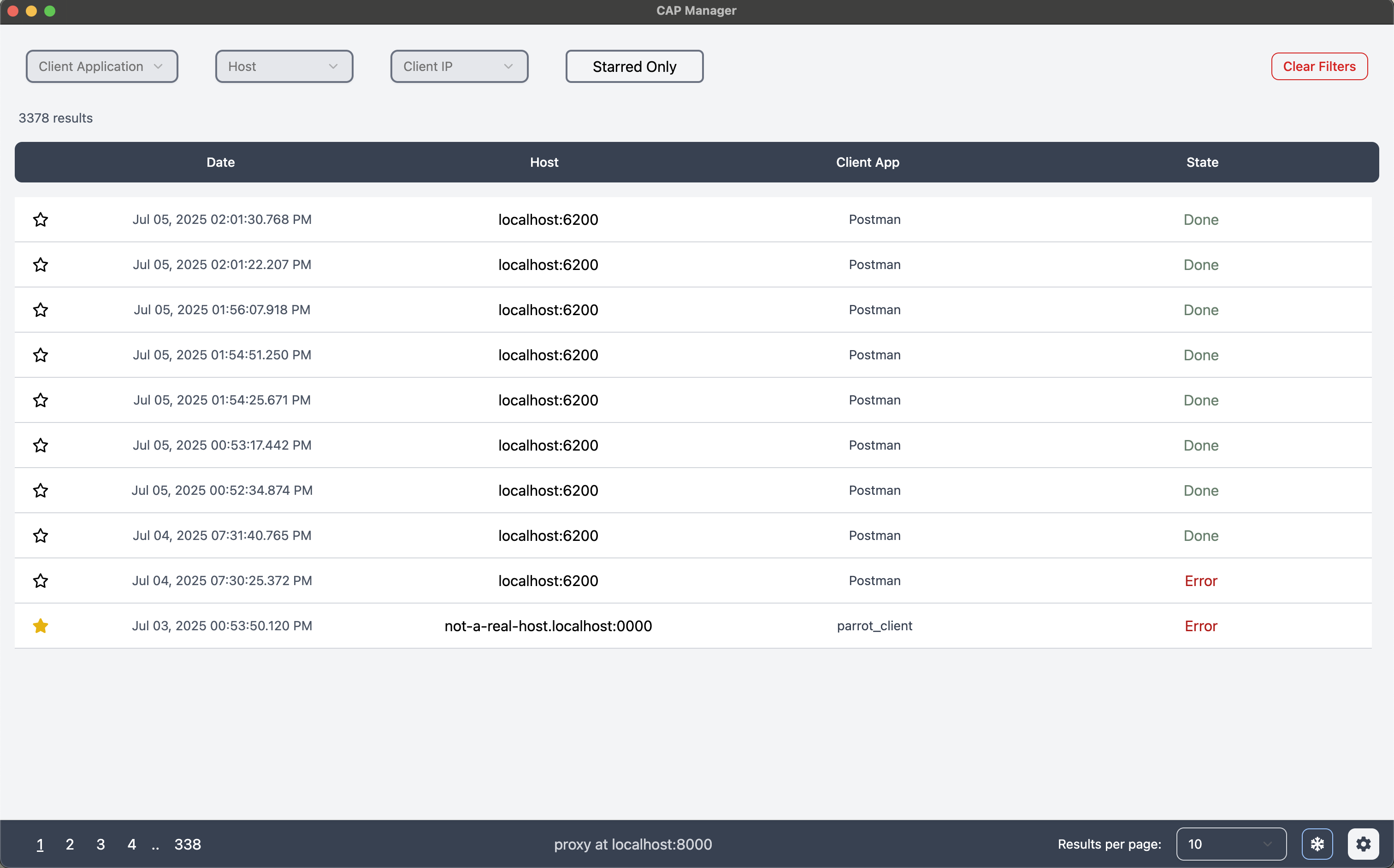 The user interfce of the proxy. It shows captured requests.
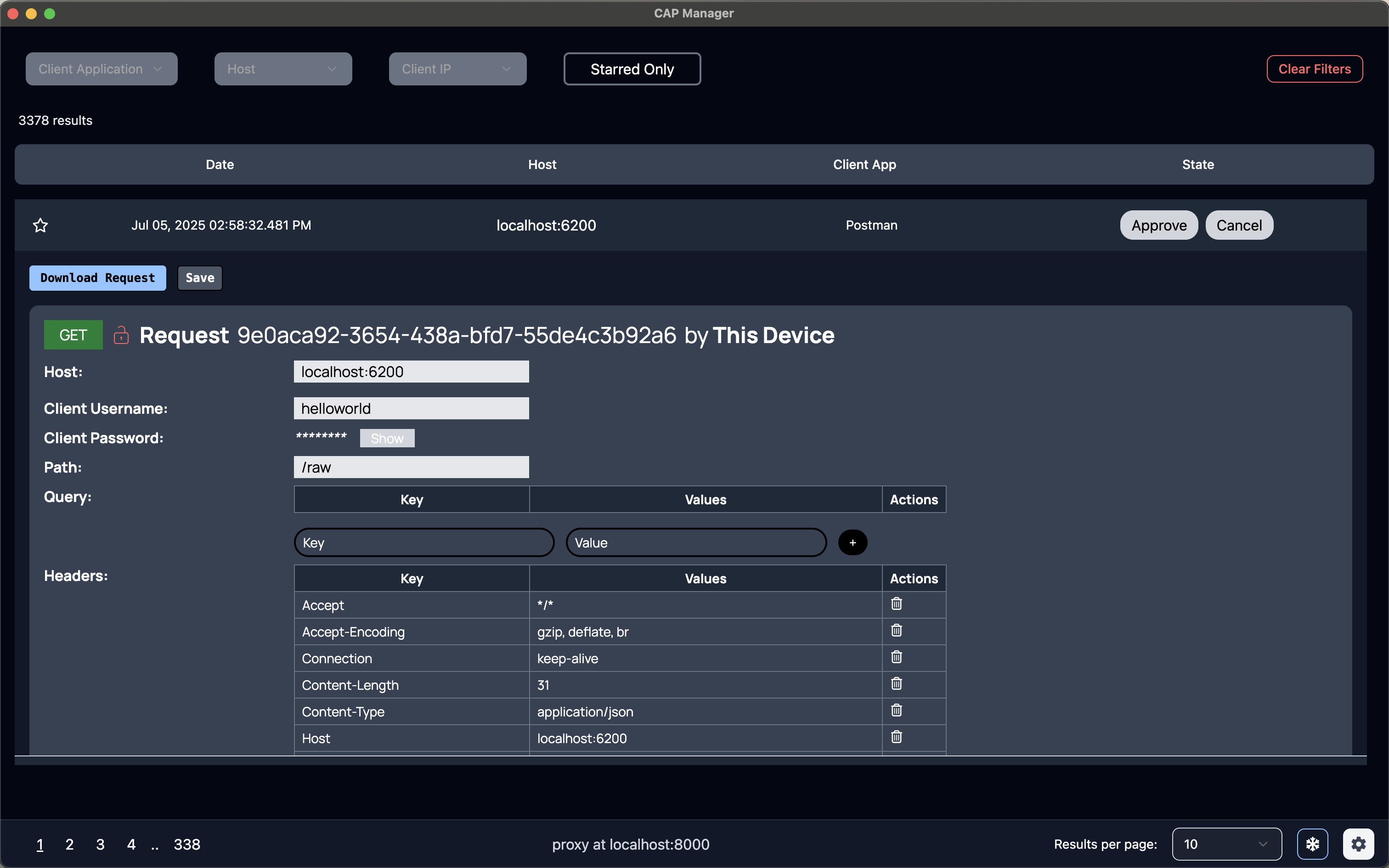 A request being modified in the dark mode UI. The request is waiting for approval and the user is able to modify many aspets of the request.
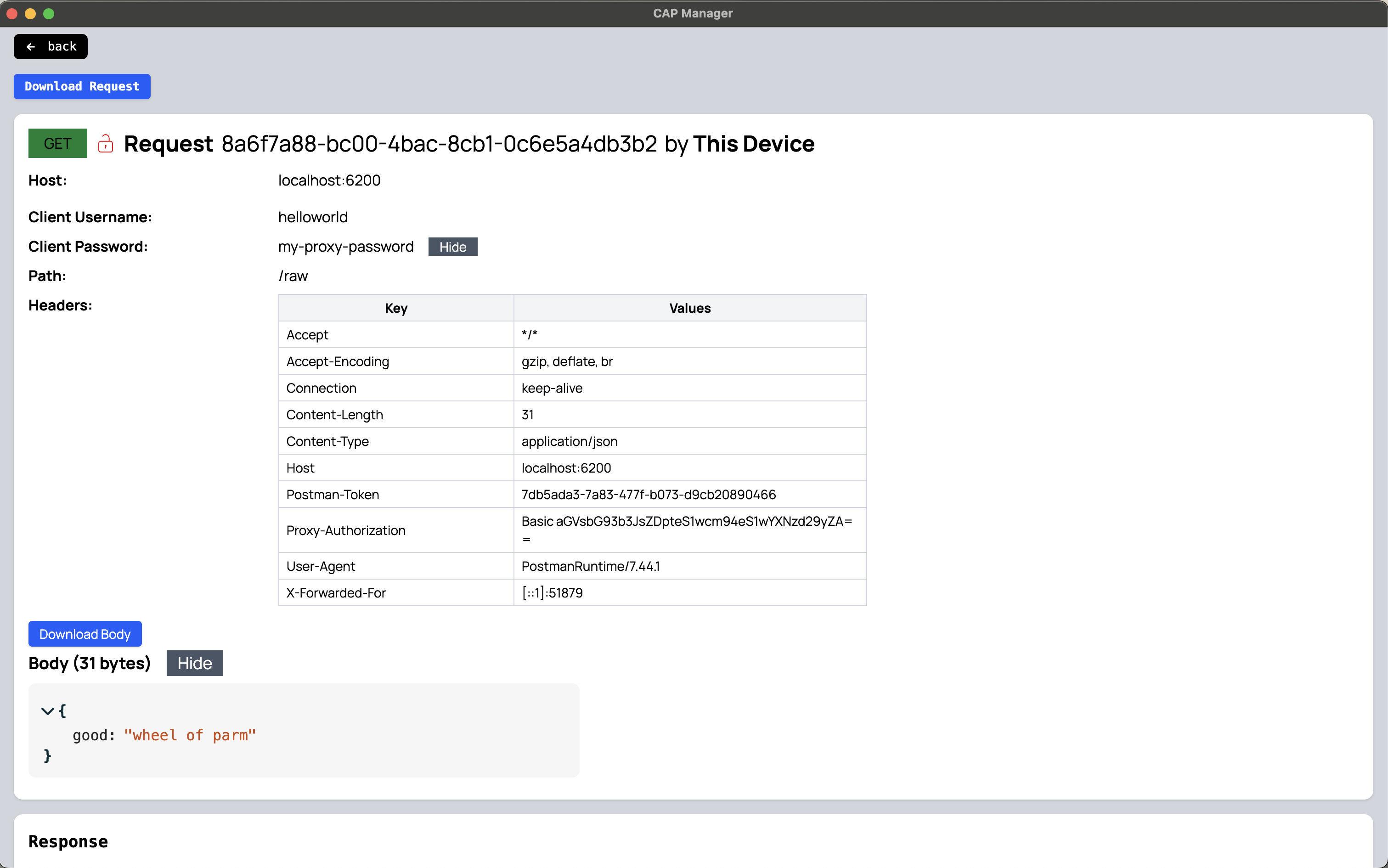 A request being shown in expanded mode. The body is shown with a special viewer for its content type.
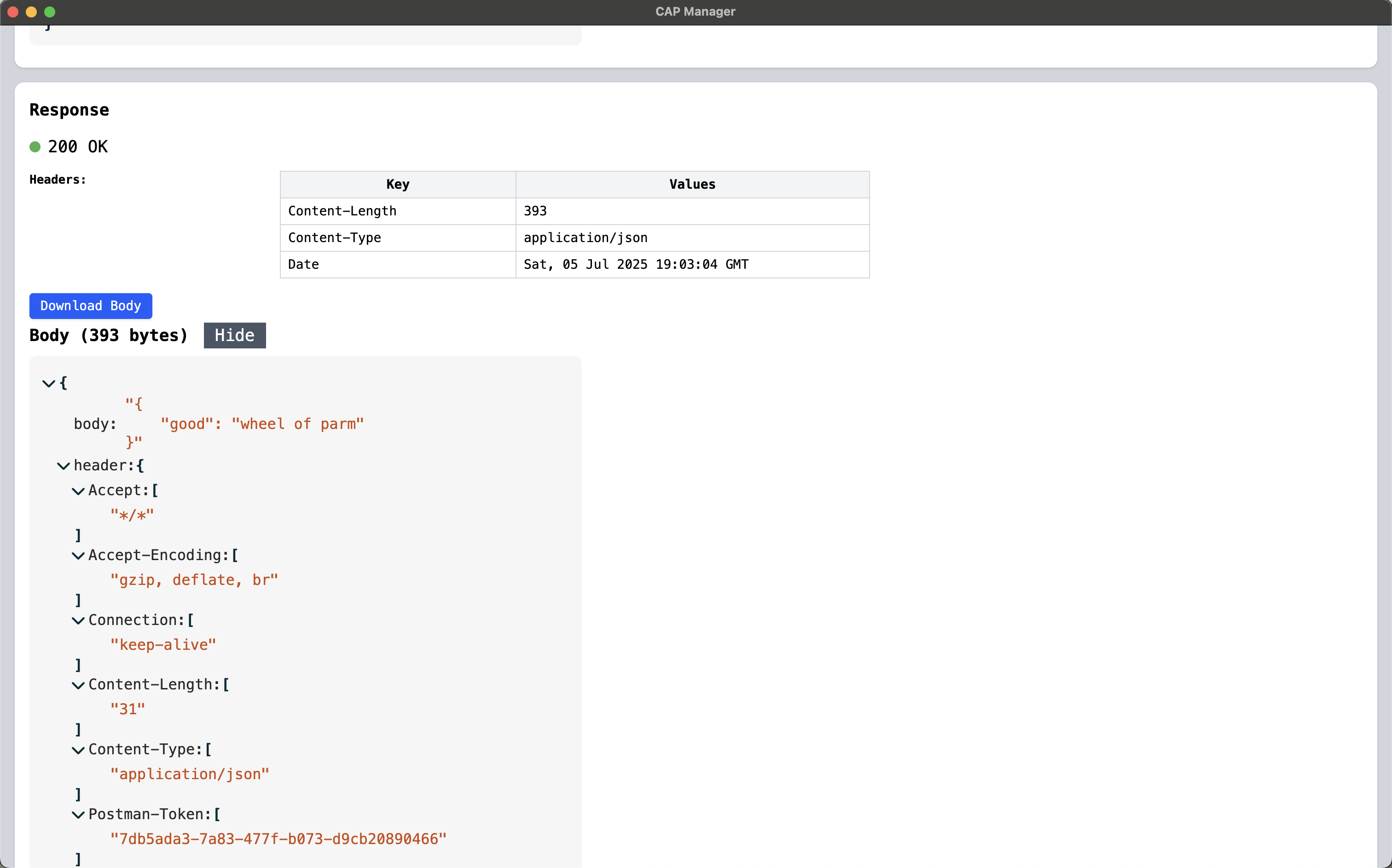 A response being shown in expanded mode with the body shown in a special viewer for its content type.
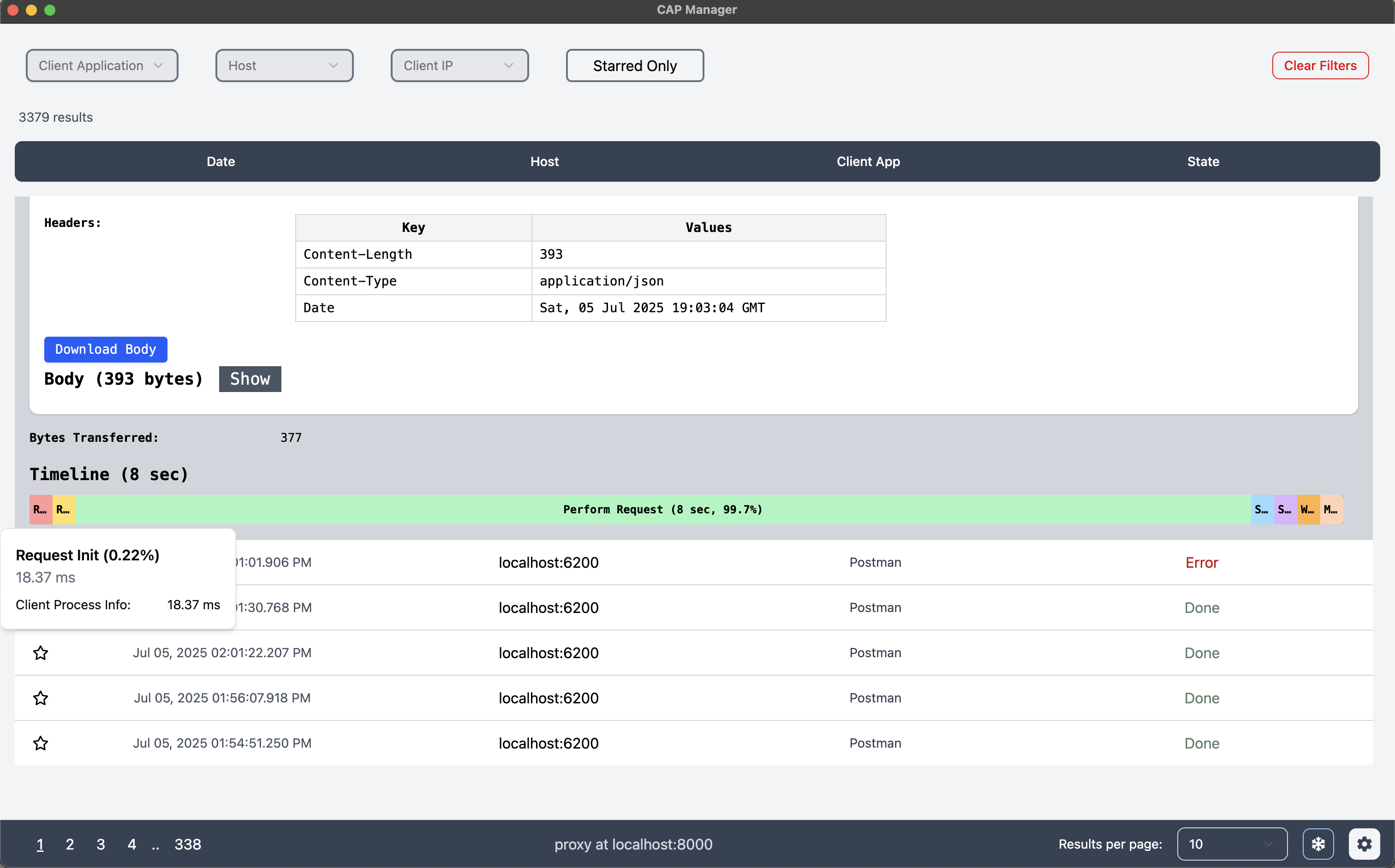 A timeline being shown with a subtime.
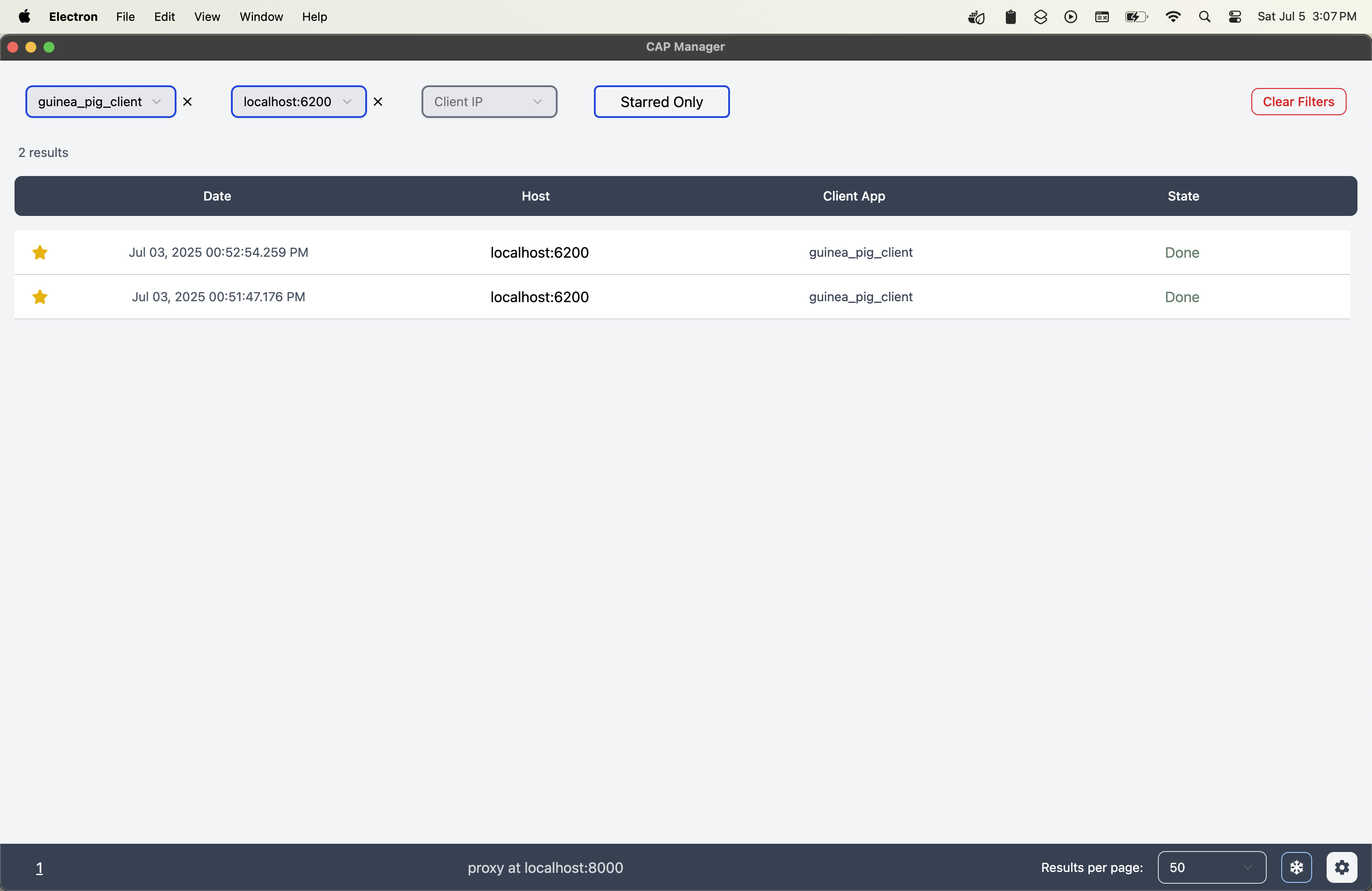 Captured requests being shown in the UI with filters applied and an adjusted requests per page.
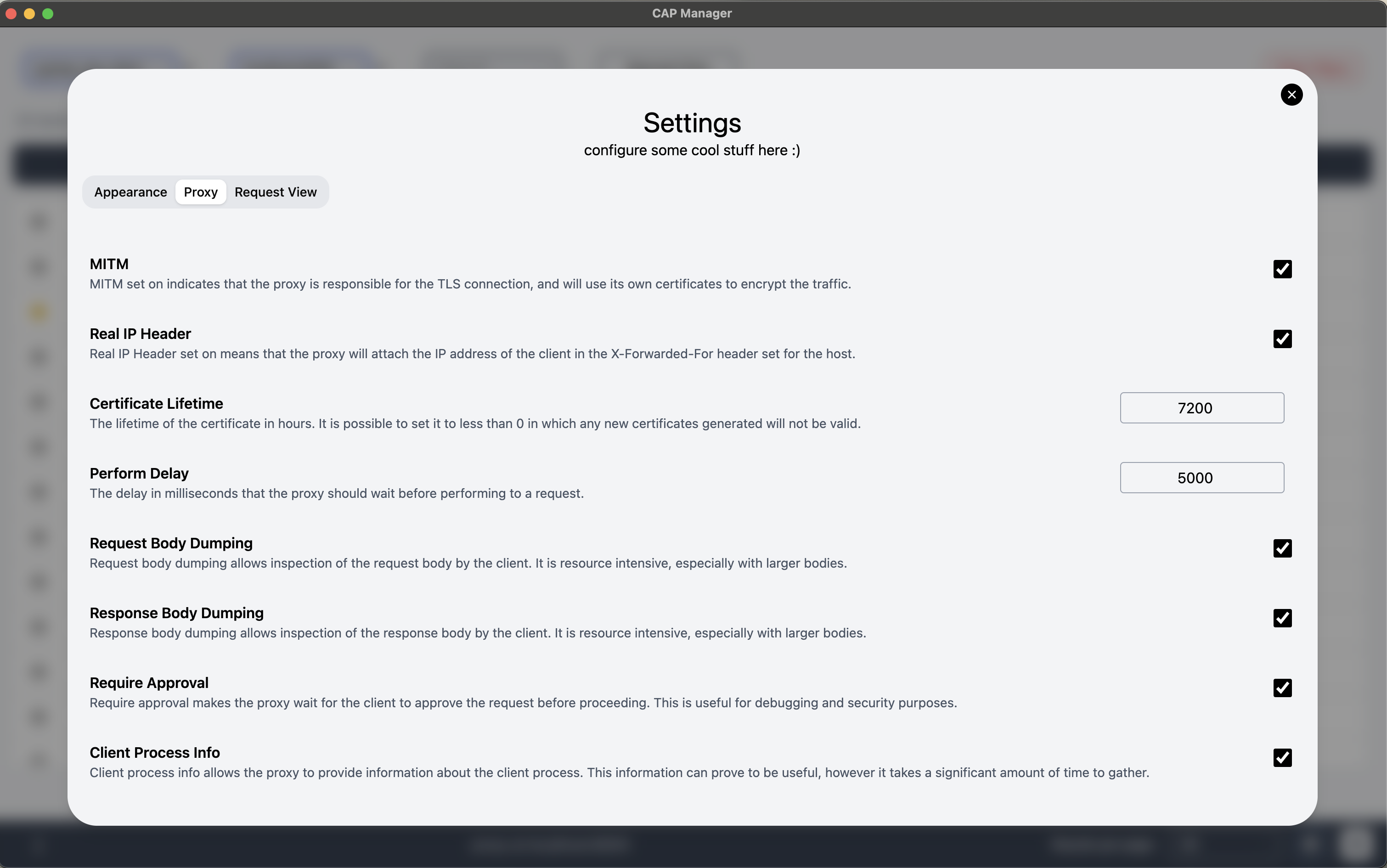 The settings menu. It allows you to configure proxy behavior and appearance.
- Capture HTTP and HTTPS traffic (with MITM support)
- Request Modification (including the destination, method, headers, body, etc.)
- Request Timelines
- Configurable Behavior of the Proxy (MITM, Approval, Delay)
- Configurable UI (with dark mode)
- Persistent storage of requests, responses, and their bodies in a sqlite db
- Filter requests
- Star requests
well currently the built version of the app doesn't work, so...
-
Ensure you have Go (1.24+) installed on your system. See the Go installation guide for instructions.
-
Clone the repository:
git clone https://github.com/tiredkangaroo/cap.git
-
Navigate to the project directory (change the working directory):
cd cap -
Install the dependencies: Make sure you have Node.js and npm installed for the UI dependencies. You can download them from Node.js official website.
Go dependencies:
go mod tidy
UI dependencies:
npm i --prefix manager
-
Optional: If you want to utilize the Man-in-the-Middle (MITM) functionality, you will need to generate a CA certificate.
go run make.go gen-ca
This will create a CA certificate in the
certsdirectory. You can then install this certificate in your system or browser to enable HTTPS traffic interception. -
Run the project.
go run make.go run
Note: If you want to run the project in debug mode, you can use:
go run make.go debug
-
The proxy is now running on
http://localhost:8000. Configure your browser, application, or system to use this proxy server for HTTP and HTTPS traffic.
Once the proxy server is running, you can start capturing and modifying HTTP and HTTPS traffic. Here are some instructions for some basic features:
-
Configure your browser or application to use the proxy server:
- Set the HTTP and HTTPS proxy to
localhost:8000.
- Set the HTTP and HTTPS proxy to
-
Modify Proxy Behavior:
- Press the settings button in the bottom right corner of the UI to configure the proxy behavior, such as enabling MITM, body dumping, etc.
-
Filter Requests:
- Use the filter options in top left of the UI to filter requests by Client Application, Client IP, Host, etc. You can select multiple filters to narrow down the displayed requests.
-
Modify Requests:
- Ensure the proxy is running with the "Wait for Approval" option enabled.
- When a request is captured, it will be displayed in the UI.
- Click on the request and press the "Edit" button to modify the request.
- Make the desired changes to the request. See below on how to make certain modifications.
- Press the save button to apply the changes.
- Approve the request by pressing the "Approve" button. The request will then be sent to the server with the modifications.
-
Making some modifications
Note: You must be in edit mode (while the request is waiting approval) to make modifications.
-
Change the Method: You can change the HTTP method (GET, POST, etc.) of the request by pressing the method and alternating through the available methods.
-
Modify Body: You can modify the body of the request. Press the show body button to view the body, if it is not already shown, and then edit it as needed. You can also change the content type of the body by setting the
Content-Typeheader in the request editor. COMING SOON: You will be provided an editor to modify the body in a manner consistent with the content type. e.g JSON editor for JSON bodies, etc. -
Modify Perform in HTTP/HTTPS mode: You can change the request to be performed in HTTP or HTTPS mode by pressing the lock next to the method in the Request card. This will toggle the request between HTTP and HTTPS modes. Note: changing performance to HTTP mode will still not allow strong information to be available to the ui if the request was originally made in HTTPS mode WITH tunneling. The request will continue to be performed in tunnel, but the HTTP/HTTPS mode will be changed to reflect the changed request.
-
-
Freeze Requests:
- You can freeze the UI in order to allow you to work with the UI without the requests being updated in real-time. This is useful when you want to work with the UI without being interrupted by new requests coming in. Updates that occur are kept but not shown until the unfreeze button is pressed. To freeze the UI, press the snowflake button in the bottom right corner of the UI. You can unfreeze the UI by pressing the same button again.
- MITM - Man in the Middle. A technique used to intercept and modify communication between two parties without their knowledge. Using man-in-the-middle, the proxy is able to intercept the full traffic between the client and the server, and provide strong information for HTTPS requests as well.
- Strong information - The highest level of information the proxy is able to provide. This includes all weak information but also includes the method, headers, query, path, body, etc. as well as the full response including the status code, headers, body, etc. All HTTP requests are capable of providing strong information, while HTTPS requests are only capable of providing strong information if the proxy is running with MITM enabled.
- Tunneling - The technique used to connect the client with the server in HTTPS mode without MITM. This is done by establishing a tunnel that copies the encrypted bytes from the client to the server and vice versa. The proxy is not able to see the full request or response in this case, and can only provide weak information. This is the default mode for HTTPS requests.
- Weak information - The lower level of information the proxy is able to provide. This includes the host, client IP, client application, and the bytes transferred. All requests at the very least provide weak information.
If you encounter any bugs or have feature requests, please open an issue. It helps improve the project and your feedback is greatly appreciated!
If you discover a security vulnerability within this project, please report it by emailing me. All security vulnerabilities will be promptly addressed. Thank you!