allows you to see system metrics and control certain aspects of the system in real-time.
available for Linux systems only. view builds here.
if you'd like to make the binary as a systemd service, follow the instructions below.
- move the binary to a permanent location, e.g.,
/usr/local/bin/system - create a systemd service file at
/etc/systemd/system/system.servicewith the following contents:
[Unit]
Description=System Service
After=network.target

[Service]
ExecStart=/path/to/system/binary
Restart=always
Environment=LISTEN_ADDR=:8080 # change to your desired address. you may leave this empty, which will make the service listen on a random port. you can check the port in the logs.
Environment=TLS_CERT_FILE=/path/to/cert.pem # optional (recommended), for enabling TLS. provide the absolute path to a valid x509 certificate file.
Environment=TLS_KEY_FILE=/path/to/key.pem # optional (recommended), for enabling TLS. provide the absolute path to a valid x509 key file.
Environment=SYSTEM_TOTP_SECRET=your_totp_secret_here # optional (recommended), for enabling authentication. use a base32-encoded secret with a minimum length of 32 characters. you will need the TOTP secret to generate 2FA codes which will be required to access information.
Environment=SYSTEM_JWT_SECRET=your_jwt_secret_here # optional (recommended), for enabling authentication. use a strong hex encoded secret with a minimum length of 32 characters.

[Install]
WantedBy=multi-user.target- reload systemd with
sudo systemctl daemon-reload - start the service with
sudo systemctl start system.service - check the status with
sudo systemctl status system.service - enable the service to start on boot with
sudo systemctl enable system.service
under two requirements, you can access the secure web interface:
- you must have TLS enabled
- the TLS certificate must be trusted by your browser. see below for instructions on trusting a self-signed certificate.
Once you reach the interface, input https://<your-server-address> into the input field and click "Connect".
You may be prompted for a TOTP code if you have enabled authentication.
if you have TLS enabled, the certificate must be trusted by your browser. see below for instructions on trusting a self-signed certificate.
if you are unable to meet the requirements for the secure web interface, you must run the frontend locally and connect to the server directly.
- clone the repository:
git clone https://github.com/tiredkangaroo/system.git - navigate to the
frontenddirectory:cd system/frontend - install dependencies:
npm install - start the development server:
npm run dev - open your browser and go to
http://localhost:5173(or the address shown in the terminal) - input
http(s)://<your-server-address>:<your-server-port>into the input field and click "Connect".
You may be prompted for a TOTP code if you have enabled authentication.
if you are using a self-signed certificate, you will need to manually add an exception in your browser to trust the certificate.
go to https://<your-server-address>, click on "Advanced", then "Proceed to your-server-address (unsafe)".
your browser will now trust the self-signed certificate for this address.
- view static system information (os, kernel, hostname, uptime, platform, cpu model, memory capacity, disk capacity, battery model, etc.)
- view system metrics in real-time (cpu, memory, disk, battery, cpu temp, battery temp, etc.)
- view running processes
- send signals to processes (terminate, kill, stop, suspend, continue)
- view system services (name, description, status, logs, etc.)
- manage system services (start, stop, restart, enable, disable)
- view system logs
- reboot or shutdown the system
network management coming soon!
the on-system application is written in Go. the server uses the Fiber package.
the frontend is built using React and Vite.
the server is able to provide many system metrics using the gopsutil library, which provides a cross-platform way to access system information.
cpu architecture is determined using runtime.GOARCH.
cpu model is retrieved using system file /proc/cpuinfo on Linux systems.
battery information is retrieved using specific battery files located in /sys/class/power_supply/ on Linux systems.
reboot/shutdown and service functionality is implemented using systemctl.
logs are retrieved using journalctl.
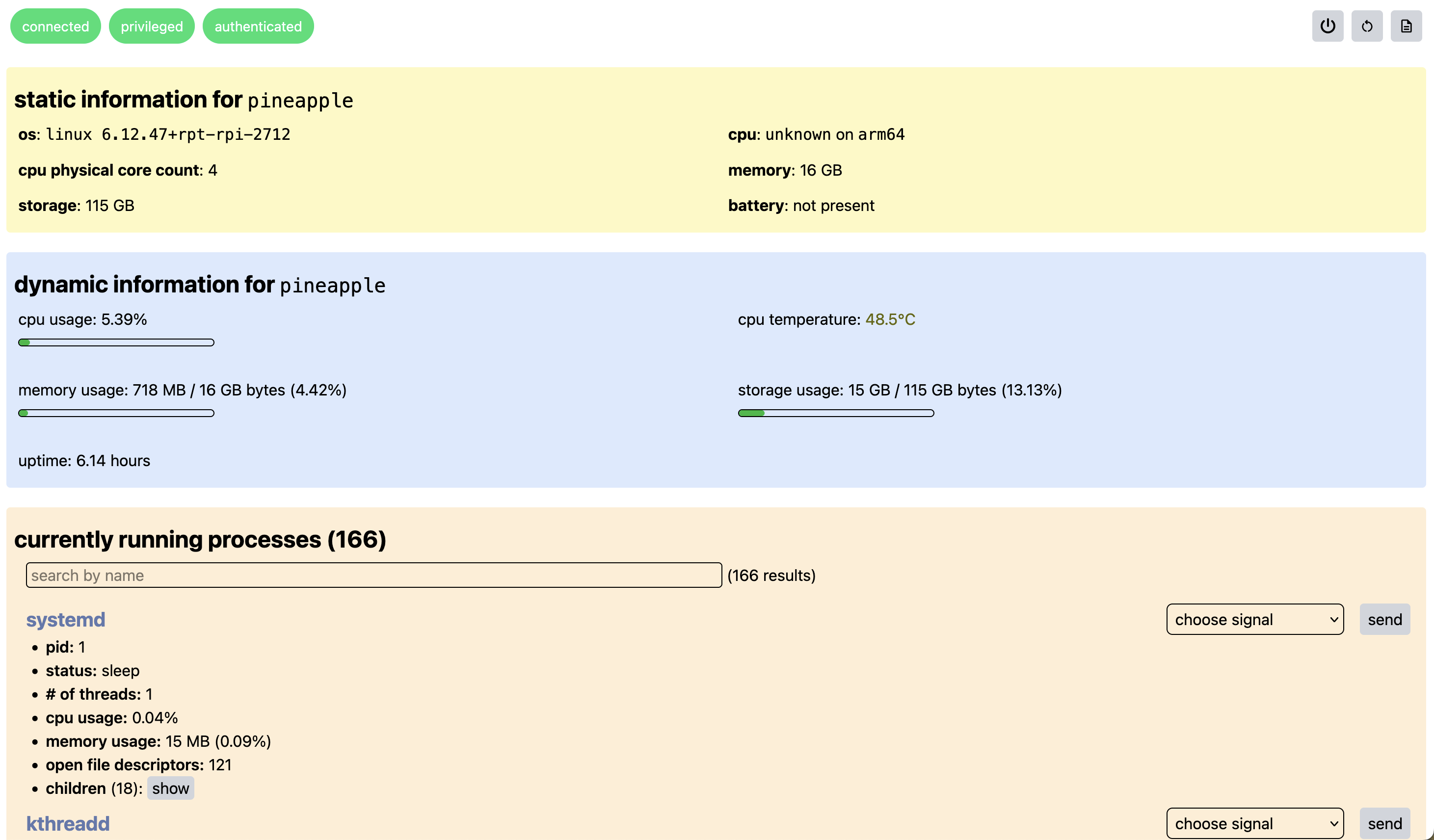
the web interface
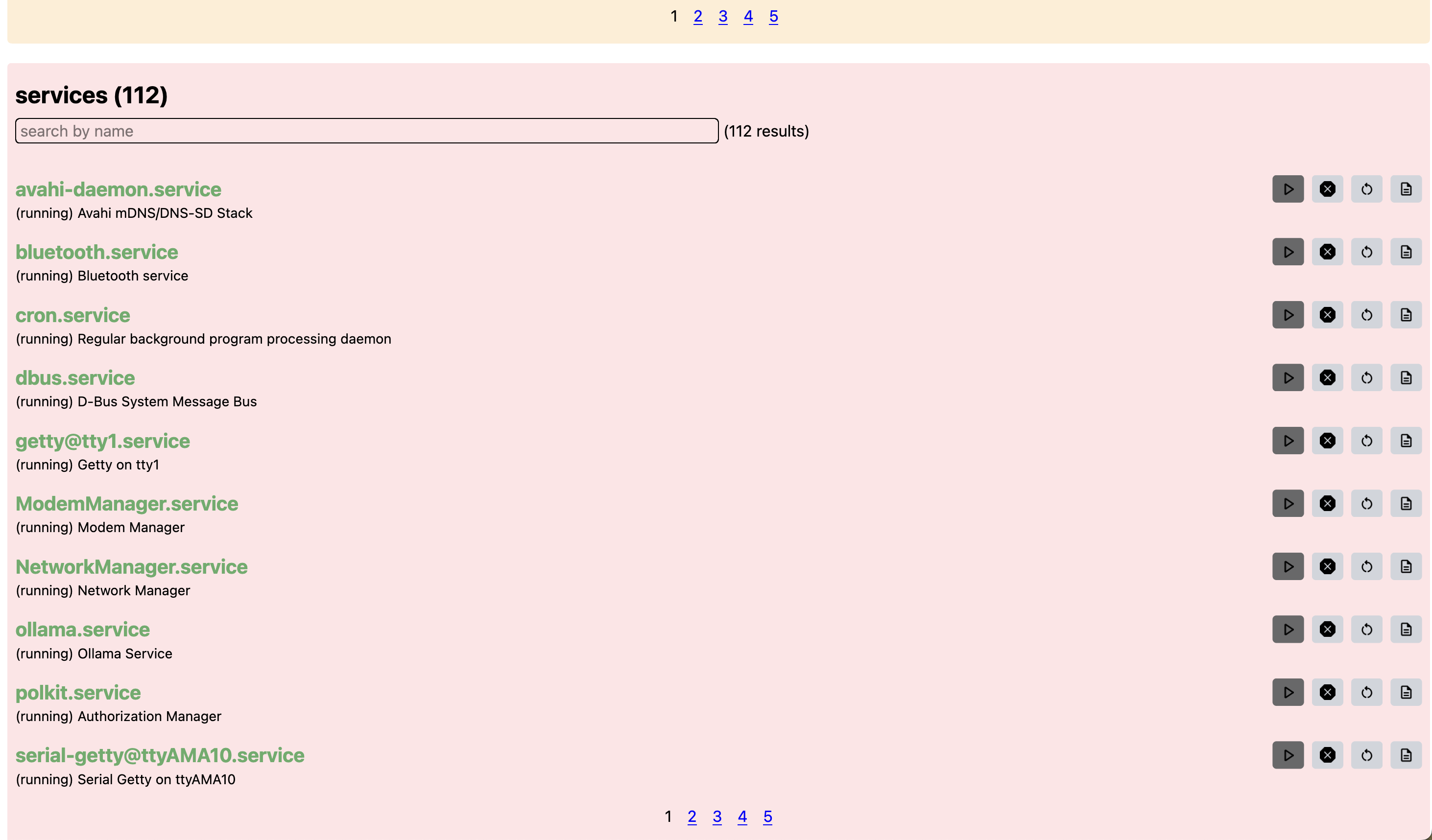
services showing on the web interface
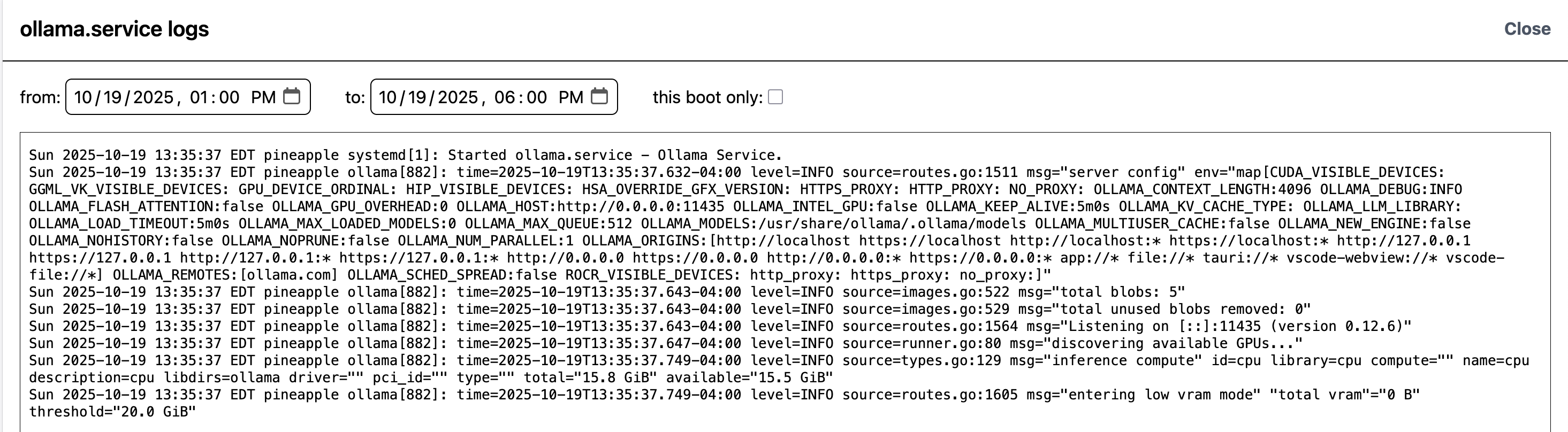
logs of a service
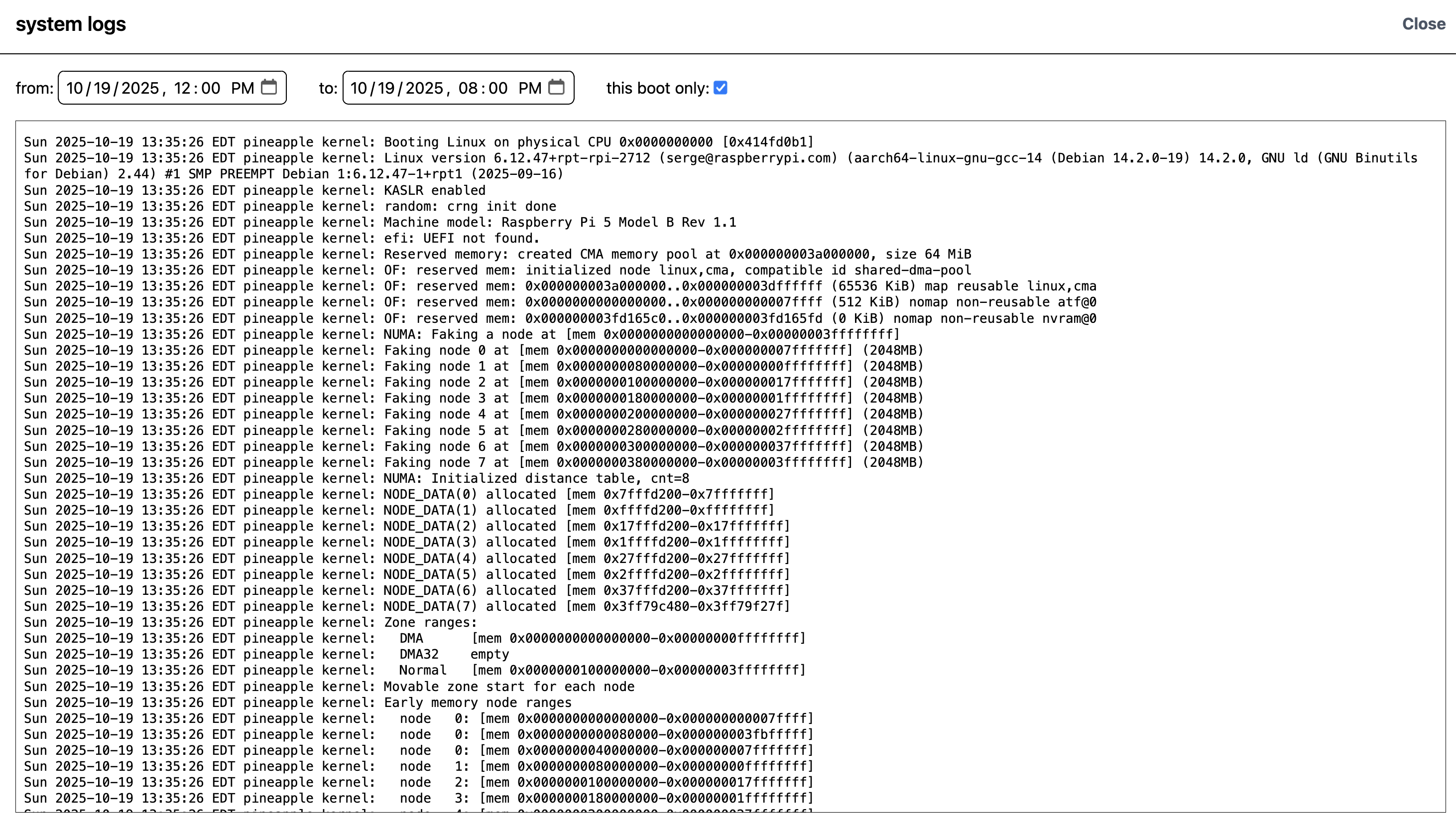
system logs
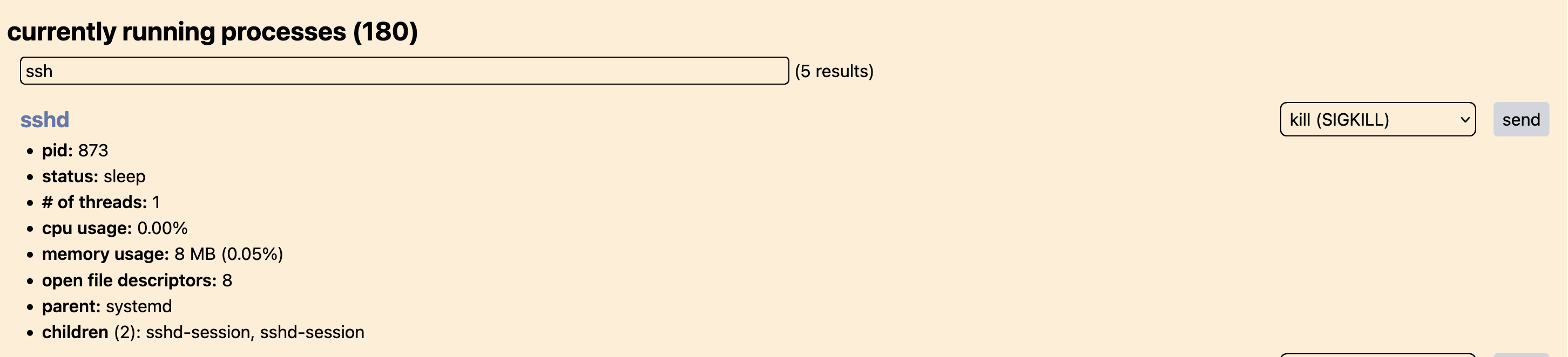
sending a signal to a process (sshd)