Beta — This package is under active development. The API may change drastically between versions. That said, AI agents (Claude, Cursor, Codex) handle API changes gracefully by reading the
--llm-guideoutput, so breaking changes won't break your workflow — just runprint_widget --llm-guideand the AI adapts.
Capture Flutter widgets as PNG screenshots. Built for LLMs to see what they build.
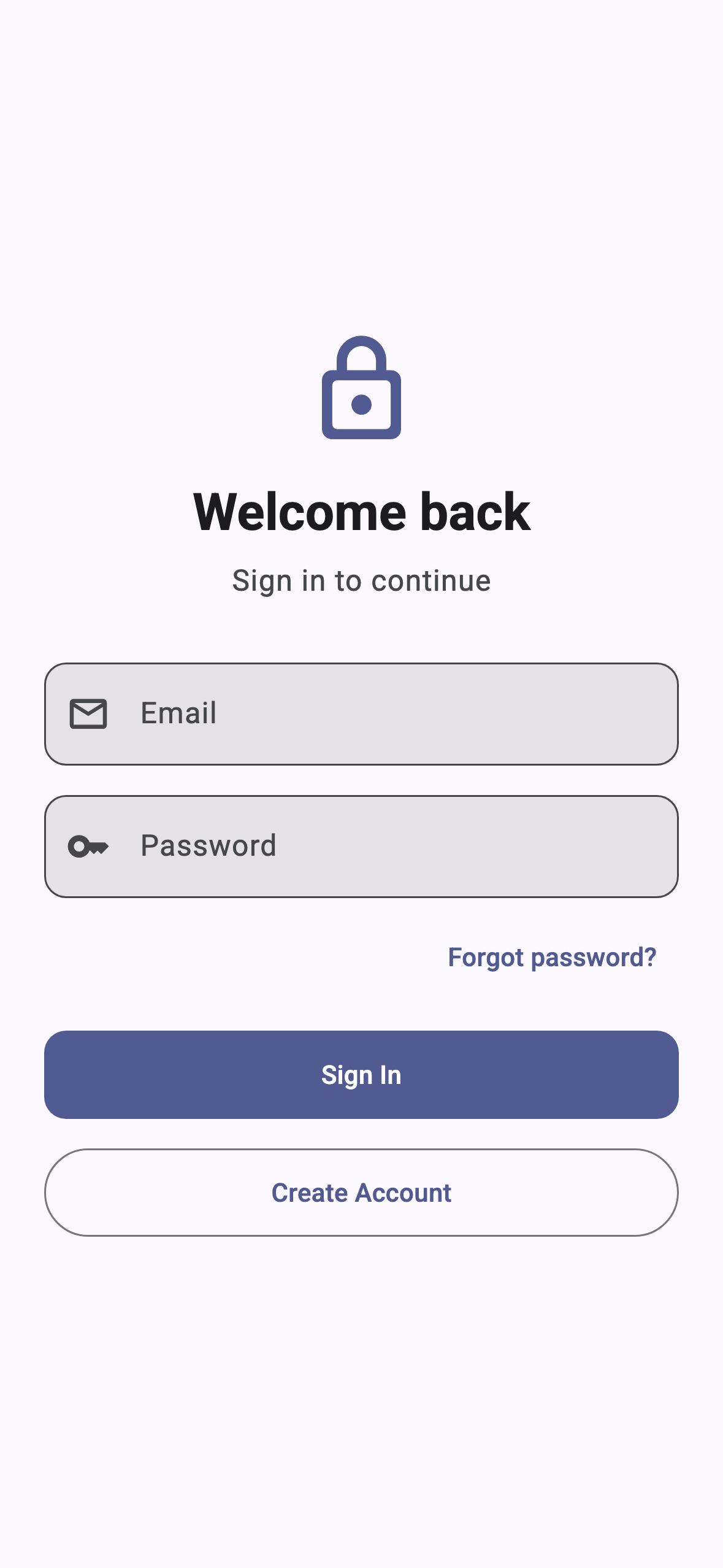
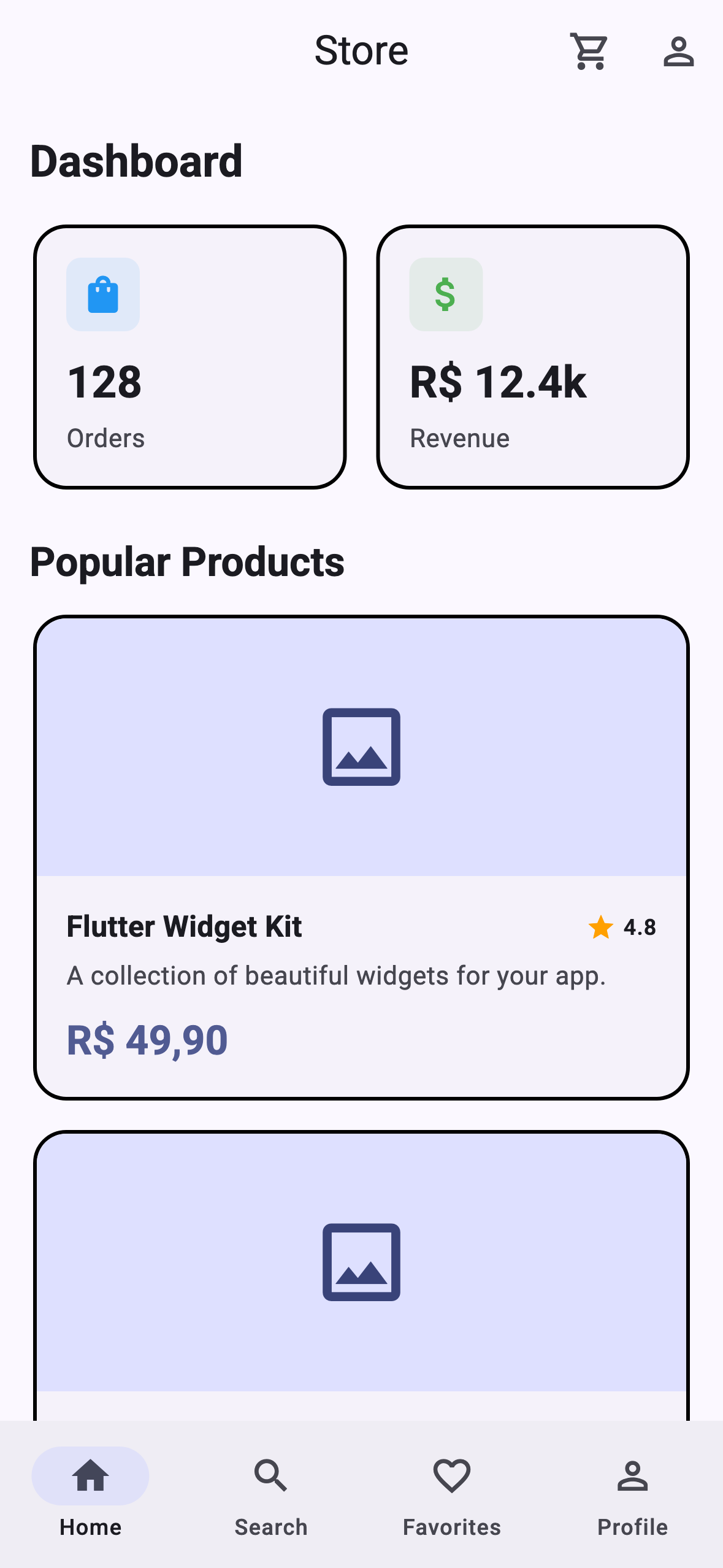
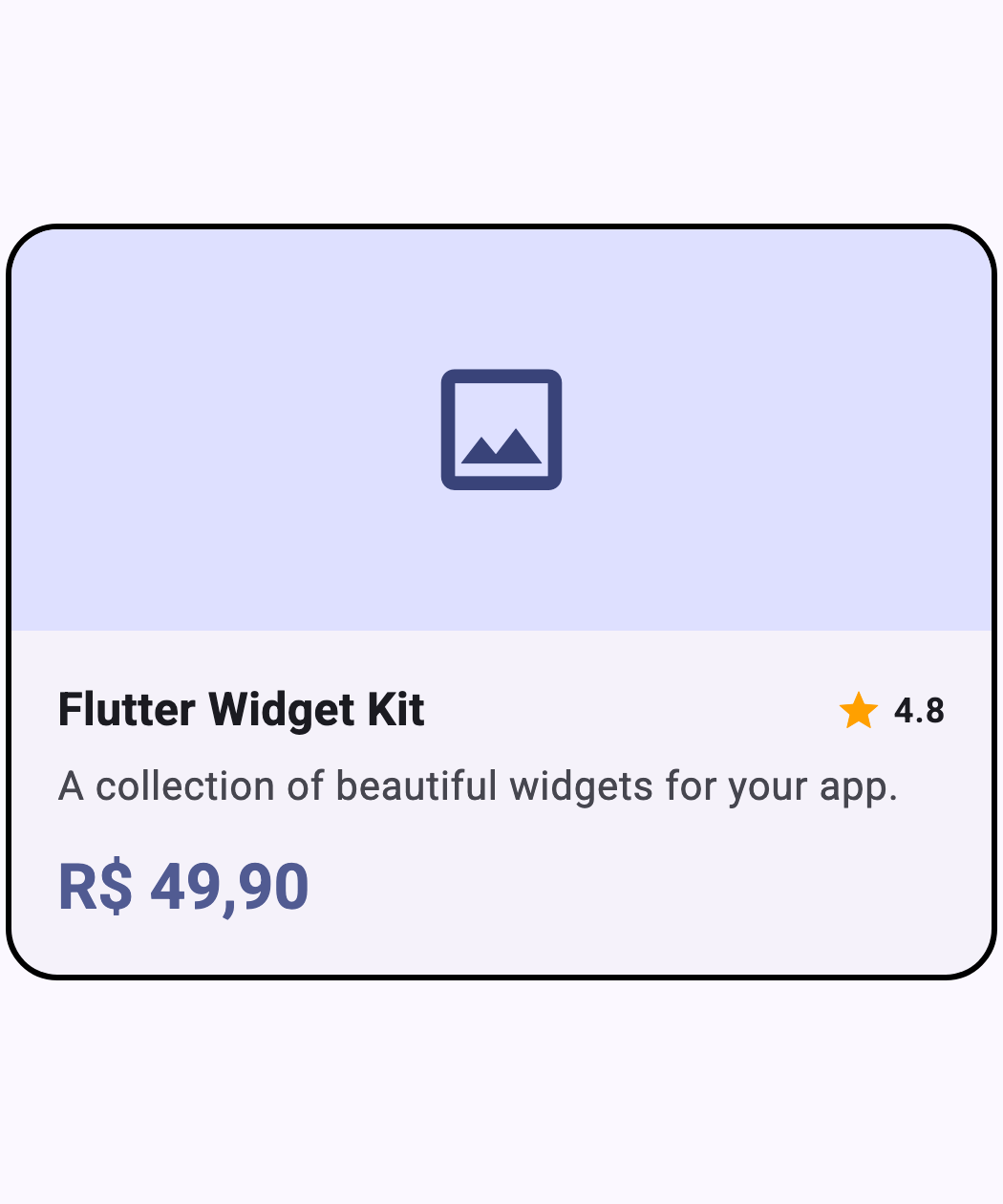
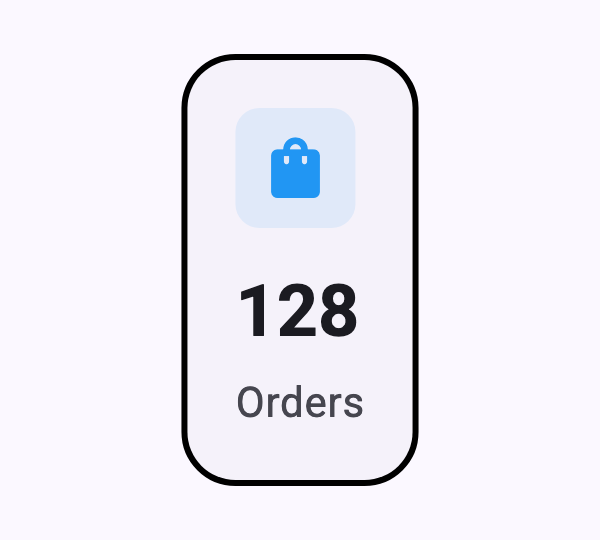
You define widgets. It generates PNGs. LLMs read the PNGs and iterate on the UI.
You write code → print_widget generates screenshots → LLM sees the result → fixes UI → repeat
| What | Purpose | Install |
|---|---|---|
| CLI | Run generate, list, config |
dart pub global activate print_widget_flutter |
| Dev dependency | Use PrintSession, PrintEntry, Printable in code |
Added by print_widget init |
The CLI runs commands. The dev dependency gives you the Dart classes. print_widget init sets up both.
dart pub global activate print_widget_flutterNot yet on pub.dev? Install directly from GitHub:
dart pub global activate --source git https://github.com/ulisseshen/print_widget.git
cd my_flutter_app
print_widget init
Web projects (web/ directory or platforms: web: in pubspec) automatically get web_1440 as the default device.
Open test/prints/print_config.dart:
final printSession = PrintSession(
  appWrapper: (child) => MaterialApp(
    theme: MyAppTheme.light,
    home: child,
  ),
  defaultDevice: DeviceFrame.iPhone15Pro,
);

final printList = <PrintEntry>[
  page('login_page', const LoginPage()),
  widget('product_card', ProductCard(title: 'Demo'), size: Size(350, 420)),

  // Multiple states of the same screen
  pages('sign_in', states: [
    state('empty', SignInScreen()),
    state('error', SignInScreen(initialError: 'Invalid email')),
  ]),
];print_widget generateDone. PNGs + manifest.json in your output directory.
print_widget works with Claude Code, Cursor, Codex, and Antigravity. After the quick start above, install the AI skills for your tool:
print_widget skills --tool=claude --installSkills installed to .claude/skills/ (project) or ~/.claude/skills/ (user). Use with /print-widget figma, /print-widget stitch, /print-widget update.
print_widget skills --tool=cursor --installSkills installed to .cursor/rules/ as .mdc rule files. Cursor auto-loads them when editing matching files.
print_widget skills --tool=codex --installSkills installed to .agents/skills/ (project) or ~/.agents/skills/ (user) as SKILL.md files.
print_widget skills --tool=antigravity --installSkills installed to .agent/skills/ (project) or ~/.gemini/antigravity/skills/ (user) as SKILL.md files. Antigravity auto-detects skills via semantic triggering.
If you skip --tool, print_widget auto-detects which tools are installed and installs for all of them:
print_widget skills --install # auto-detect + install allIf you are an AI assistant (Claude Code, Cursor, Codex) setting up print_widget in a Flutter project, follow this complete onboarding flow:
dart pub global activate --source git https://github.com/ulisseshen/print_widget.gitDo NOT add print_widget to the project's pubspec.yaml. It is a CLI tool, not a library dependency.
cd <flutter_project>
print_widget init
The init command creates all needed files and prints onboarding instructions specifically for you. Read and follow them — they guide you through:
- Editing the config file with the project's theme and widgets
- Running
print_widget generate - Installing AI skills (auto-installed during
init; or manually withprint_widget skills --install) - Detecting VS Code/Cursor and offering to install the preview extension
print_widget --llm-guideThis prints a condensed guide with project-specific paths, all CLI commands, entry types, device list, and the VS Code extension install instructions.
Edit the config file (path shown in init output) and add the project's widgets:
final printList = <PrintEntry>[
  page('login_page', const LoginPage()),
  widget('product_card', ProductCard(data: mock), size: Size(350, 420)),
];print_widget generateRead manifest.json in the output directory to find generated PNG paths. Read the PNGs to visually verify your UI work. Iterate until the screenshots match the design.
Once set up, you can:
/print-widget figma <figma-url>— convert a Figma design to Flutter with screenshot comparison loop/print-widget stitch <description>— generate a UI design with Stitch, then implement and compareprint_widget generate --name=<entry>— regenerate a single screenshot after code changesprint_widget generate --all-devices— test responsive layouts across iPhone, Pixel, iPad- Compare screenshots with design references in the VS Code extension sidebar
print_widget init                        # Set up project (auto-installs skills)
print_widget generate                    # Generate all screenshots
print_widget generate --name=login_page  # Generate one entry only
print_widget generate --device=pixel_7   # Override device (preset name)
print_widget generate --device=1440x900  # Override device (custom size)
print_widget generate --device=web:1440x900@2  # Custom name, size, pixel ratio
print_widget generate --all-devices      # All popular devices
print_widget generate --delete-old       # Clean regenerate
print_widget generate --json             # Structured JSON output
print_widget list                        # Show configured entries
print_widget config                      # View settings
print_widget config --device=pixel_7     # Change default device
print_widget config --compare-threshold=0.98  # Tune compare gate
print_widget compare                     # Diff generated vs reference (pixelmatch)
print_widget compare --name=login_page   # Diff one entry
print_widget compare --threshold=0.98    # Override per-region threshold
print_widget diagnose                    # Analyze widget constructors for mock data
print_widget diagnose --name=login_page  # Diagnose a specific widget
print_widget skills --install            # Install all AI skills (figma + stitch)
print_widget skills --only=figma         # Install a specific skill
print_widget skills --only=stitch        # Install a specific skill
print_widget skills --only=extract       # Install the smart-extract-design skill
print_widget skills --update             # Update installed skills to latest version
print_widget skills --list               # List available skills
print_widget --llm-guide                 # Print LLM reference
The --name flag is useful when iterating on a single widget. Instead of regenerating all screenshots, target just the one you changed:
print_widget generate --name=product_cardThe skills command installs the AI assistant skill for Claude Code, Cursor, Codex, and Antigravity. One unified skill with subcommands:
| Command | What it does |
|---|---|
/print-widget figma <url> |
Convert Figma designs to Flutter with screenshot comparison loop |
/print-widget stitch <description> |
Generate UI with Google Stitch, implement in Flutter, compare |
/print-widget update |
Update print_widget CLI and skill files to the latest version |
print_widget skills --install          # Install the print-widget skill
print_widget skills --update           # Update installed skill to latest version
Skills are auto-installed during print_widget init. In monorepos, skills are installed at the git root so they are visible to AI tools across the repository.
Each skill bundles internal reference files that the AI reads automatically:
| Reference | What it teaches |
|---|---|
conventions.md |
Widget structure, behavioral rules, mandatory DS component discovery |
screen.md |
Screen patterns, provider tracing, DS customization, toggle state capture |
review.md |
Layer-by-layer verification checklist (30+ checkpoints) |
iterate.md |
Autonomous iteration loop — 3-tier stop conditions, revert-on-regression, escalation |
compare.md |
How to use print_widget compare and read pixelmatch heatmaps |
viewport.md |
Phase 0 viewport contract — critical for web references |
lovable.md |
Adapter for Lovable.dev URLs via smart-extract handoff |
After installation, you can edit these files to add project-specific tokens, component libraries, and team conventions.
Figma/Lovable design → Pin viewport → Extract tokens → Map to DS tokens → Build widget
    → print_widget generate → print_widget compare (pixelmatch per region)
    → Fix ALL differences → Regenerate → Re-compare
    → Revert on regression → Loop until converged or hard cap → Escalation report
The skill teaches the AI to:
- Pin the viewport on both sides before writing any code (fails fast if mismatched)
- Extract ALL colors and padding BEFORE writing code; map each to a DS token
- Discover existing DS components before creating new ones (grep mandatory)
- Run
print_widget comparefor an objective per-region stop condition - Back up files before editing; revert if any region's score drops
- Never infer icons/colors/components from semantic names — always observe
- Escalate with a residual-diff report on hard cap instead of silently accepting
compare runs pixelmatch (via Node) on each generated crop against its reference crop, writes per-region heatmap PNGs, and returns exit 0 (converged) or exit 1 (regions below threshold). This is what lets the iteration loop decide "done" without guessing.
# one-time setup (in your Flutter project root)
npm install pixelmatch pngjs

# then, after generating:
print_widget compare --name=<entry>
# ✓ header: 99.12%
# ✗ cards:  82.41%  (below 95%)
#     heatmap: print_widget/output/<entry>/crops/cards_diff.png
Configure defaults in print_widget.yaml:
reference_dir: .reference
compare_threshold: 0.95Add named regions to a PrintEntry so that generate produces matched crops and compare diffs them individually:
page('dashboard', DashboardPage(),
  crops: {
    'header': Rect.fromLTWH(0, 0, 1440, 80),
    'cards':  Rect.fromLTWH(60, 80, 1320, 350),
    'table':  Rect.fromLTWH(60, 440, 1320, 400),
  },
)
Or point at a JSON file produced by the smart-extract-design skill:
page('dashboard', DashboardPage(),
  cropsFrom: 'print_widget/output/dashboard/.reference/_index.json',
)
Reference crops live at print_widget/output/<entry>/.reference/crops/*.png (ignored by git by default; see the commented-out .gitignore line to opt into committing them for review).
Install the extract skill alongside the main skill:
print_widget skills --only=extractThen give the AI a Lovable URL and it runs:
smart-extract-designcaptures the live page via Playwright — full-page PNG, section crops (auto-detected via DOM bounding boxes), raw tokens mapped to your theme- Crops land in
print_widget/output/<feature>/.reference/automatically - The AI implements the Flutter widget with the Token Bundle
print_widget generate+print_widget comparedrive the iteration loop- Loop exits on convergence or hits the 15-iteration cap with an escalation report
There are 4 entry functions for adding items to printList:
| Function | What it does | Use for |
|---|---|---|
page('name', Widget()) |
Renders as full-screen home: of the app wrapper |
Screens, routes, full pages |
widget('name', Widget(), size: Size(w, h)) |
Centers widget in Scaffold > Center > SizedBox |
Components, cards, buttons |
pages('name', states: [...]) |
Multiple full-screen states of the same page | Login empty/error/filled |
widgets('name', states: [...], size: Size(w, h)) |
Multiple states of the same component | Button active/disabled/loading |
page() |
widget() |
|
|---|---|---|
| Layout | Full screen (fills device frame) | Centered in Scaffold |
| Use for | Screens, routes, full pages | Components, cards, buttons |
| Custom size | Uses device frame size | Optional size: constrains widget |
| Scroll capture | scrollExtent: 3000 for tall pages |
scrollExtent: works too |
| Tab/state control | setup: callback to tap tabs |
setup: callback works too |
| Provider injection | appWrapper: per entry |
appWrapper: per entry |
When you use widget() with a size: parameter, the size controls the SizedBox constraints around your widget inside the device frame. The widget is centered in a Scaffold. The screenshot is always the full device frame size.
// DeviceFrame is 1440x900. Widget gets 1100x280 constraints, centered in the 1440x900 viewport.
widget('hero_banner', HeroBanner(), size: Size(1100, 280),
  devices: [DeviceFrame.web1440]),
This means:
- The device frame sets the overall viewport and screenshot dimensions
- The size parameter constrains and centers the widget within that viewport
- If
sizeis omitted, the widget fills the entire scaffold (useful for full-width components) - The output PNG is always the full device frame size, with the widget centered inside
Capture multiple visual states of the same component:
pages('sign_in_screen', states: [
  state('empty', SignInScreen()),
  state('error', SignInScreen(initialError: 'Invalid email')),
  state('filled', SignInScreen(initialEmail: 'user@test.com')),
])
Output naming via StateOutputMode:
| Mode | File path |
|---|---|
prefix (default) |
sign_in_screen/empty_iphone_15_pro.png |
suffix |
sign_in_screen/iphone_15_pro_empty.png |
folder |
sign_in_screen/empty/iphone_15_pro.png |
DeviceFrame.iPhone15Pro   // 393x852 @3x
DeviceFrame.pixel7        // 412x915 @2.625x
DeviceFrame.iPadPro11     // 834x1194 @2x
DeviceFrame.popular       // [iPhone15Pro, pixel7, iPadPro11]
DeviceFrame.allPhones     // 8 phone devices
DeviceFrame.allTablets // 4 tablet devicesDeviceFrame.web1366 // 1366x768 @1x — most common laptop
DeviceFrame.web1440 // 1440x900 @1x — common desktop
DeviceFrame.web1920 // 1920x1080 @1x — Full HD
DeviceFrame.desktop1440p // 2560x1440 @2x — QHD / 1440p
DeviceFrame.allWeb // [web1366, web1440, web1920, desktop1440p]Use web presets for responsive layout testing:
page('dashboard', DashboardPage(), devices: DeviceFrame.allWeb),Create any device size in Dart:
const myDevice = DeviceFrame(
  name: 'ultrawide',
  size: Size(3440, 1440),
  pixelRatio: 2.0,
);

page('dashboard', DashboardPage(), devices: [myDevice]),
Or use custom sizes directly from the CLI without touching Dart code:
# Just dimensions (name defaults to "custom", pixel ratio to 1x)
print_widget generate --device=1440x900

# With a custom name
print_widget generate --device=my_monitor:1440x900

# With name and pixel ratio
print_widget generate --device=retina:1440x900@2Fonts load automatically. When print_widget init sets up your project, it creates a flutter_test_config.dart that calls loadPrintWidgetFonts(). This single call handles everything:
- Bundled Roboto + MaterialIcons -- always available, no setup needed
- google_fonts variant auto-detection -- when the
google_fontspackage is detected, registers variant names automatically (Roboto_regular,Roboto_bold, etc.) - google_fonts/ directory auto-scan -- loads all
.ttf/.otffiles from thegoogle_fonts/directory at your project root (auto-created if declared in pubspec.yaml assets but missing on disk) - Your project fonts -- auto-detected from
pubspec.yamlfont declarations - Package font auto-detection -- scans ALL dependency packages for font declarations in their
pubspec.yaml(catches design system packages that bundle custom fonts -- no manualloadPackageFonts()needed) - Fallback directory scan -- checks
assets/fonts/,assets/font/,fonts/for font files not declared in pubspec - CLI output summary -- prints a summary of all loaded font registrations and warnings for missing ones
You will see real text in screenshots, not Ahem black rectangles.
If auto-detection cannot find your fonts (e.g., non-standard paths or dynamic font loading), use the loadFonts callback on PrintSession:
final printSession = PrintSession(
  appWrapper: (child) => MaterialApp(home: child),
  loadFonts: () async {
    await loadCustomFonts({
      'BrandFont': ['assets/fonts/BrandFont-Regular.ttf'],
      'BrandFont': ['assets/fonts/BrandFont-Bold.ttf'],
    });
  },
);You can also load fonts directly in flutter_test_config.dart:
import 'package:print_widget_flutter/print_widget.dart';

Future<void> testExecutable(FutureOr<void> Function() testMain) async {
  await loadPrintWidgetFonts();       // bundled + all auto-detected fonts
  await loadCustomFonts({             // additional custom fonts
    'BrandFont': ['assets/fonts/BrandFont-Regular.ttf'],
    'BrandFont': ['assets/fonts/BrandFont-Bold.ttf'],
  });
  return testMain();
}Load fonts from a specific dependency package (usually not needed -- auto-detection handles this):
await loadPackageFonts('my_design_system');When print_widget generate encounters common issues, it prints actionable hints instead of raw stacktraces:
- Overflow -- suggests increasing widget size or using larger device frame
- Missing fonts -- lists auto-detection sources and
loadFontscallback example - Network images -- suggests local assets, errorWidget, or image provider mocks
- AnimatedDefaultTextStyle -- suggests DefaultTextStyle or TweenAnimationBuilder
- Missing MediaQuery -- suggests wrapping with MaterialApp in appWrapper
- Multiple missing fonts -- "Fix ALL at once" workflow instead of one-by-one
Tap tabs, enter text, open dialogs, or trigger any UI state before the screenshot:
page('orders_tab', OrdersScreen(),
  setup: (tester) async {
    await tester.tap(find.text('Orders'));
    await tester.pumpAndSettle();
  },
)
Works on both entries and individual states:
pages('settings', states: [
  state('general', SettingsScreen()),
  state('notifications', SettingsScreen(),
    setup: (tester) async {
      await tester.tap(find.text('Notifications'));
      await tester.pumpAndSettle();
    },
  ),
])Capture pages taller than one viewport:
// Capture the full scrollable extent (output PNG will be 1440x3000)
page('long_page', LongPage(), scrollExtent: 3000, devices: [DeviceFrame.web1440])

// Scroll to a specific offset before capturing
page('page_bottom', LongPage(), scrollTo: 1500)Override the session-level appWrapper for entries that need different providers:
page('admin_dashboard', AdminDashboard(),
  appWrapper: (child) => MultiProvider(
    providers: [
      ChangeNotifierProvider.value(value: mockAdminProvider),
      ChangeNotifierProvider.value(value: mockOrdersProvider),
    ],
    child: MaterialApp(home: child),
  ),
  devices: [DeviceFrame.web1440],
)Analyze widget constructors to find what mock data you need:
print_widget diagnose
print_widget diagnose --name=smart_summaryGet structured output for programmatic consumption:
print_widget generate --jsonGenerated manifest.json for LLM consumption:
{
  "generatedAt": "2026-02-13T15:00:00Z",
  "screenshots": [
    {
      "name": "login_page",
      "type": "page",
      "file": "test/prints/output/login_page/iphone_15_pro.png",
      "device": "iphone_15_pro",
      "width": 393.0,
      "height": 852.0
    }
  ]
}1. LLM implements LoginPage
2. LLM adds to printList: page('login_page', LoginPage())
3. LLM runs: print_widget generate --name=login_page
4. LLM reads manifest.json → finds PNG → views screenshot
5. LLM compares with design → iterates until it matches
print_widget is designed to work with AI design tools via MCP (Model Context Protocol):
Autonomous design-match loop — fetch a Figma frame, implement the Flutter widget, generate a screenshot, compare pixels, fix differences, repeat until it matches.
AI fetches Figma design → builds widget → print_widget generate → compare → iterate
Reference images from Figma are saved to .reference/ for automatic comparison in the VS Code extension.
Generate UI screens with Stitch, then verify the Flutter implementation matches with print_widget screenshots. Stitch creates design screens from text prompts or code, and print_widget captures what the Flutter code actually renders — compare both to ensure pixel-perfect implementation.
Stitch generates design → AI implements in Flutter → print_widget generate → compare
Preview and compare screenshots directly in VS Code.
- Sidebar tree view grouped by feature, state, and device
- Multi-device comparison grid
- Before/after diff with slider overlay
- Design reference comparison with similarity percentage (auto-detects
.reference/images)
Requires Node.js 18+ to build from source:
cd extensions/vscode && npm install && npm run build && npx @vscode/vsce package
code --install-extension print-widget-preview-*.vsix
See extensions/vscode/README.md for full installation instructions (macOS, Linux, Windows).