ABS States
This guide covers how States and Buffs work in the Alpha ABS Z system, including their unique timing mechanics, configuration options, and visual customization.
- Buffs and Debuffs
- ABS States
- State Removal Conditions
- Movement Restrictions
- Visual Overlays
- ABS State Parameters
- UI Configuration
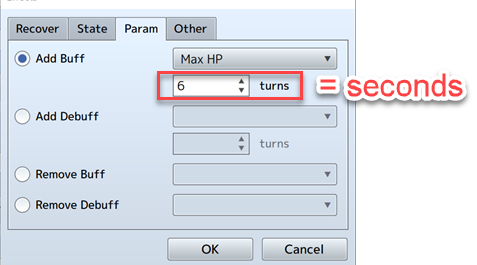
When the ABS system is Active: 1 turn = 1 second (Map Scene only)
In Menu or Default Battle: Buffs work as usual with turn-based timing
- Parameter modifications (ATK, DEF, etc.) apply immediately
- Duration countdown happens in real-time seconds instead of turns
- Visual indicators show remaining time
- Stacking rules follow standard RPG Maker mechanics
To create an ABS State, add <ABS> to a State's Note field in the database.
<ABS>
</ABS>
- Standard Battle: ABS States work normally in default battle system
- ABS Rules: Special timing and behavior only apply on Map Scene with ABS enabled
- Backward Compatible: Non-ABS states continue working as usual
ABS States have unique removal rules that differ from standard RPG Maker timing:
When: Remove At Battle End is checked
Trigger: State is removed when ABS system is turned OFF
Script: After calling uAPI.pauseABS()
When: Auto-Removal Timing = Turn End
Trigger: State is removed after Duration in Turns seconds
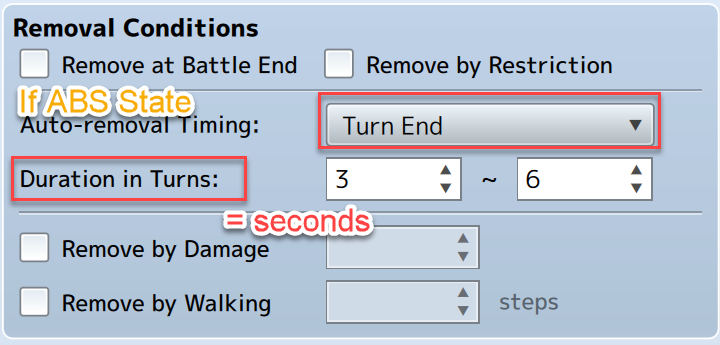
Example: Duration = 10 means the state lasts for 10 seconds in ABS mode
When: Auto-Removal Timing = Action End
Trigger: State is removed after Duration in Turns actions performed
Actions Include: Attacks, skills, item usage
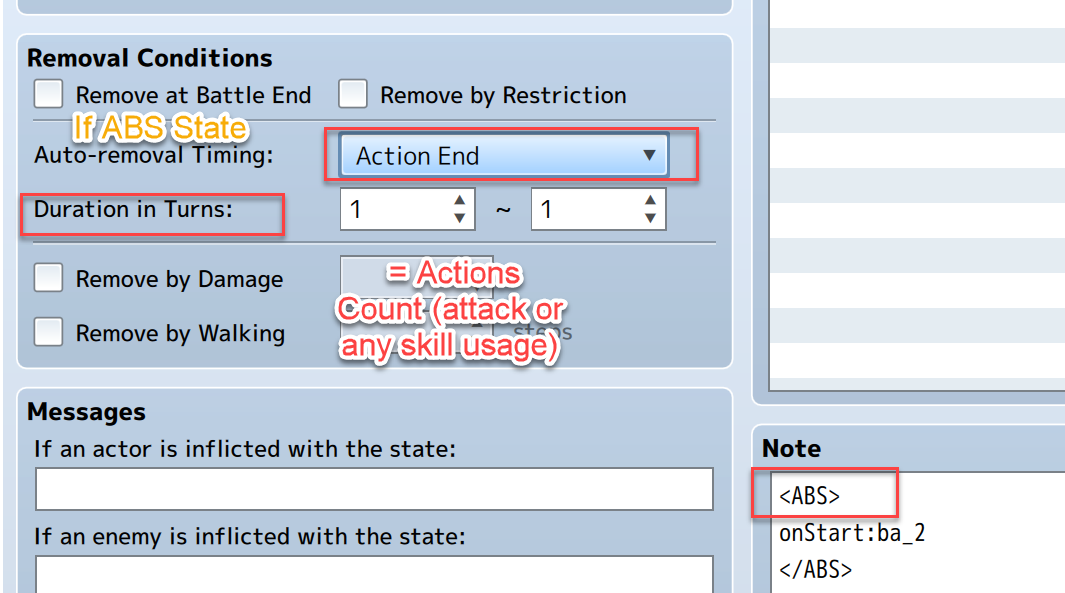
Example: Duration = 3 means the state lasts for 3 actions (attacks/skills/items)
- Action Count (if Action End timing)
- Time Limit (if Turn End timing)
- Battle End (if ABS system disabled)
- Manual Removal (via script or other effects)
Since version 0.7.5, you can create stun effects using the Cannot Move restriction.
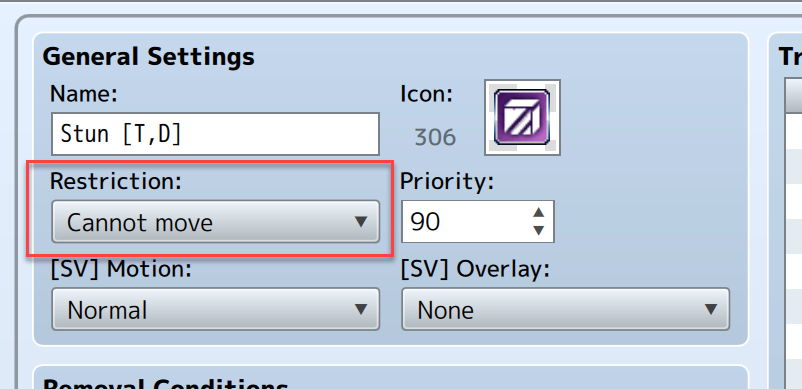
- Movement Blocked: Character cannot move using directional input
- Actions Allowed: Character can still perform skills and attacks
- Visual Feedback: Character sprite may show restricted animation
- Duration: Follows normal state removal rules (time or action-based)
- Crowd Control: Prevent enemy movement while allowing counterplay
- Puzzle Mechanics: Create movement-based challenges
- Combat Strategy: Tactical positioning effects
Other restriction options work as usual (Cannot Use Magic, Cannot Use Skills, etc.)
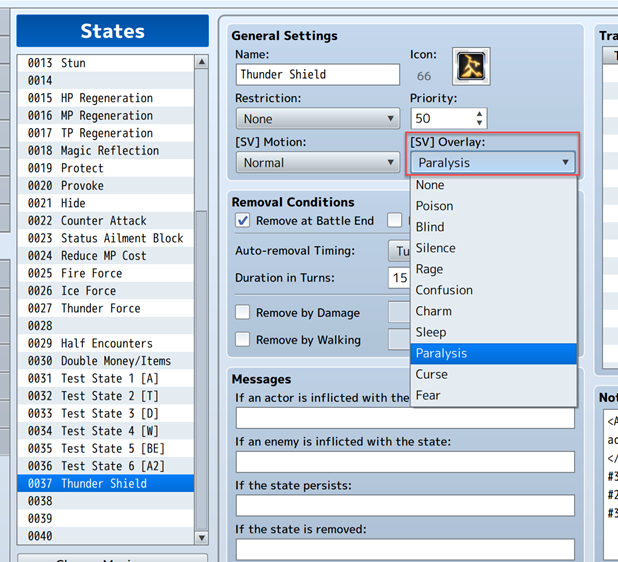
Since version 0.7, you can use State [SV] Overlay animations for visual effects.
Poison Effect
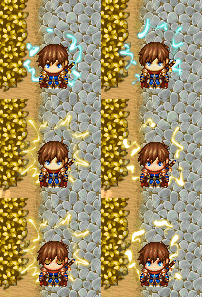
Fire/Burn Effect
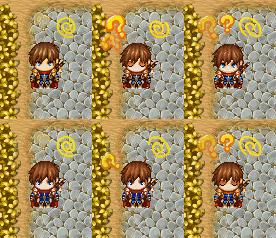
Since version 0.9, you can use custom overlay images with the <svOverlay:NAME> notetag.

-
Location: Place in
img/pictures/folder - Size: 768 x 96 pixels total
- Format: 8 frames of 96 x 96 pixels each
- Animation: Frames play in sequence automatically
<ABS>
<svOverlay:MyCustomEffect>
</ABS>
This will use img/pictures/MyCustomEffect.png as the overlay animation.
✅ Use appropriate colors that contrast with game environments
✅ Keep animations subtle to avoid visual clutter
✅ Test visibility on different map backgrounds
✅ Consider performance when using many animated overlays
You can define custom ABS parameters in the Note section for enhanced state behavior. Parameters without <> must be placed between <ABS> and </ABS> tags.
// X - Number value
// Z - Boolean value (1 = True, 0 = False)
// S - Text/String value
// A - Script Action (see SActions guide)| Parameter | Type | Description | Example | Default |
|---|---|---|---|---|
onStart:A |
Script Action | Executes when state is applied | <onStart:se_Bell1,an_50> |
- |
onEnd:A |
Script Action | Executes when state is removed | <onEnd:ef_shake_5> |
- |
onTick:A |
Script Action | Executes every second while active | <onTick:an_75> |
- |
activeSkill:X,X,X |
Skill ID, Rate, Radius (0 - self) | Auto-cast skill during state | <activeSkill:25,2,3> |
- |
speedMod:X |
Float | Modifies movement speed | <speedMod:0.5> |
- |
<svOverlay:S> |
String | Custom overlay image name | <svOverlay:PoisonEffect> |
- |
Use ABS Script Actions (SActions) for advanced behavior:
<ABS>
onStart:se_StateApply,ba_1     // Play sound + show balloon when applied
onTick:an_68                   // Show damage animation every second
onEnd:ef_shatter_4_4,sw_10_true // Shatter effect + activate switch when removed
</ABS>Automatically executes a skill on targets while the state is active:
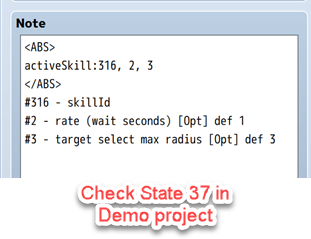
Parameters:
- SKILL_ID: Database skill ID to execute
- RATE: Execute once every X seconds (default: 1)
- RADIUS: Target selection radius in tiles (0 = self only)
Examples:
activeSkill:45,1,0    // Cast skill 45 on self every 1 second
activeSkill:78,3,2    // Cast skill 78 on targets within 2 tiles every 3 seconds
activeSkill:12,0.5,1 // Cast skill 12 on nearby targets twice per secondMultiplies character movement speed by the specified value:
speedMod:0.5   // Slow down by 50% (half speed)
speedMod:1.2   // Speed up by 20% (1.2x speed)
speedMod:0.1   // Nearly immobilized (very slow)
speedMod:2.0 // Double speed<svOverlay:PoisonBubbles>
<ABS>
onStart:se_Poison
activeSkill:89,2,0 // Cast poison damage skill every 2 seconds on self
speedMod:0.8 // Slightly slower movement
</ABS><ABS>
onStart:an_speed_boost,se_SpeedUp
speedMod:1.5 // 50% faster movement
onTick:an_75 // Show speed effect animation every second
onEnd:se_SpeedDown
</ABS><ABS>
onStart:ba_4 // Show heal balloon
activeSkill:91,3,0 // Cast heal skill every 3 seconds
onTick:an_heal_sparkle
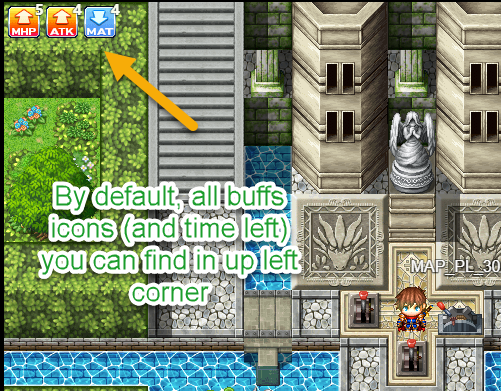
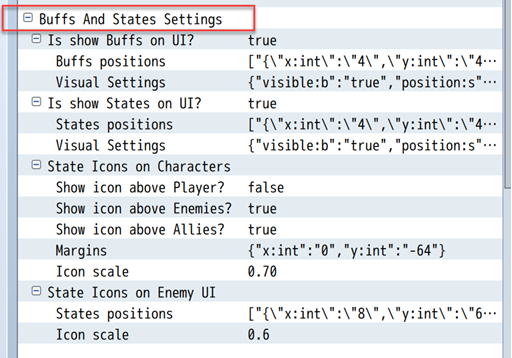
</ABS>Character active buffs and debuffs are displayed in the top-left corner by default.
Enemy states appear on the Enemy Info UI when targeting or hovering over enemies.
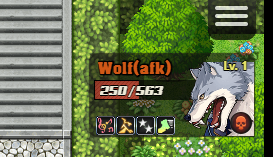
For detailed enemy UI customization, see the Enemy Info (UI) guide.
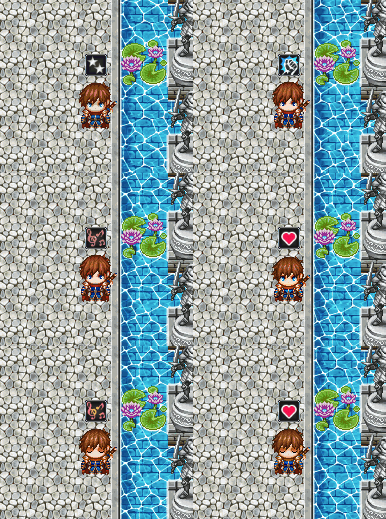
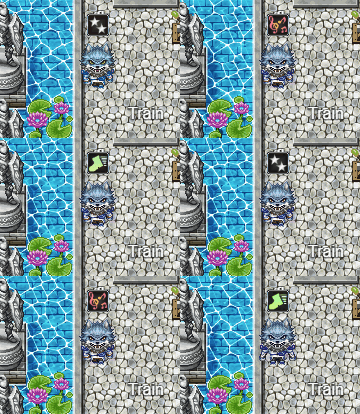
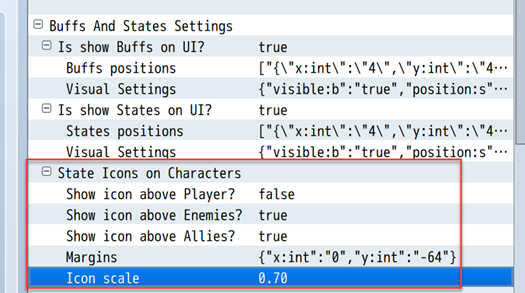
Since version 0.7.5, states can optionally appear above characters on the map.
Player States Above Character
Enemy States Above Character
Plugin Parameters Configuration
You can customize the appearance and behavior of states/buffs by editing NUI style files in the data\AABSZ\ folder.
| File | Purpose | Description |
|---|---|---|
NUI_CharacterBuffItem.json |
Individual buff icon styling | Size, text, effects for buff icons |
NUI_CharacterStateItem.json |
Individual state icon styling | Size, text, effects for state icons |
NUI_CharacterBuffsContainer.json |
Buff container layout | Position, spacing, max count for buffs |
NUI_CharacterStatesContainer.json |
State container layout | Position, spacing, max count for states |
- Size: Adjust icon dimensions (default: 32x32)
- Spacing: Control distance between icons
- Maximum Count: Limit number of visible icons
- Text Overlays: Show remaining time/actions
- Container Position: Move entire buff/state area
- Individual Spacing: Adjust gaps between icons
- Above Character: Enable floating state icons
- Margins and Offsets: Fine-tune positioning
- Outline Effects: Add borders to icons
- Text Formatting: Customize fonts, colors, sizes
- Animation: Control fade-in/out effects
- Background: Add background images or colors
// In NUI_CharacterBuffItem.json
"bindings": {
    "size": {
        "width": 40,   // Larger than default 32
        "height": 40
    }
}// In NUI_CharacterStatesContainer.json
"bindings": {
"position": {
"x": "center", // Center horizontally
"y": "10hdp" // 10 pixels from top
}
}// In container files
"constants": {
"maxElements": 12, // Show up to 12 instead of 8
"itemPosition": {
"x": "prevEndX + 4", // Closer spacing
"y": "center"
}
}❌ Icons not showing
- Check Plugin Parameters for states/buffs display settings
- Verify NUI files are not corrupted
- Ensure state icons are assigned in database
❌ Text not displaying correctly
- Check font settings in NUI files
- Verify text color contrasts with background
- Ensure font files are available
❌ Position issues
- Use browser developer tools to inspect elements
- Test with different screen resolutions
- Check for conflicting plugin effects
✅ Keep it readable: Don't make icons too small or cluttered
✅ Test thoroughly: Check visibility in different game scenarios
✅ Backup originals: Save copies before modifying NUI files
✅ Use consistent styling: Match your game's visual theme